
Library & shelves
Editing a book
Correct book details, set your own cover, reload metadata or move a book to a different shelf.
Device
Changing details
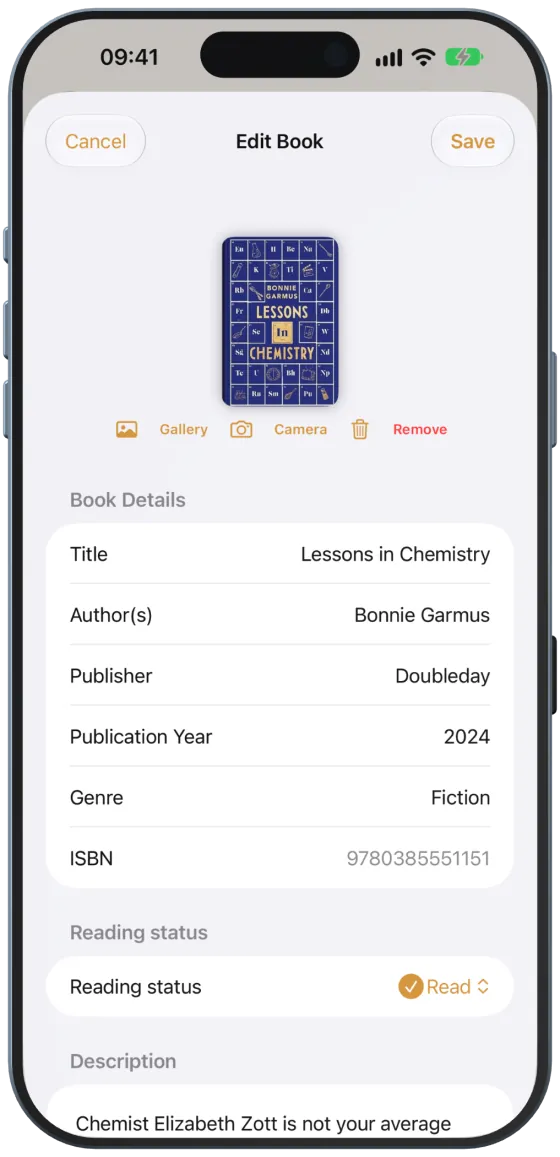
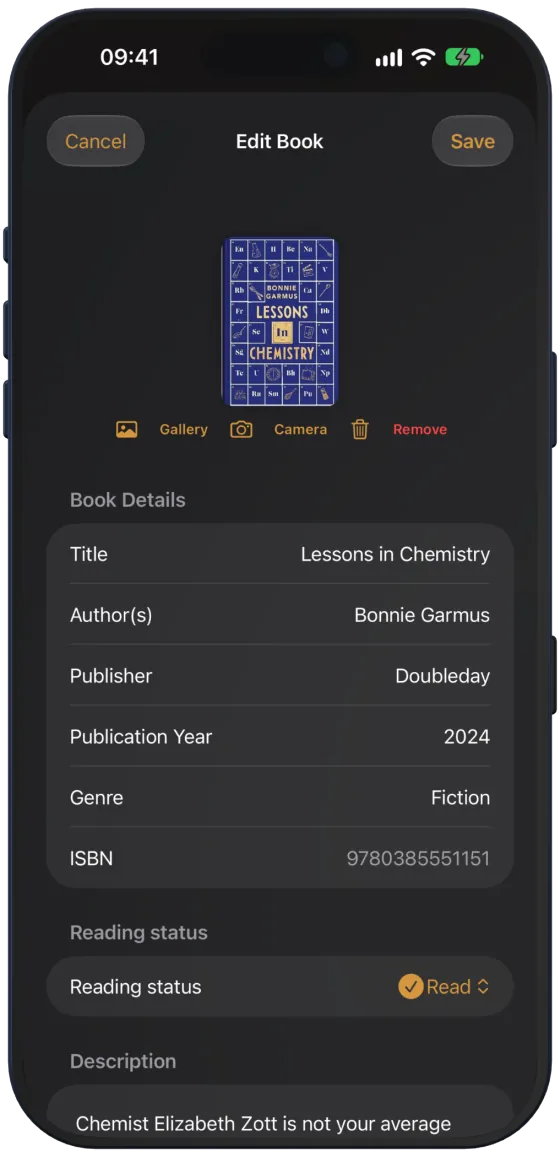
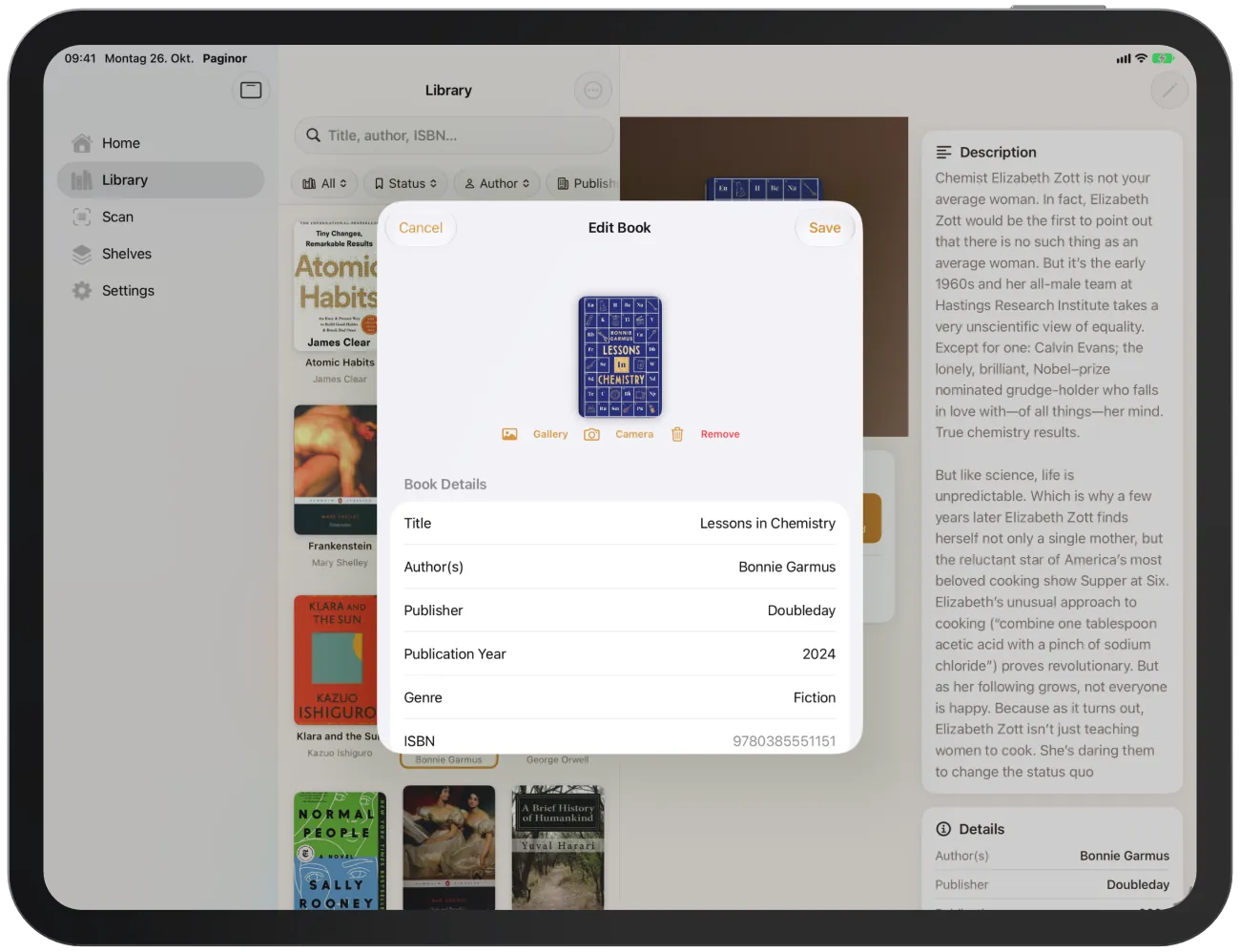
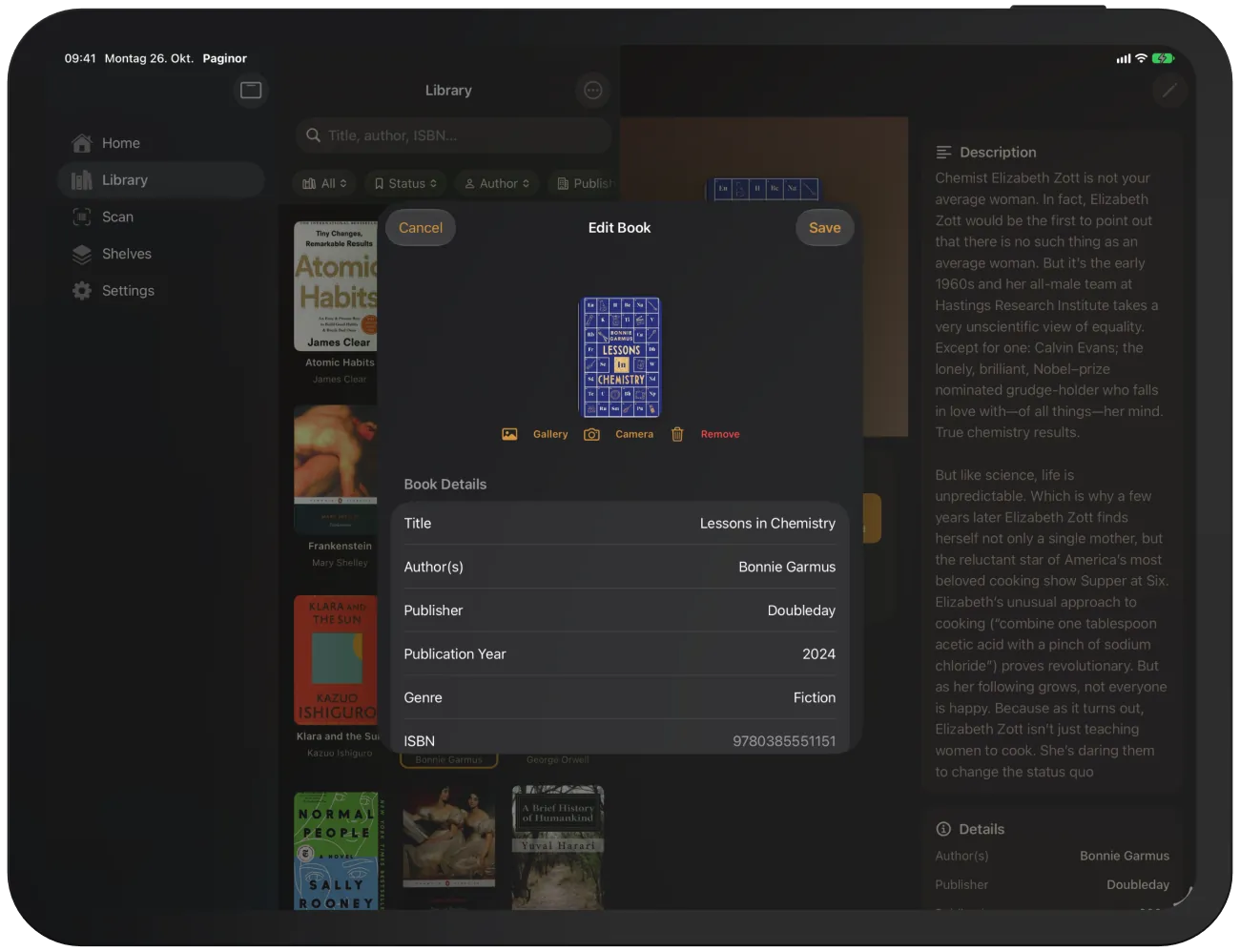
- Open a book and tap the pencil at the top right (“Edit Book”).
- Change the title, author(s), publisher, publication year, genre, reading status or description.
- Tap “Save”. “Cancel” discards all changes.
Note Paginor takes the subtitle, page count, language and original title from the book data. They cannot be edited.
Your own cover
- “Gallery” uses a photo from your photo library.
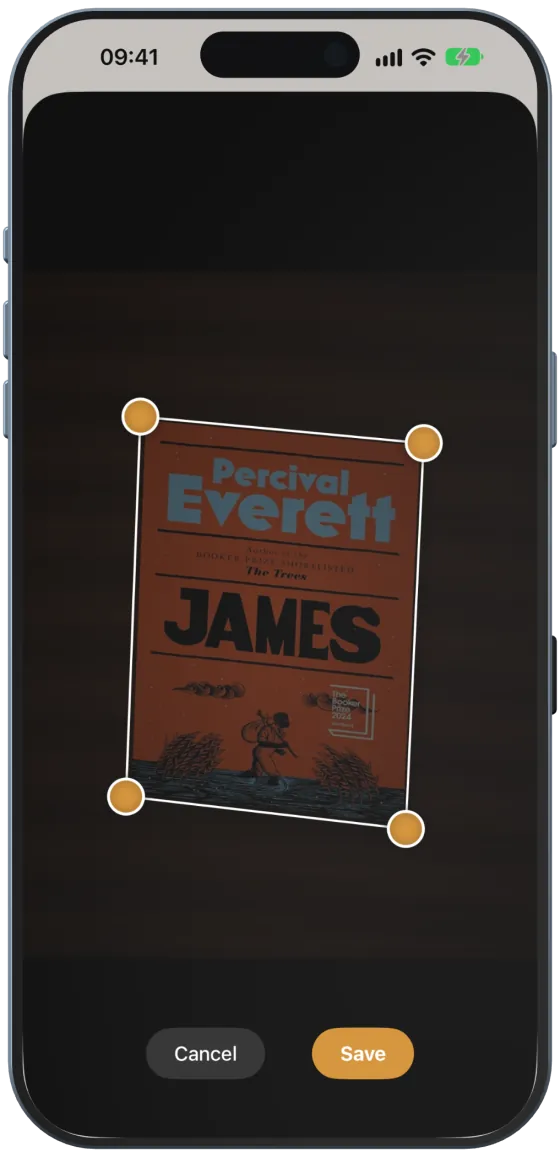
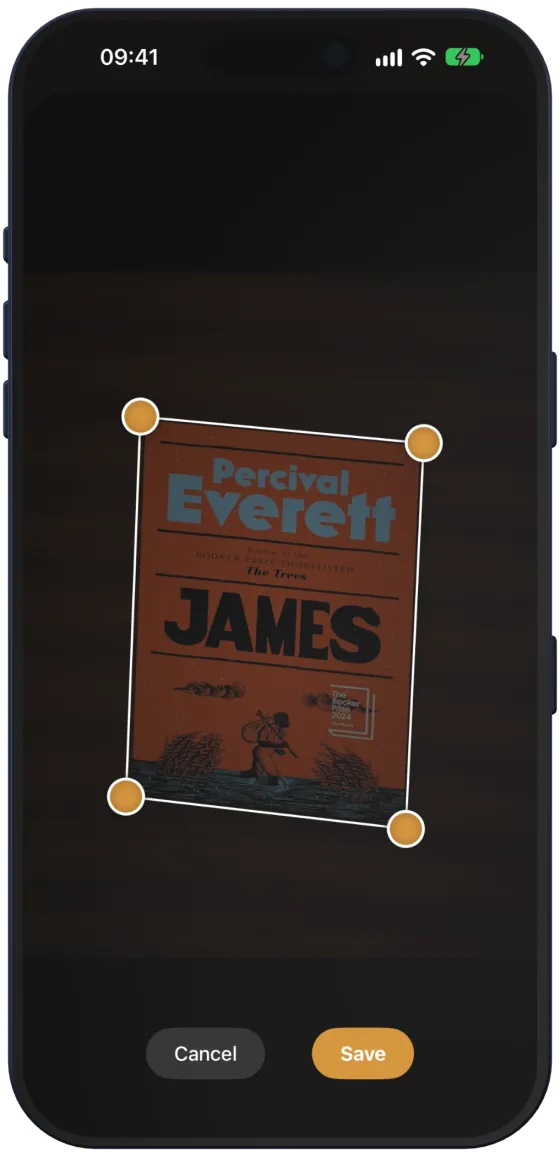
- “Camera” photographs the cover. Paginor detects the book, takes the picture automatically and then shows the crop view. Drag the four corners onto the corners of the book (a magnifier helps) and tap “Save”. Paginor straightens the image.
- “Remove” deletes your own cover.
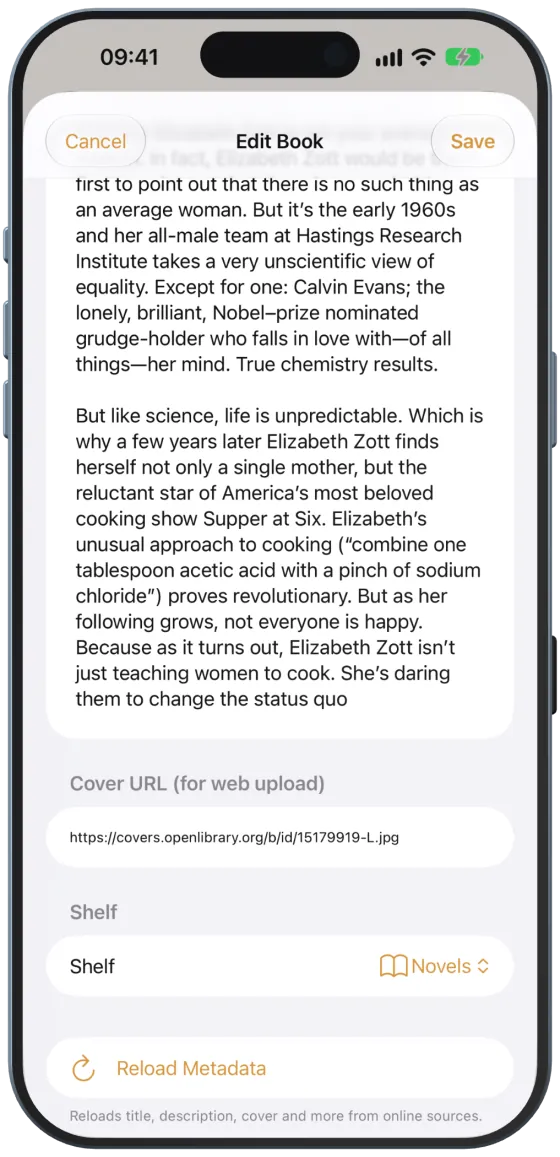
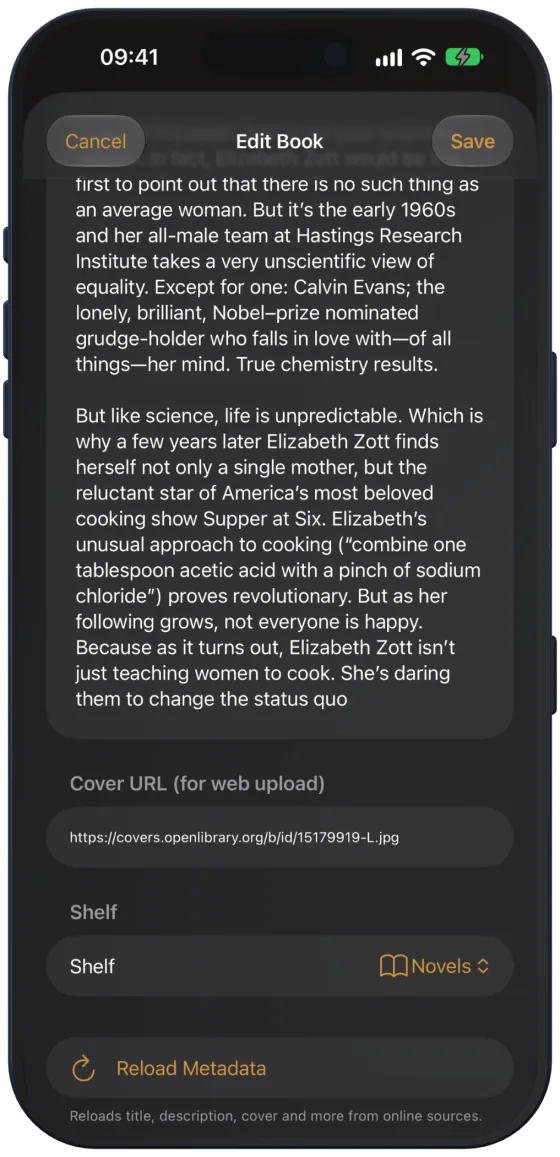
- “Cover URL (for web upload)” is an image address that Paginor uses when no cover of your own is saved.
Caution “Remove” deletes the cover immediately, even if you then choose “Cancel”.
Reloading metadata
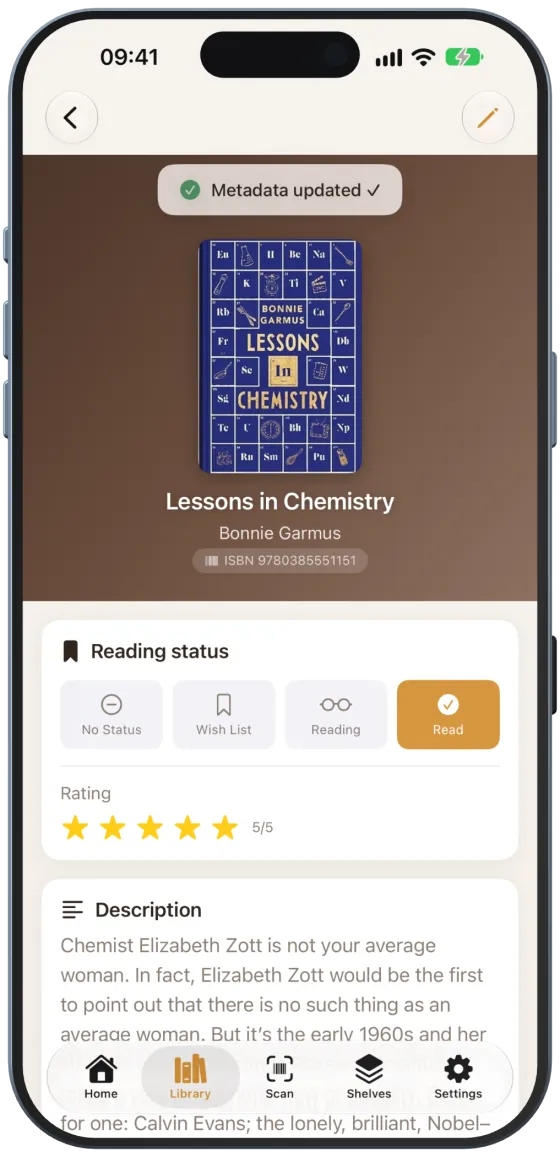
At the end of the form, “Reload Metadata” fetches the title, description, cover and other details again from the online sources. Paginor only takes details that are more complete than the existing ones. Then “Metadata updated ✓” appears. Nothing is saved until you tap “Save”.
Note The button only appears for books with an ISBN.

Moving to another shelf
Under “Shelf”, choose a different shelf or “No Shelf”. You can choose from all shelves you are allowed to edit.
Note If you move a book off a shared shelf, it disappears from that shelf for all members.