
Sharing & publishing
Upload Configuration
Here you set how the web pages get to their destination: encrypted via SFTP to your server or as a ZIP file.
Choosing the transfer method
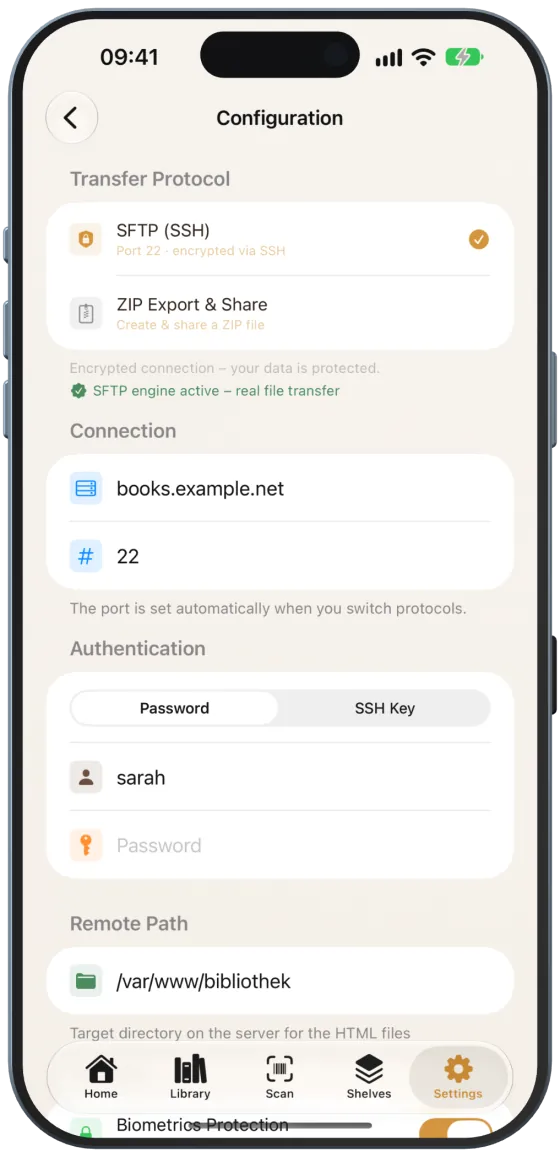
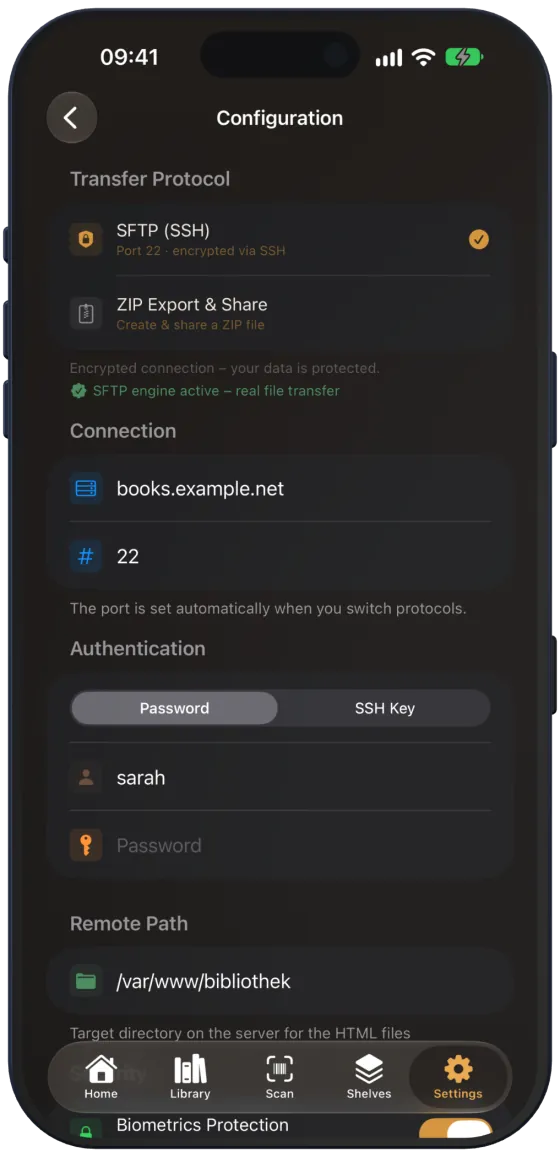
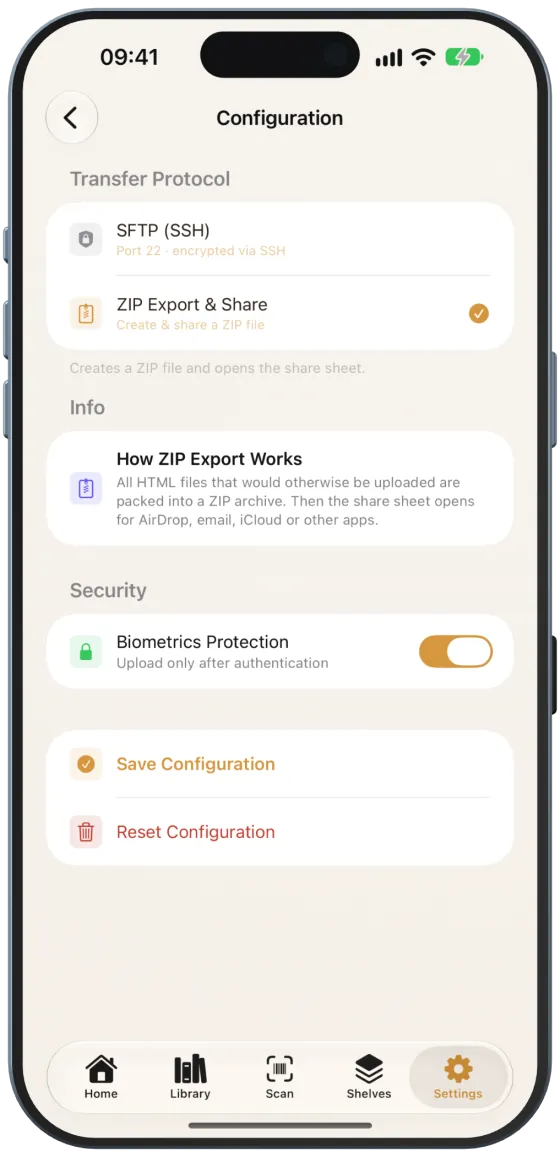
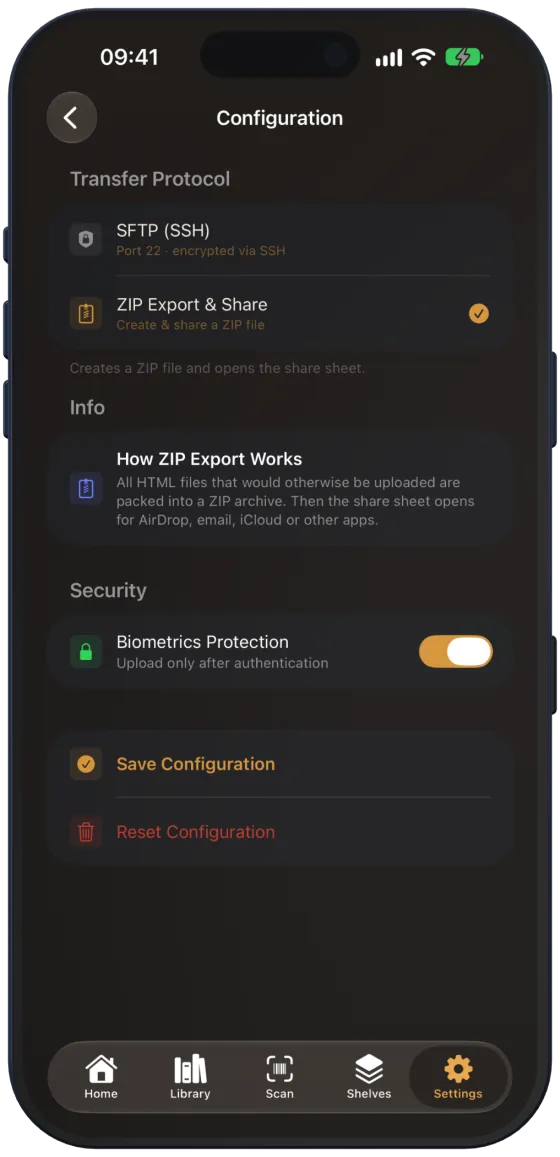
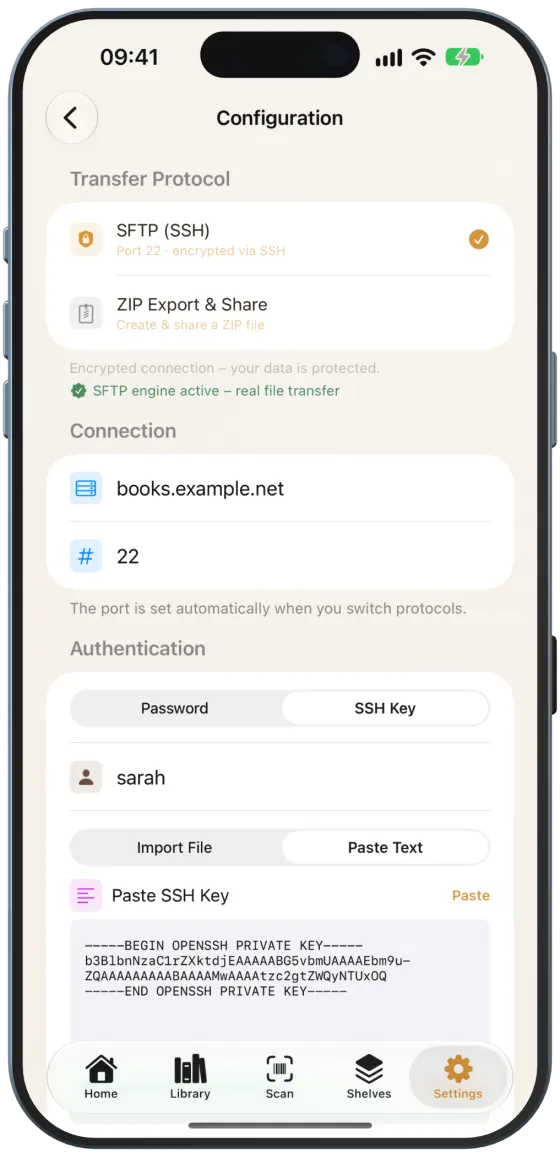
Open Settings › “Share Shelves” › “Configuration” and choose under “Transfer Protocol”:
- “SFTP (SSH)”: encrypted transfer directly to your web server.
- “ZIP Export & Share”: creates a ZIP file and opens the share sheet. Works without a server.
Entering an SFTP server
- “Connection”: host (e.g. myserver.com) and port. When you switch protocols, Paginor sets port 22.
- “Authentication”: “Password” or “SSH Key” and the “Username”.
- “Remote Path”: target directory on the server for the HTML files.
Note The password and key are stored in your device’s keychain.
Signing in with an SSH key
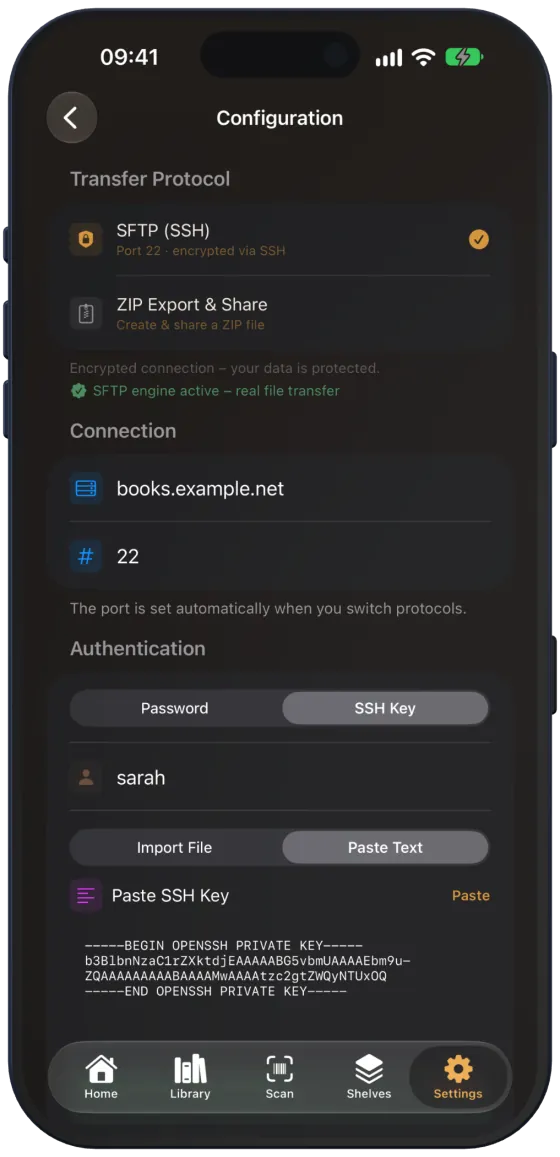
Choose “SSH Key” and then “Import File” or “Paste Text”. When pasting, “Paste from Clipboard” helps. A loaded key appears as “Key loaded” with its length and beginning; “Remove” deletes it.
Protecting uploads with Face ID
Under “Security”, “Face ID Protection” (or Touch ID) is on by default. Paginor then asks for your face or fingerprint before every upload. If biometrics are not set up, iOS asks for the device passcode.
Testing, saving, resetting
- “Test Connection” signs in to the server and shows the result.
- “Save Configuration” confirms with “Saved”.
- “Reset Configuration” resets all values and deletes the password and key – without asking.