Library & shelves
Shelves
Shelves organise your library, for example by genre, room or person. Each book is on at most one shelf.
The shelf list
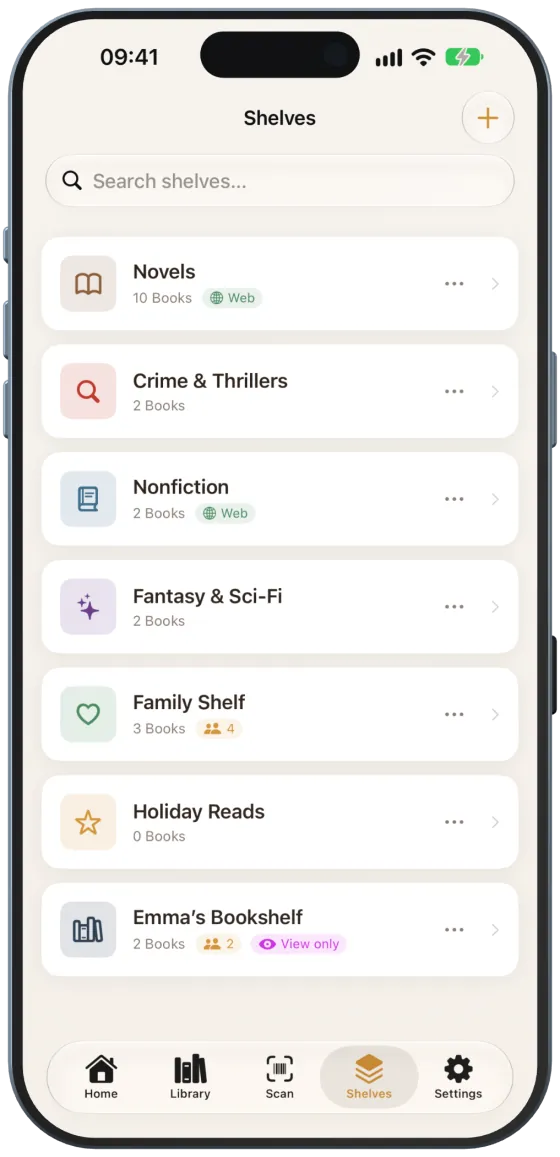
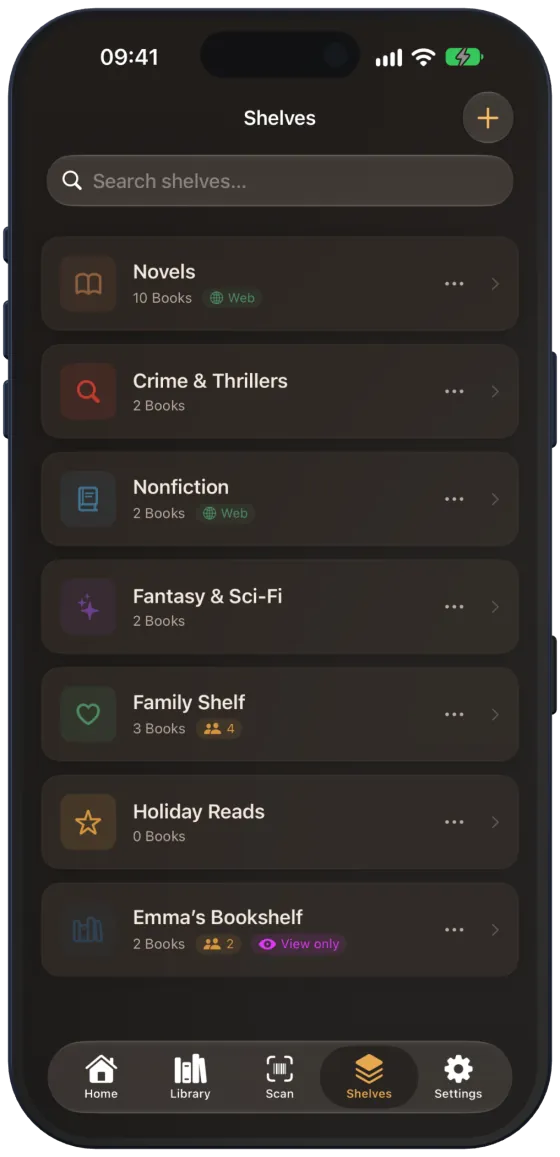
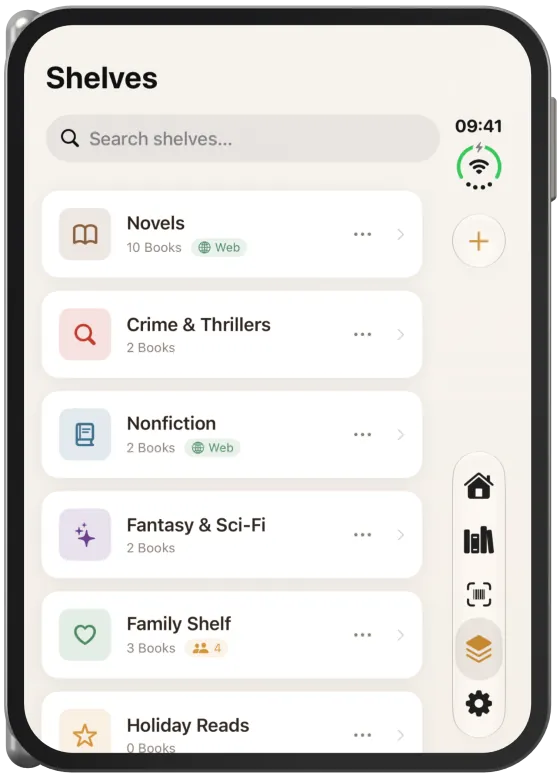
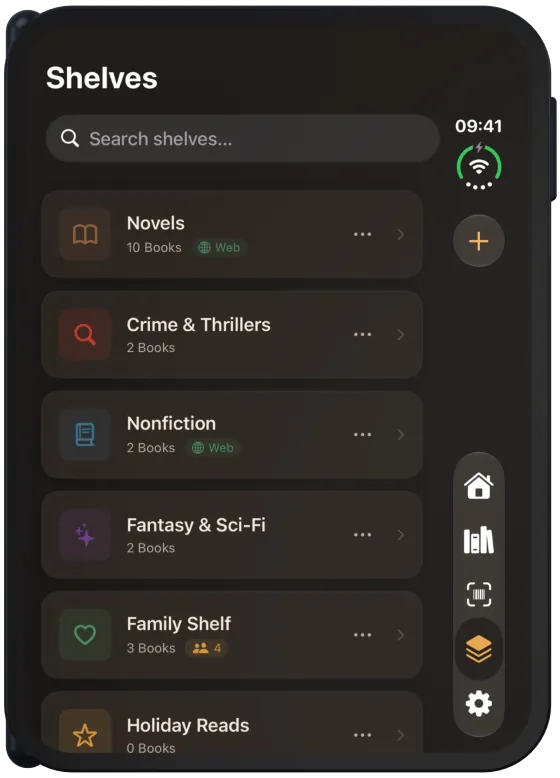
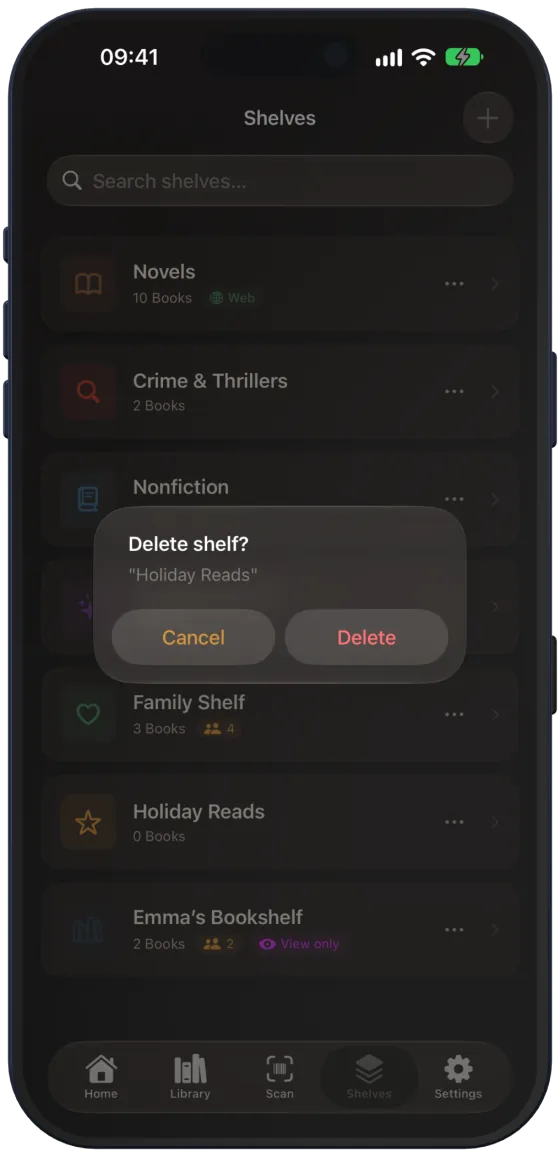
The “Shelves” tab shows all shelves with icon, colour and number of books. Labels show their state:
| Label | Meaning |
|---|---|
| 🌐 “Web” | shared on the website |
| 👥 with a number | shared via iCloud, number of members |
| ✎ “Editor” | another person’s shared shelf, you can contribute |
| 👁 “View only” | another person’s shared shelf, you can only view it |
The “Search shelves…” field finds shelves by name. Pull the list down to refresh the shared shelves.
Creating a shelf
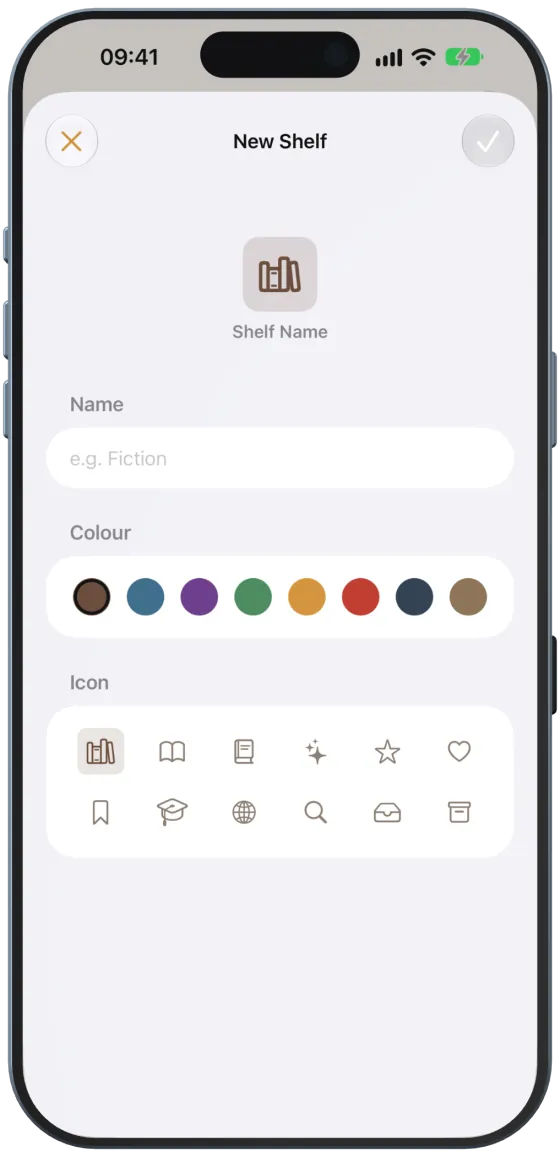
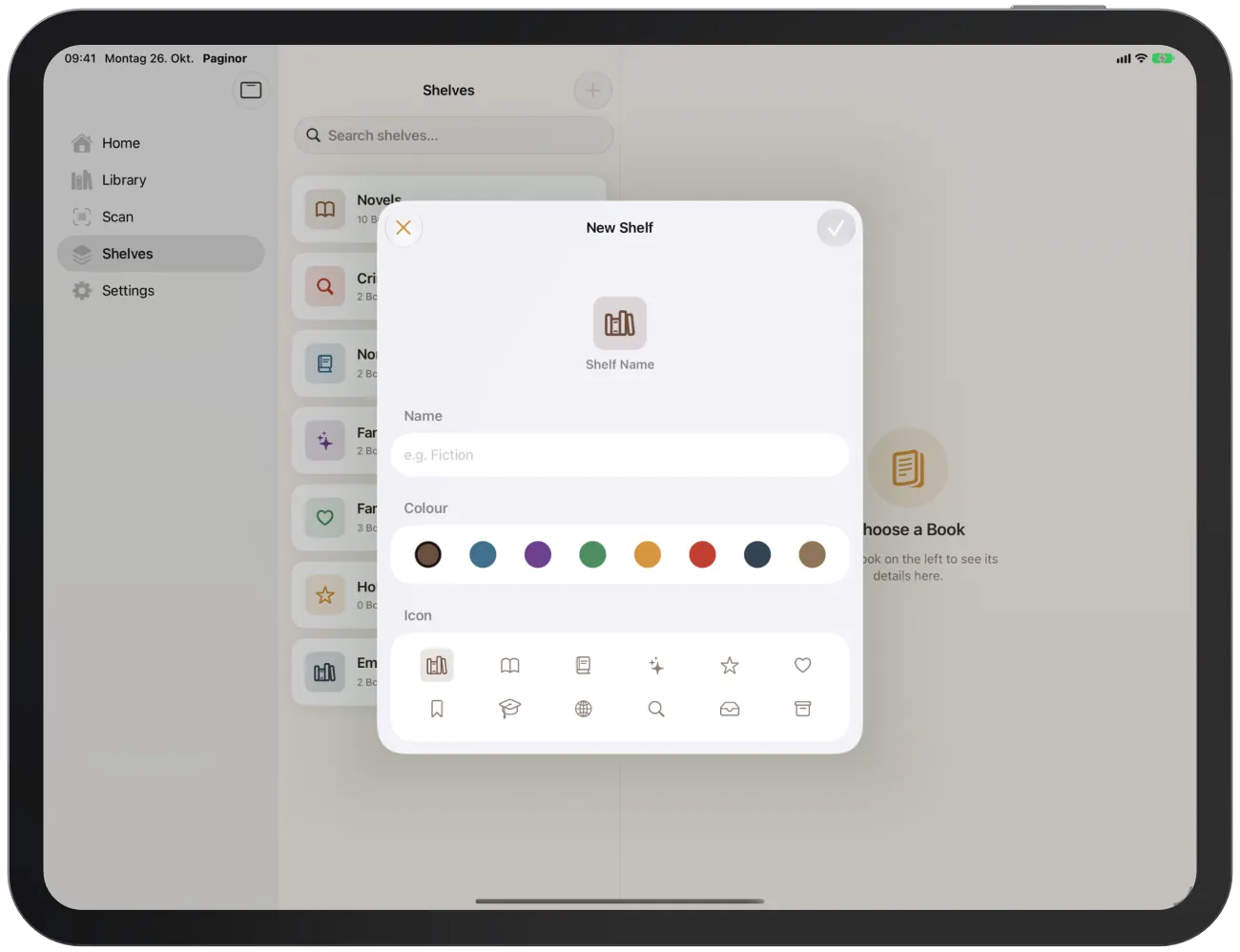
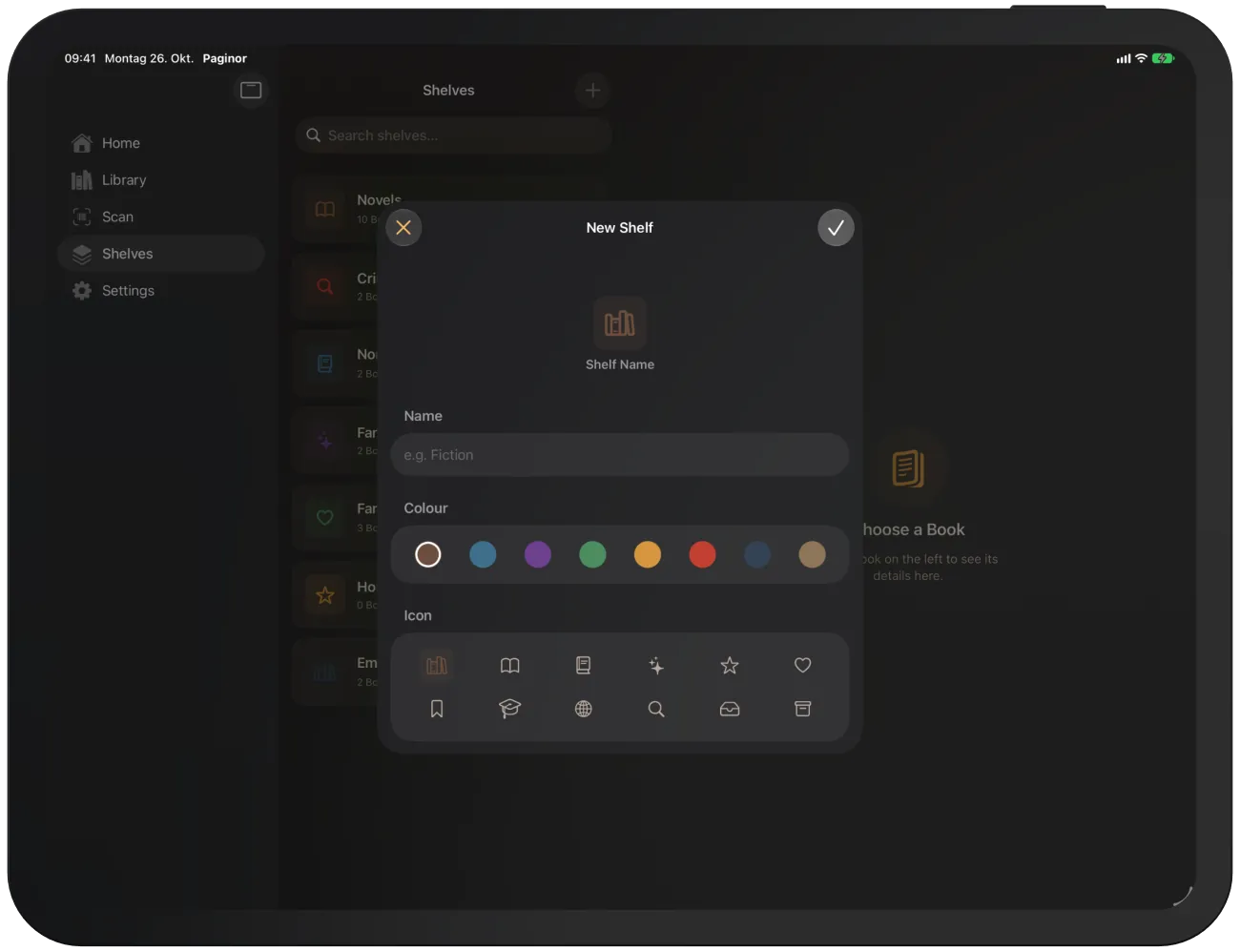
- In the “Shelves” tab, tap “+” (“New Shelf”) at the top right.
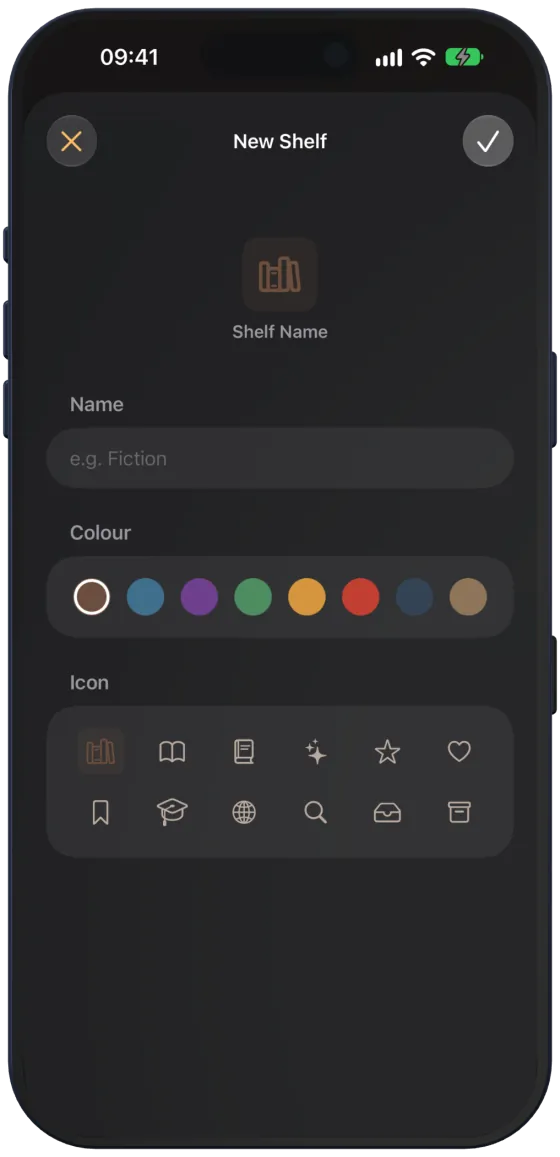
- Enter a name and choose one of eight colours and one of twelve icons.
- Tap the tick (“Save”).
Editing or deleting a shelf
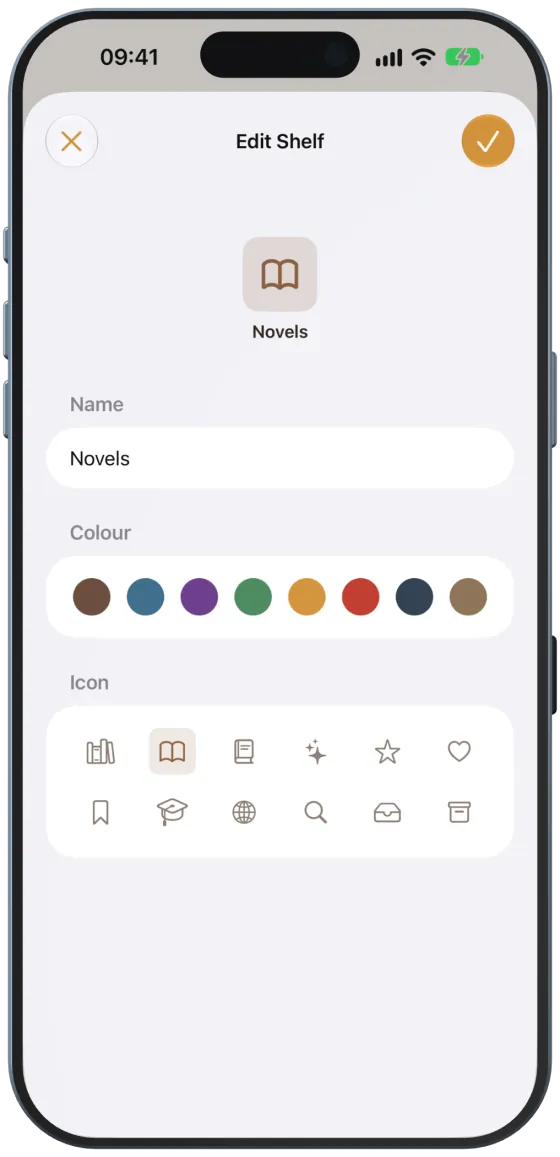
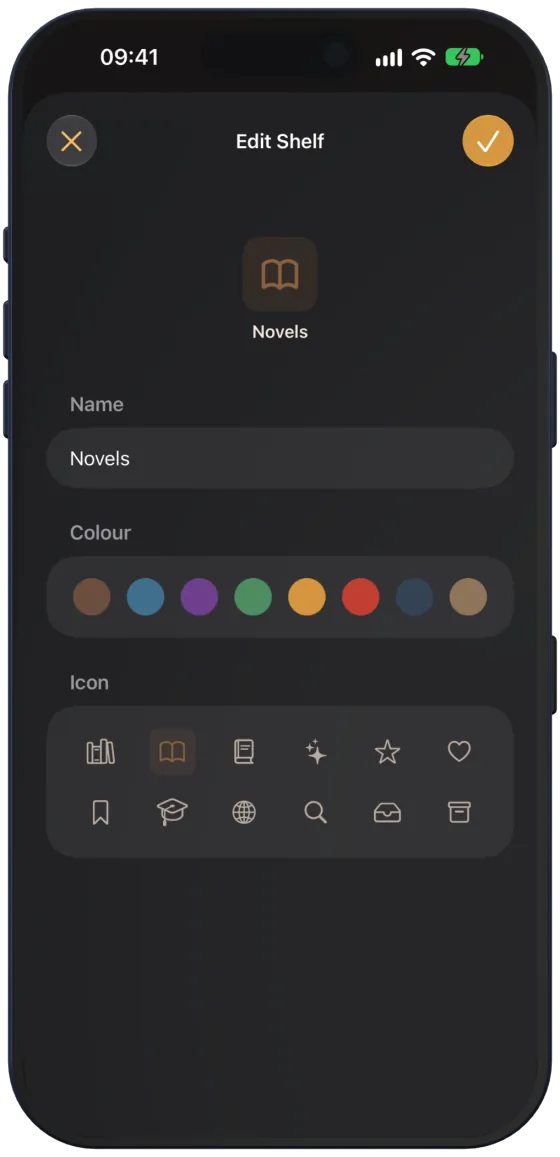
The “…” menu on each shelf contains, depending on your role:
| Item | Your own shelves | Editor | View only |
|---|---|---|---|
| “Share” or “Members” | ✓ | – | – |
| “Edit” | ✓ | ✓ | – |
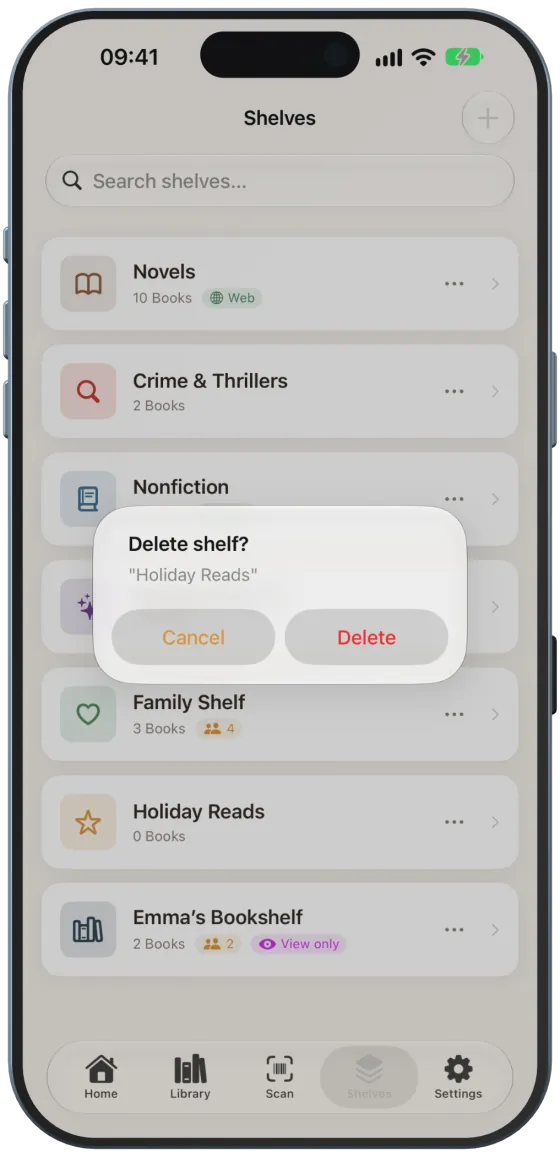
| “Delete” | ✓ | – | – |
| “Gift Check” | – | ✓ | ✓ |
When you delete a shelf, its books are kept and then appear under “Unassigned”.
Opening a shelf
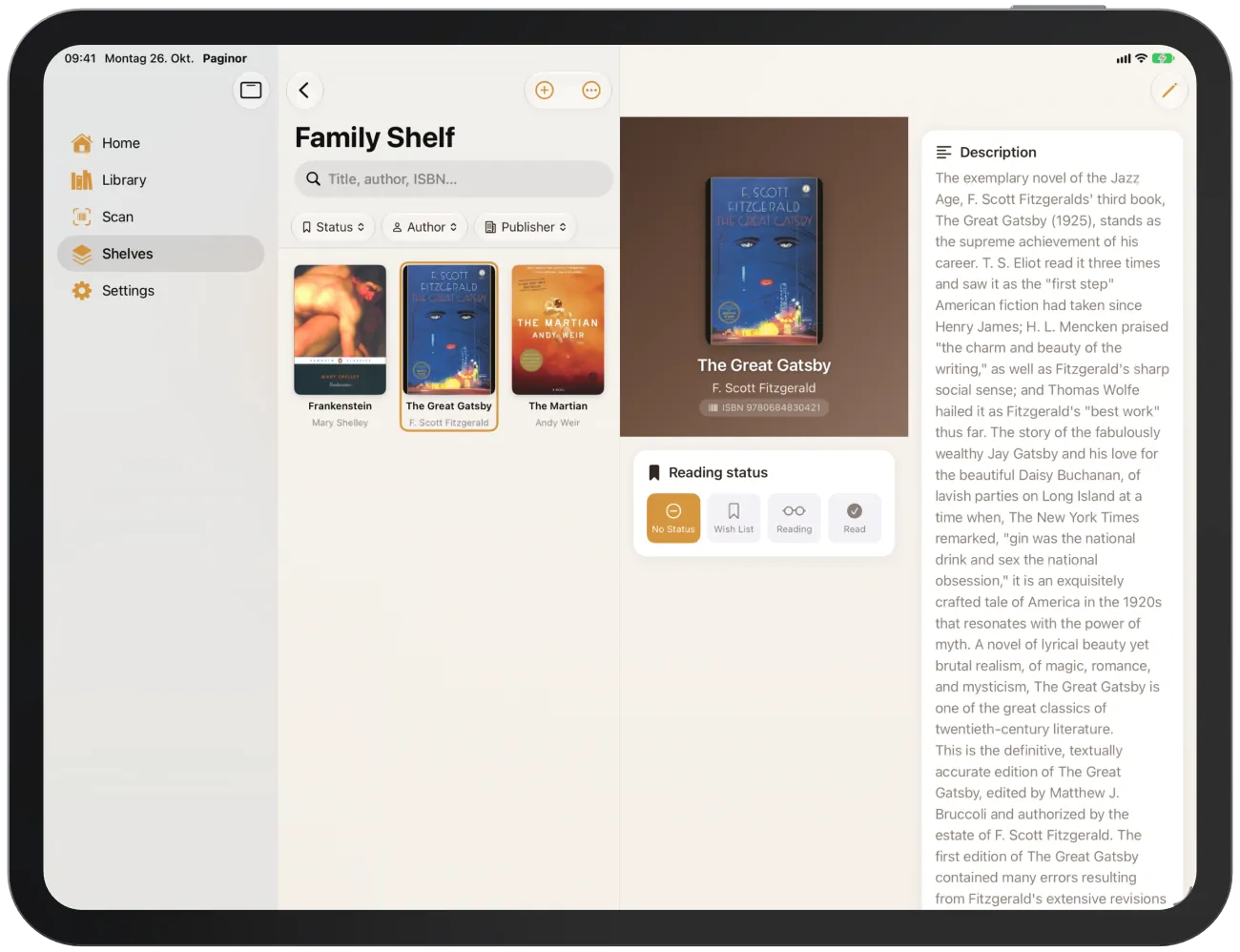
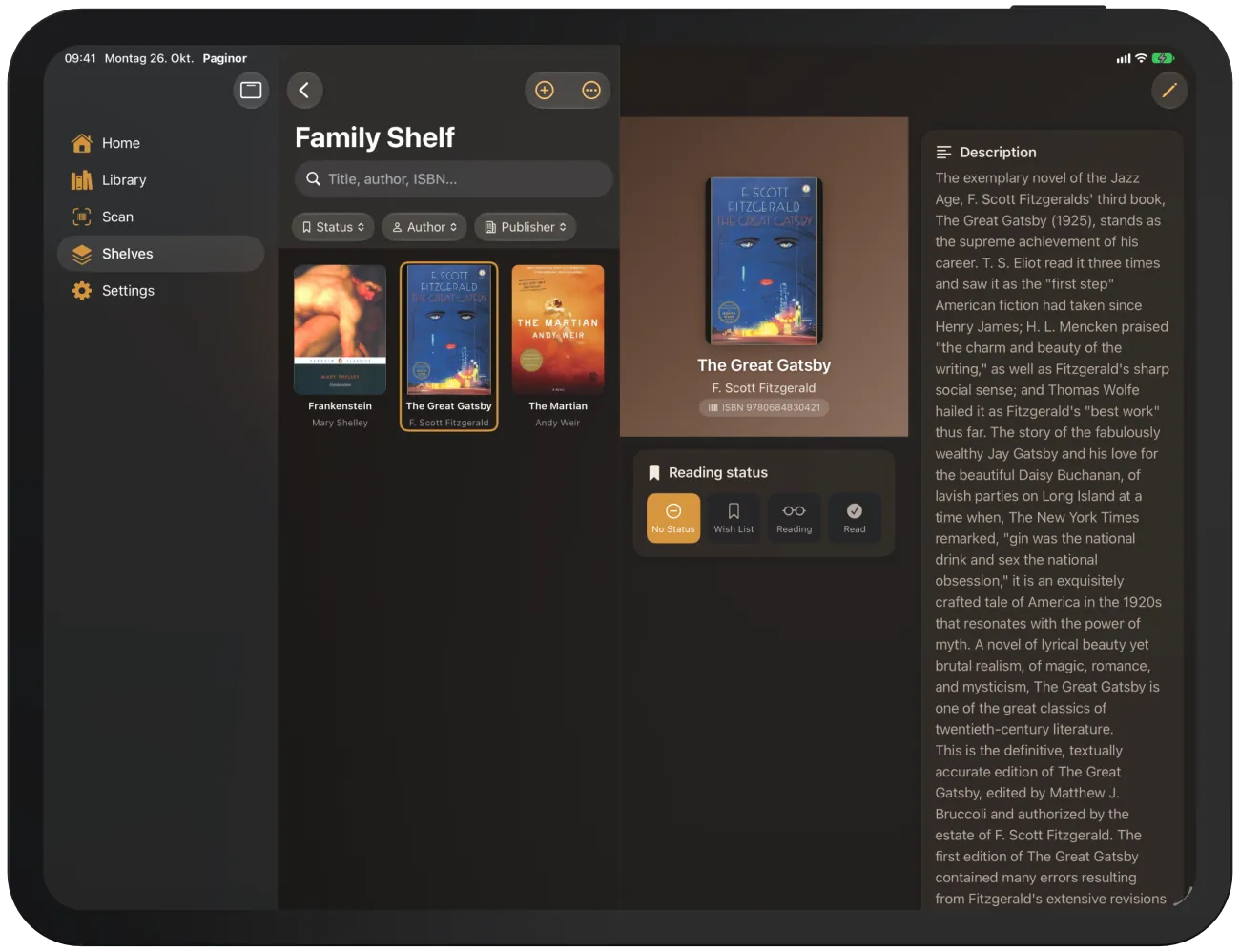
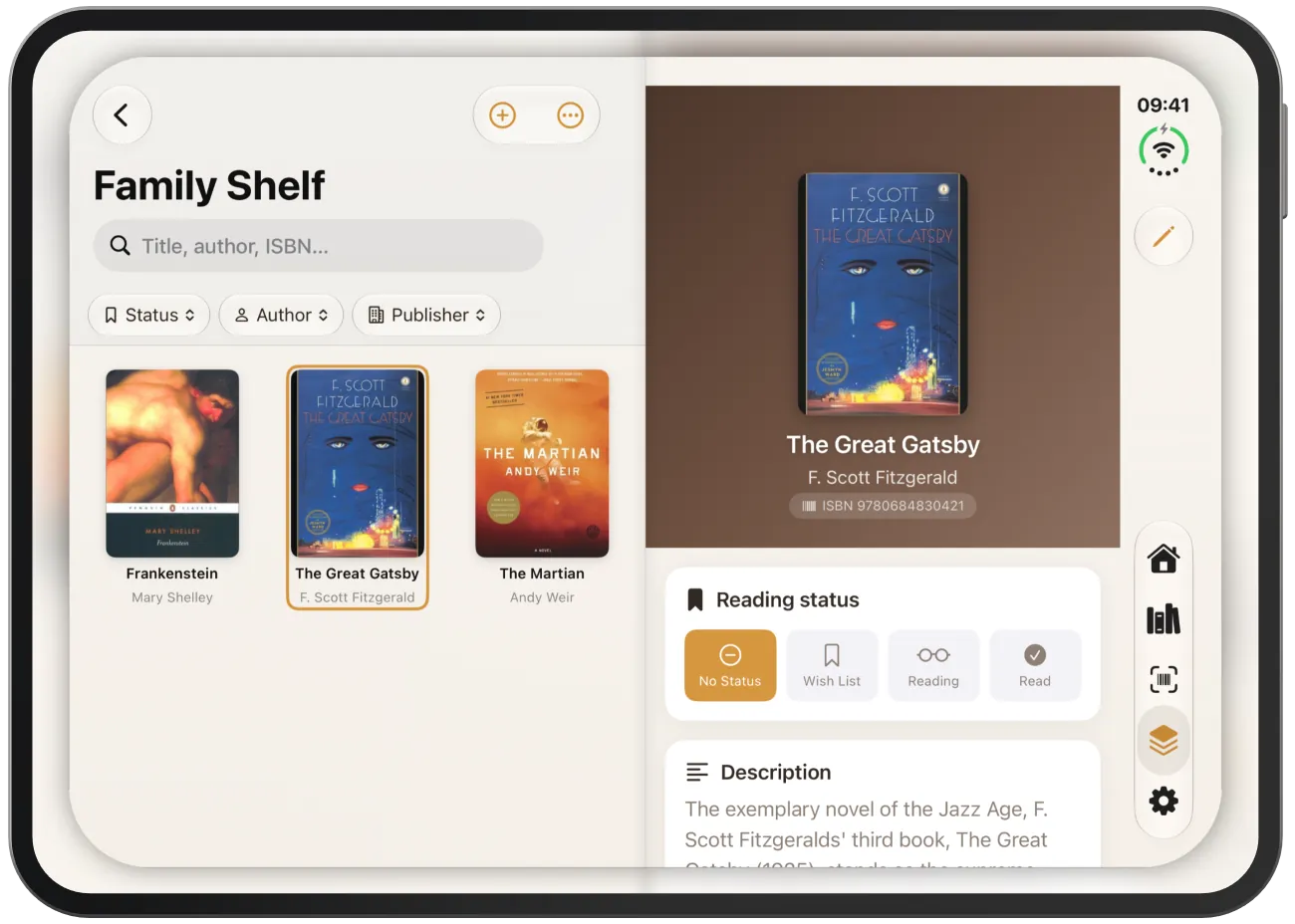
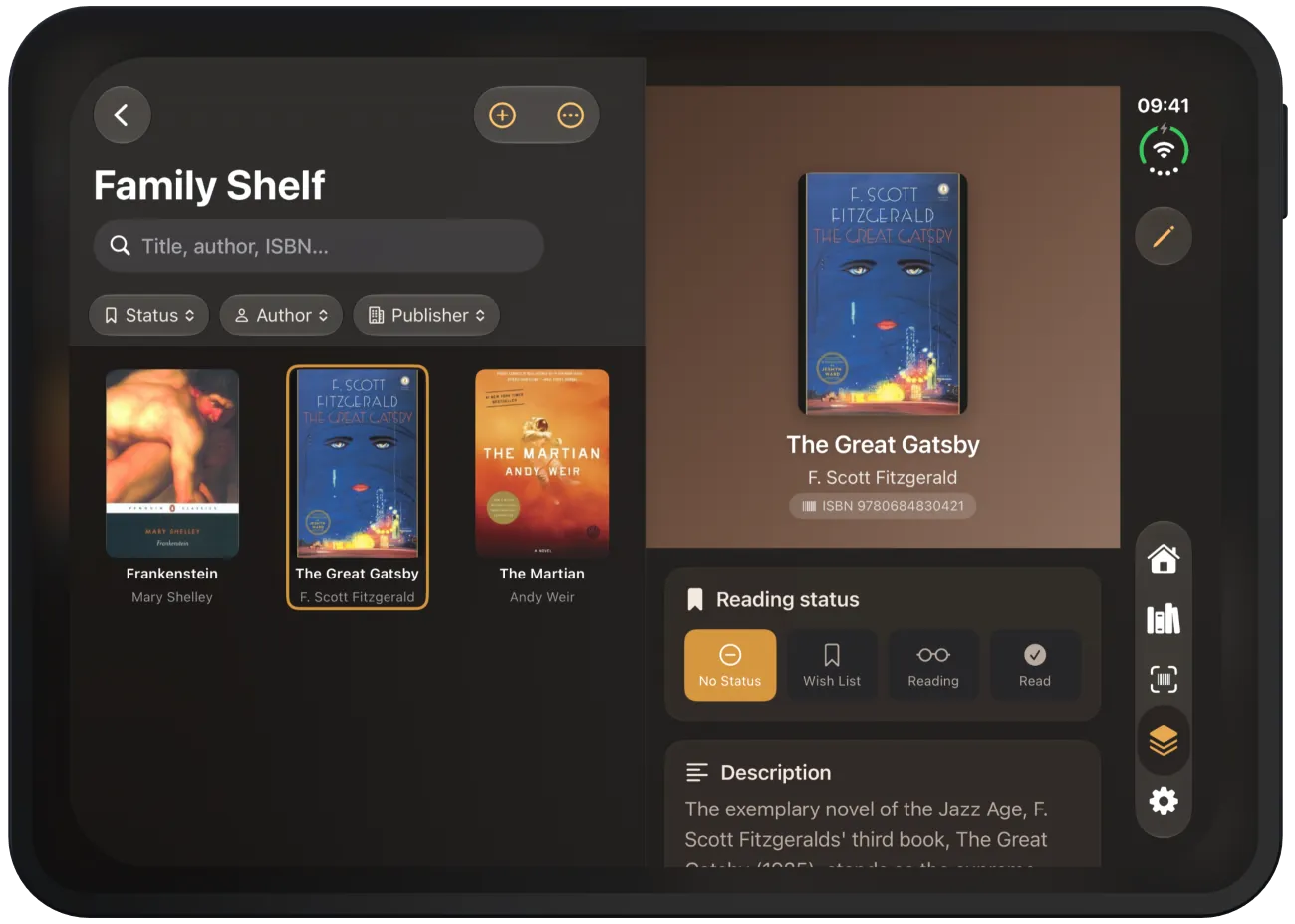
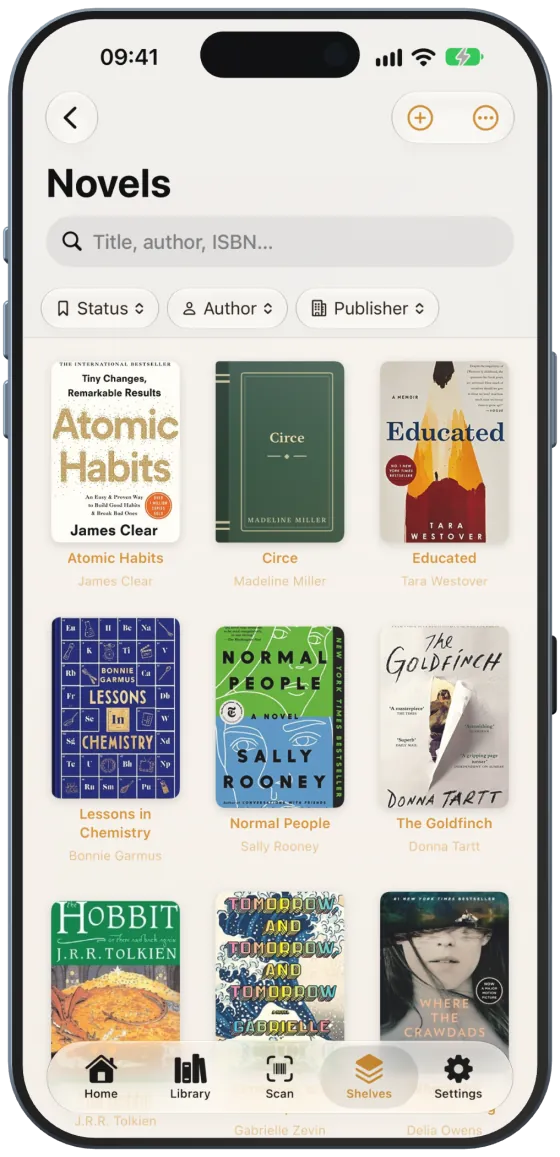
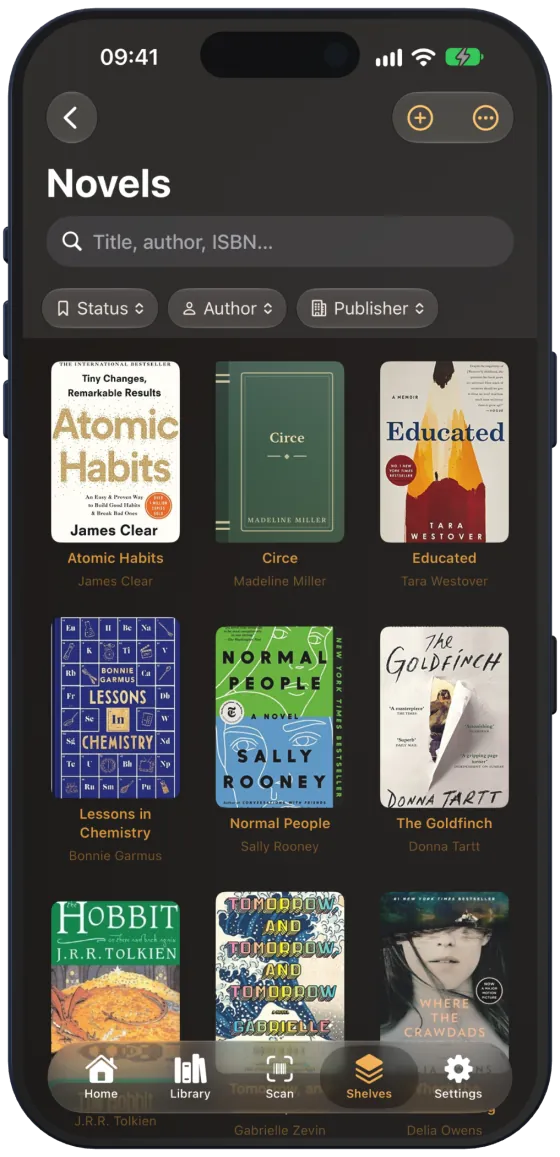
Tap a shelf to see its books with search, the “Status”, “Author” and “Publisher” filters and the “View” menu for grid, list and sort order. In the grid, you delete a book with a long press; in the list, by swiping.
Adding books to a shelf
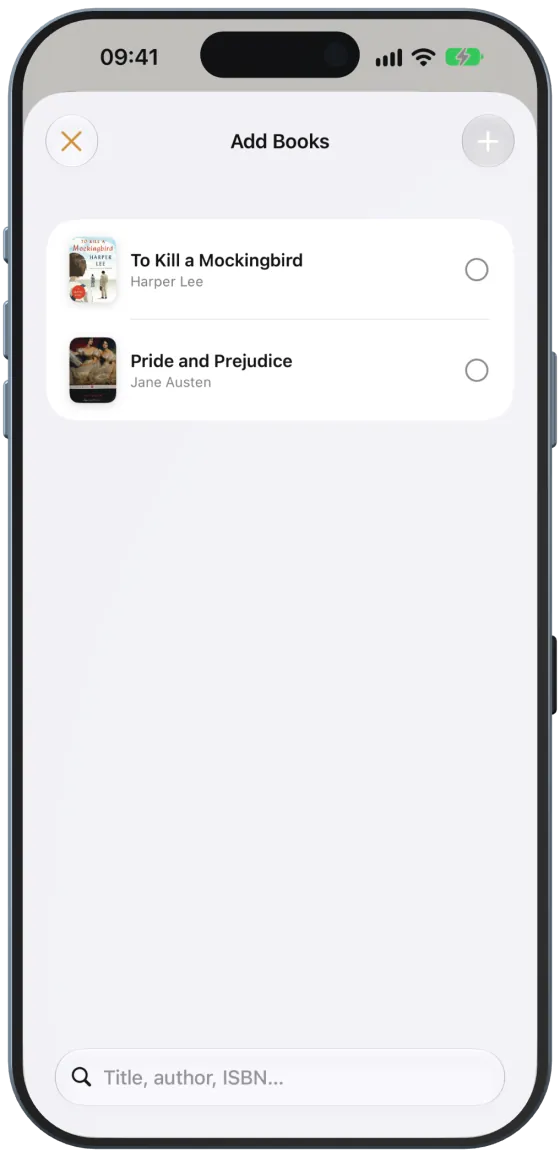
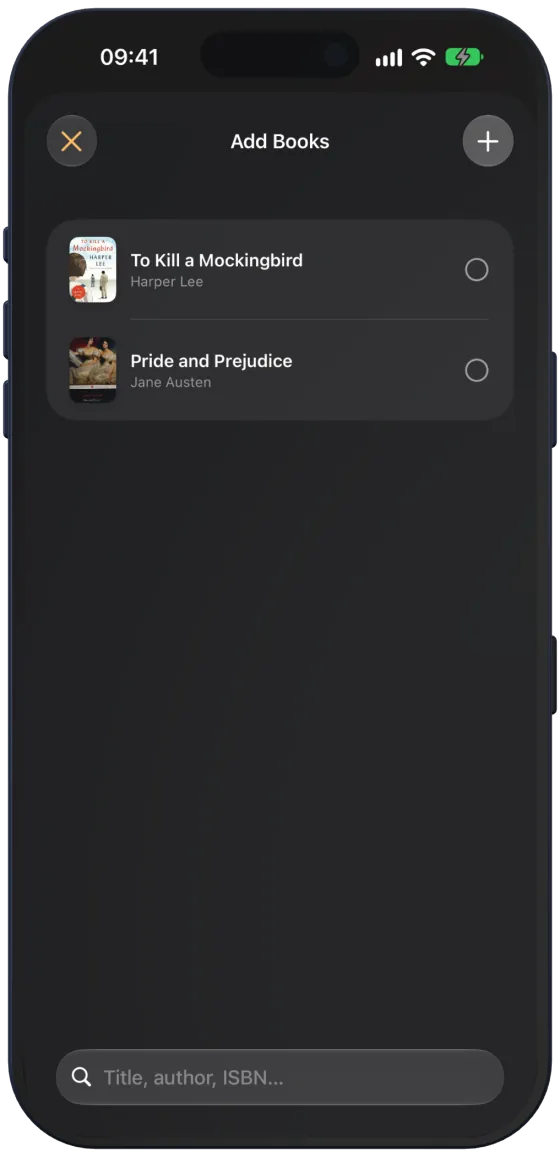
If there are books without a shelf, “Add Books” appears at the top of the shelf. Tick the books you want and tap “Add (n)”.
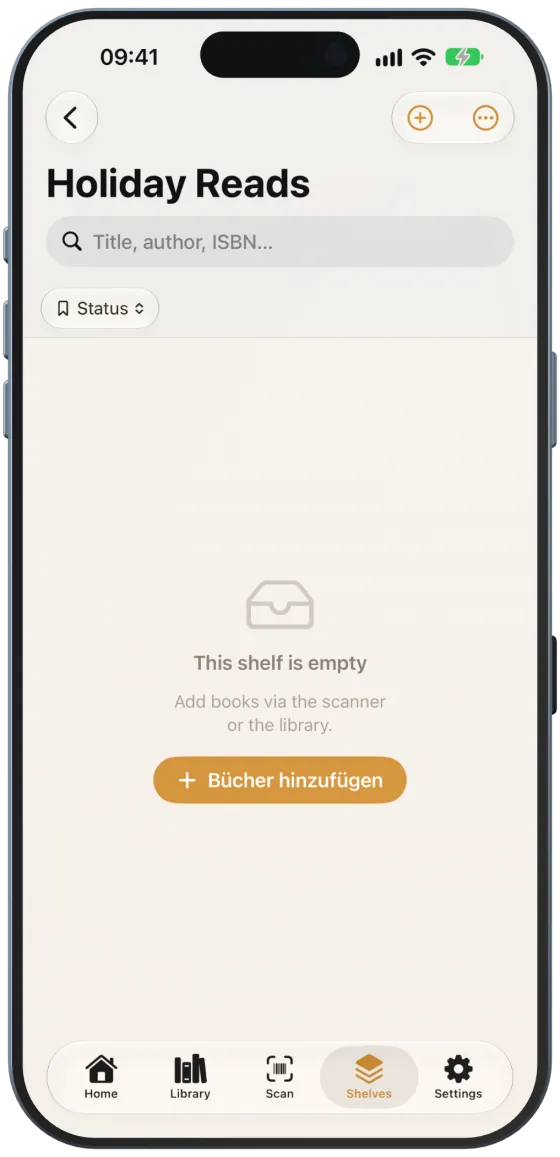
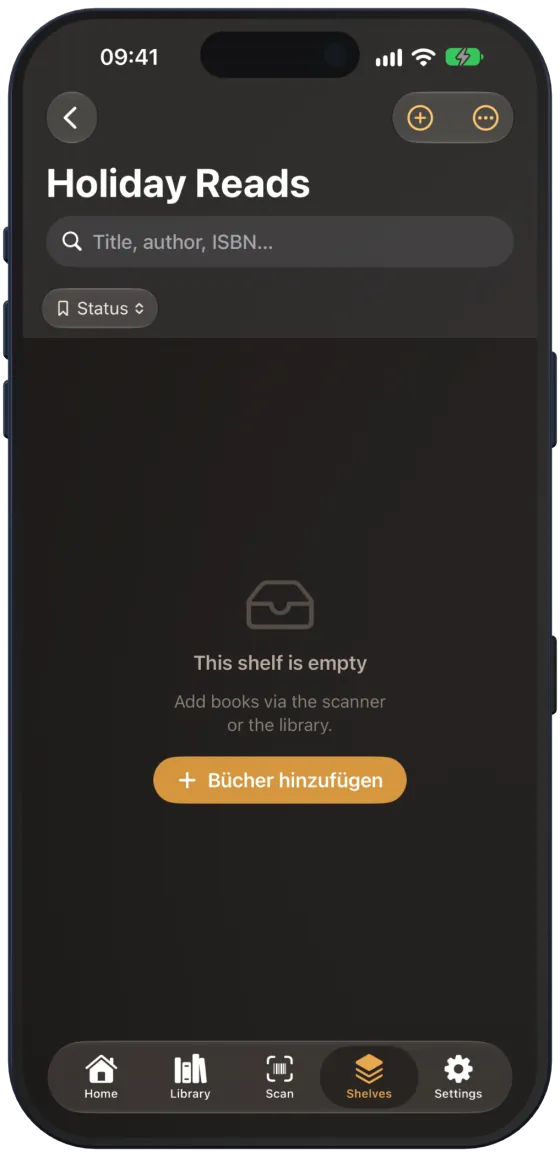
An empty shelf shows “This shelf is empty”. You can then add books via the scanner, the “Edit Book” form or “Add Books”.