Adding books
Entering an ISBN
Without a barcode or a camera, you can look up a book by its ISBN and check the details before saving.
Device
Searching by ISBN
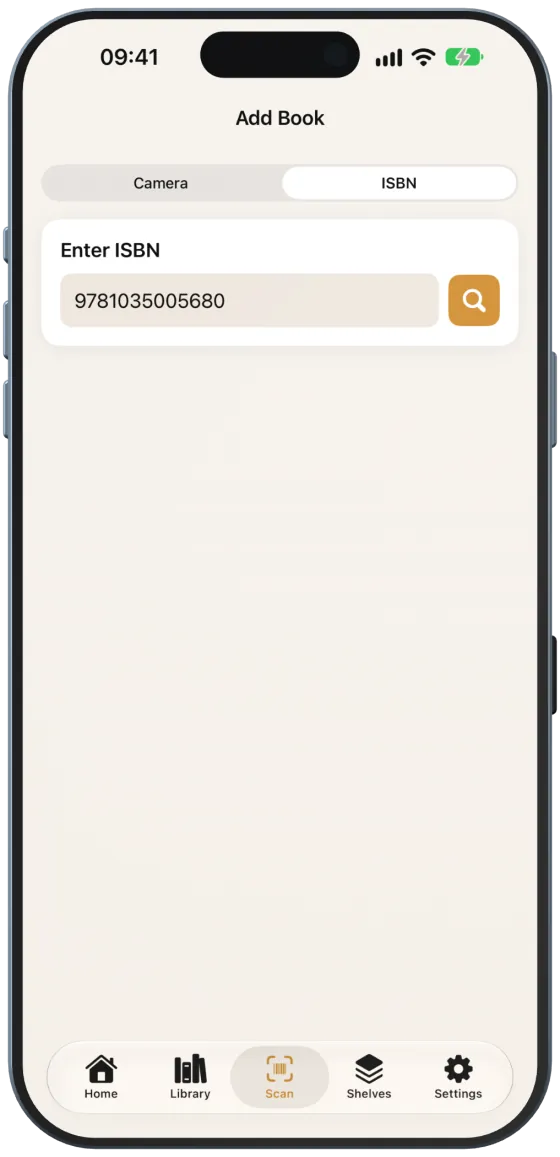
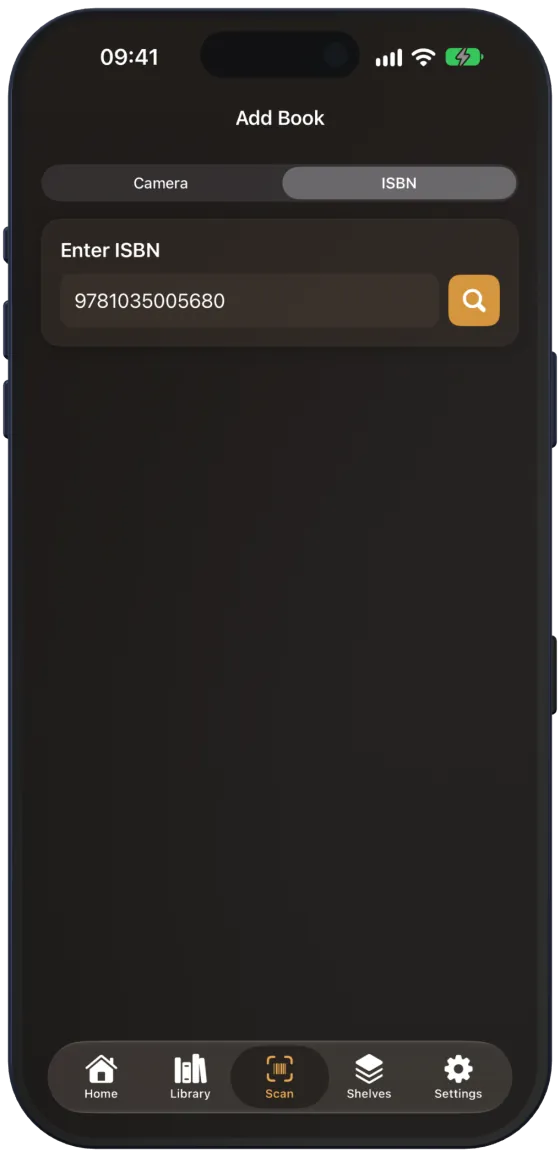
- Open the “Scan” tab and choose “ISBN” at the top.
- Under “Enter ISBN”, type the 10- or 13-digit number. Hyphens and spaces don’t matter.
- Tap the magnifying glass.
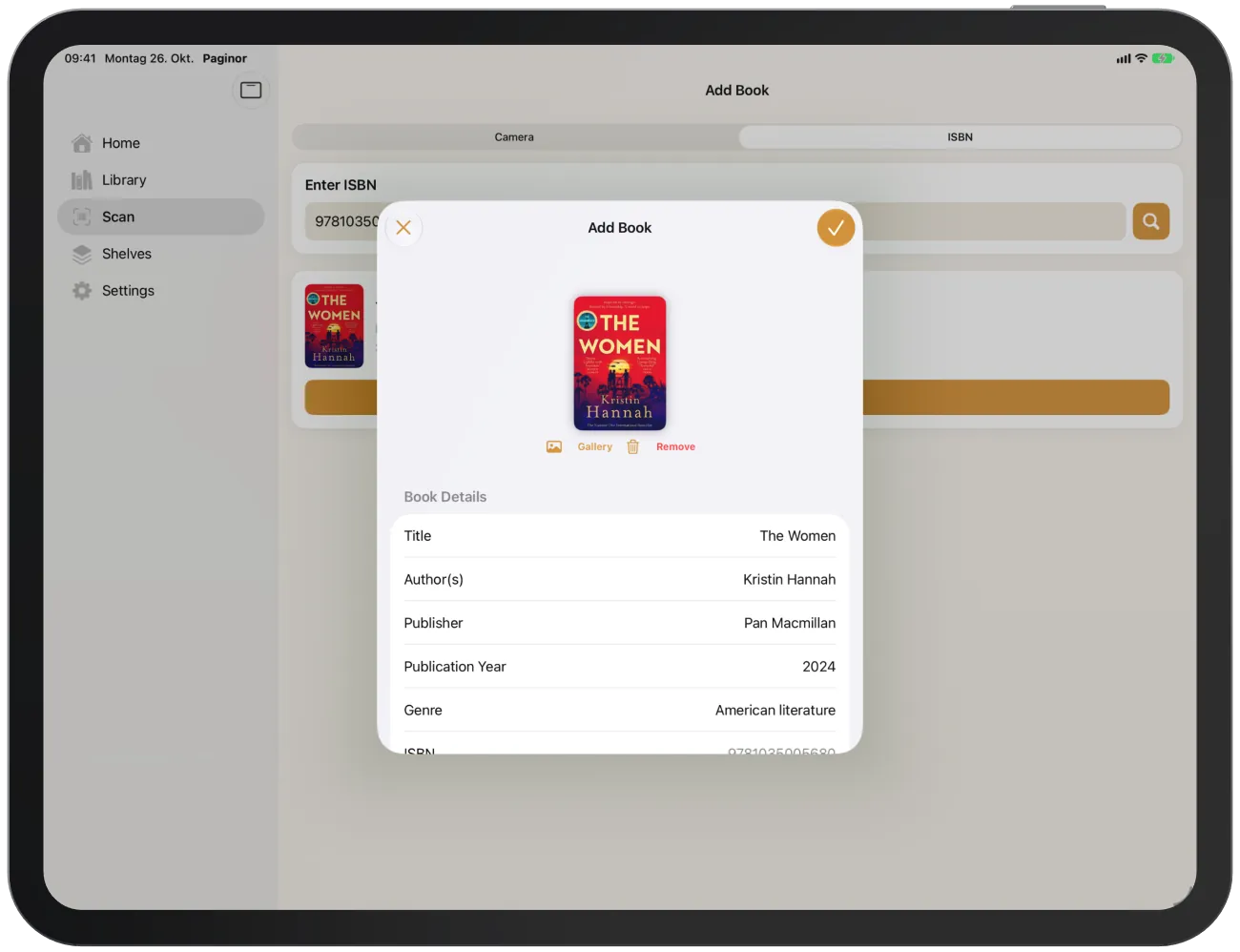
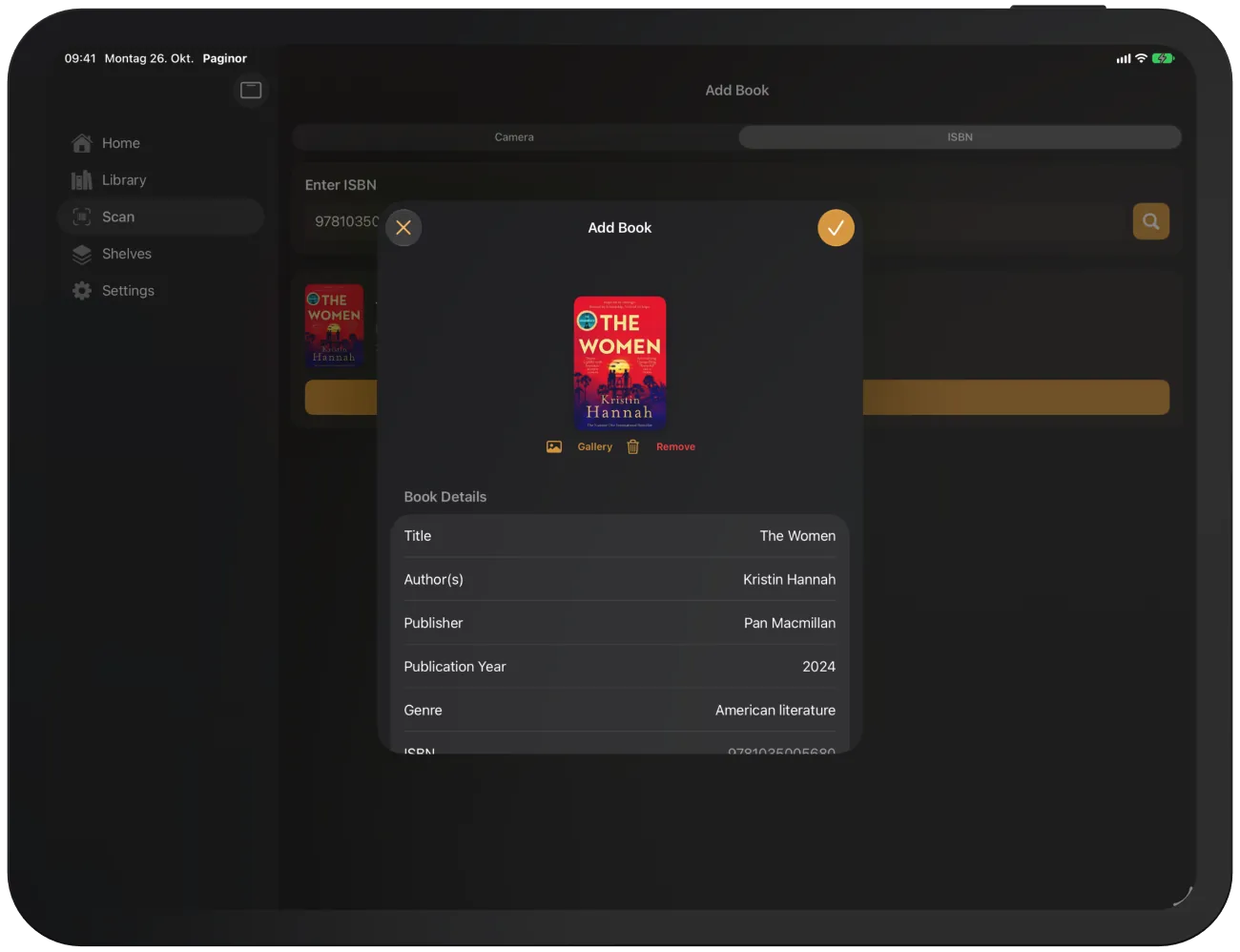
Paginor searches all sources and, for a new book, opens the “Add Book” form straight away. The preview with “Add to Collection” stays below it.
Adding a book
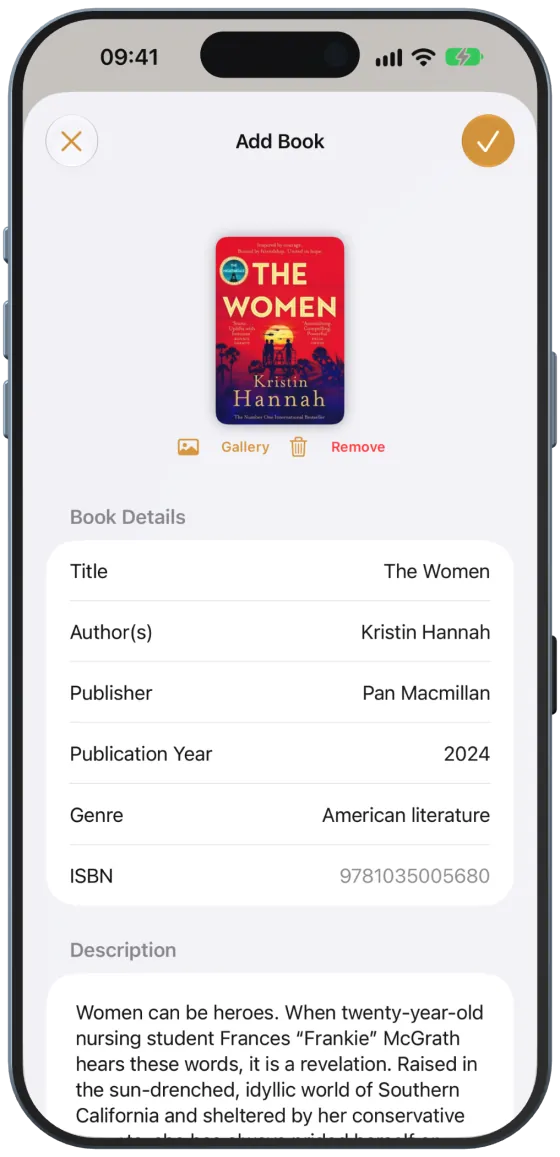
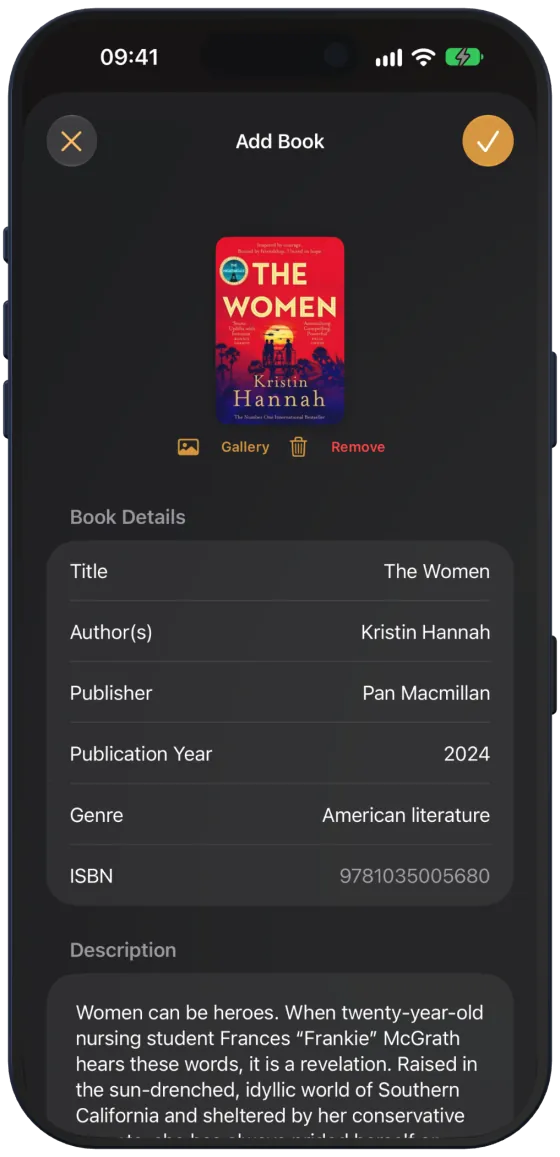
The “Add Book” form shows what Paginor has found, and you can adjust it before saving:
- Check the details.
- Tap the tick at the top right (“Add”).
- Cover: “Gallery” chooses your own photo, “Remove” removes the cover that was found.
- “Book Details”: title, author(s) (separate several with commas), publisher, publication year, genre. The ISBN is fixed.
- “Description” and “Cover URL (for web upload)”.
- “Shelf”: which shelf the book goes on.
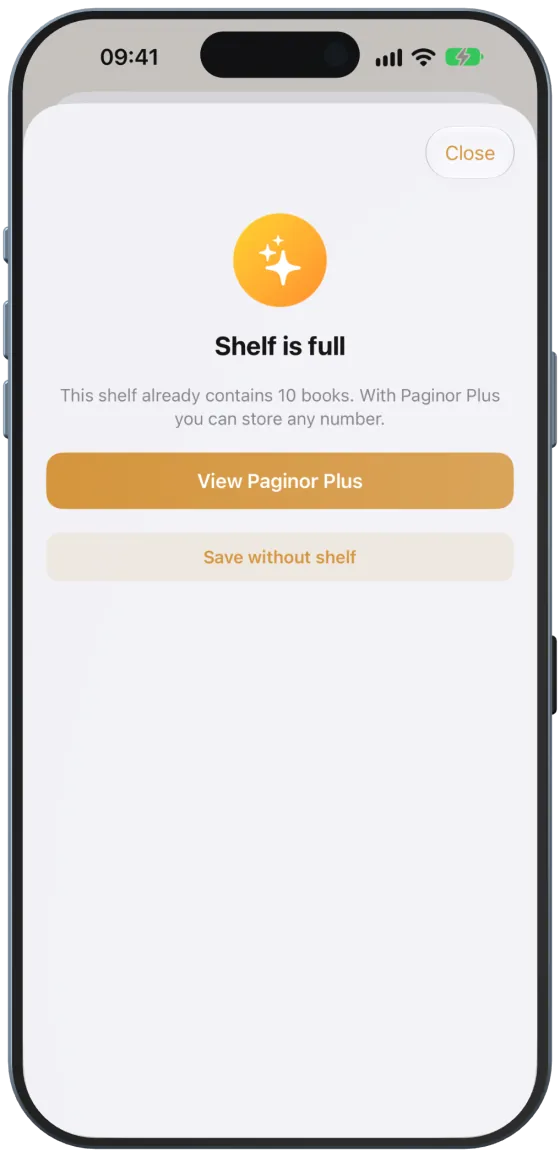
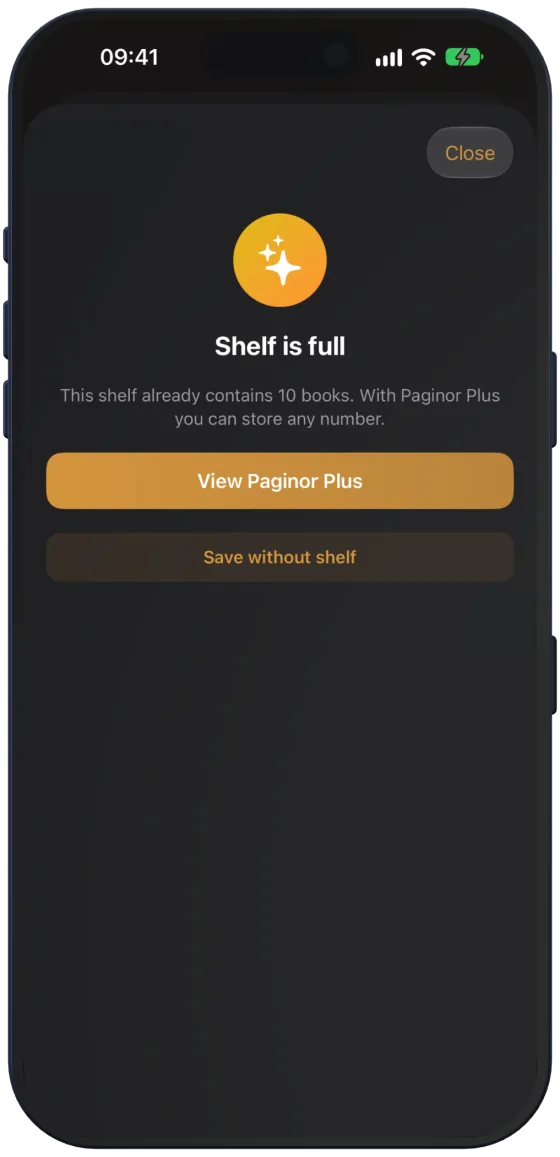
Shelf is full
Without Paginor Plus, a shelf holds 10 books. If you choose a full shelf, “Shelf is full” appears. “Save without shelf” adds the book without a shelf; “View Paginor Plus” lets you remove the limit.