Data & settings
Backup
Paginor syncs your library via iCloud, backs it up daily and exports it as a file or CSV.
iCloud sync
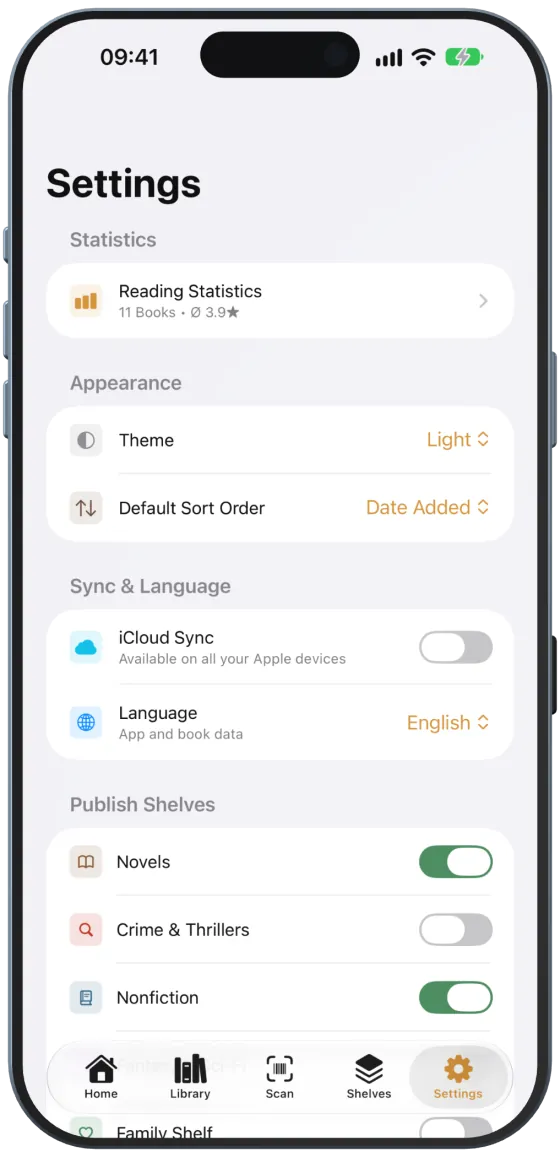
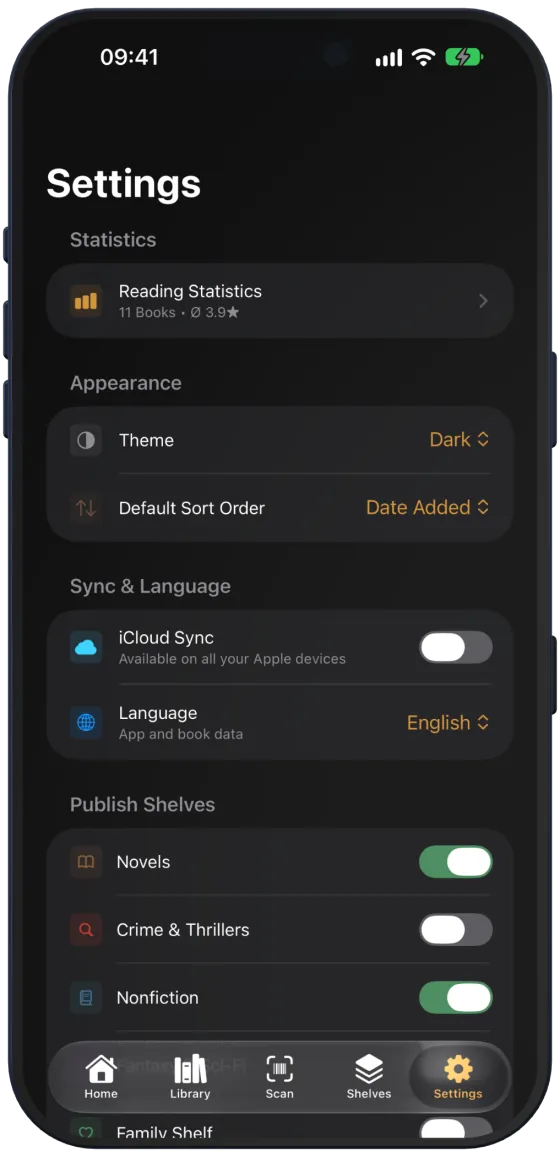
The “iCloud Sync” switch under “Sync & Language” keeps books and shelves the same on all your Apple devices that use the same Apple ID. “About Paginor” then shows “Data Storage: iCloud + Local”.
Note Your own cover photos are not synced. Very large libraries can reach the storage limit of iCloud sync.
Creating a backup
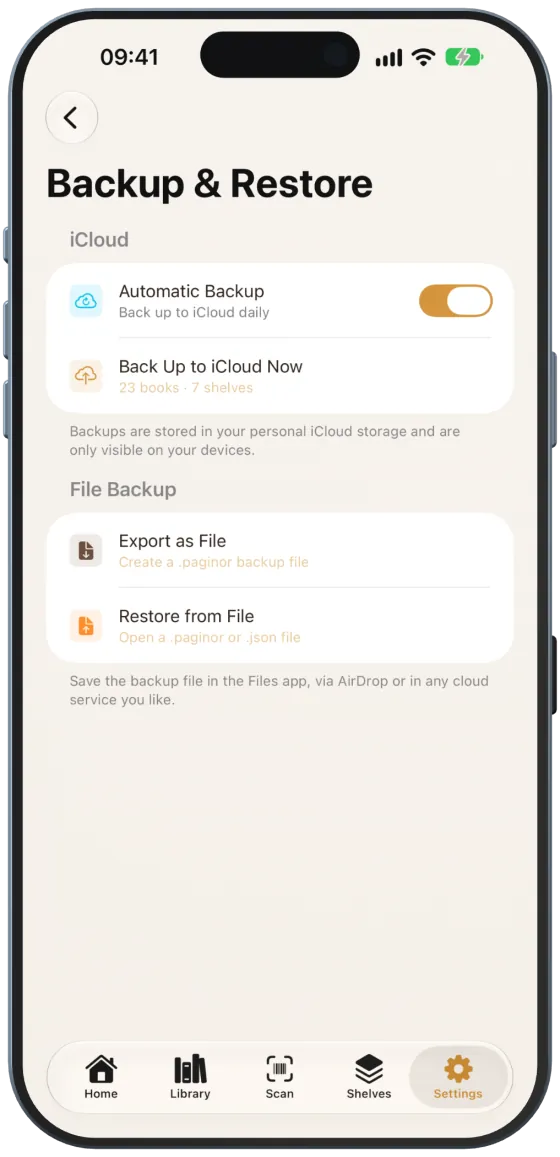
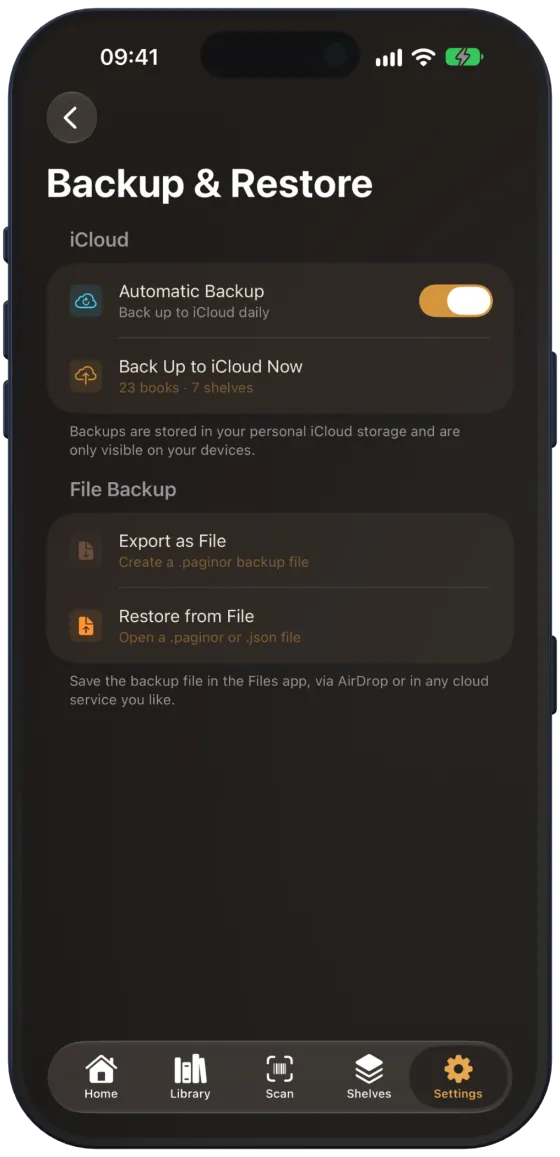
Under Settings › “Backup & Restore”:
- “Automatic Backup” backs up to your iCloud storage at most once a day.
- “Back Up to iCloud Now” backs up immediately.
- “Export as File” saves a .paginor file, for example in the Files app or via AirDrop.
Note Backups contain books and shelves, but not your own cover photos.
Restoring
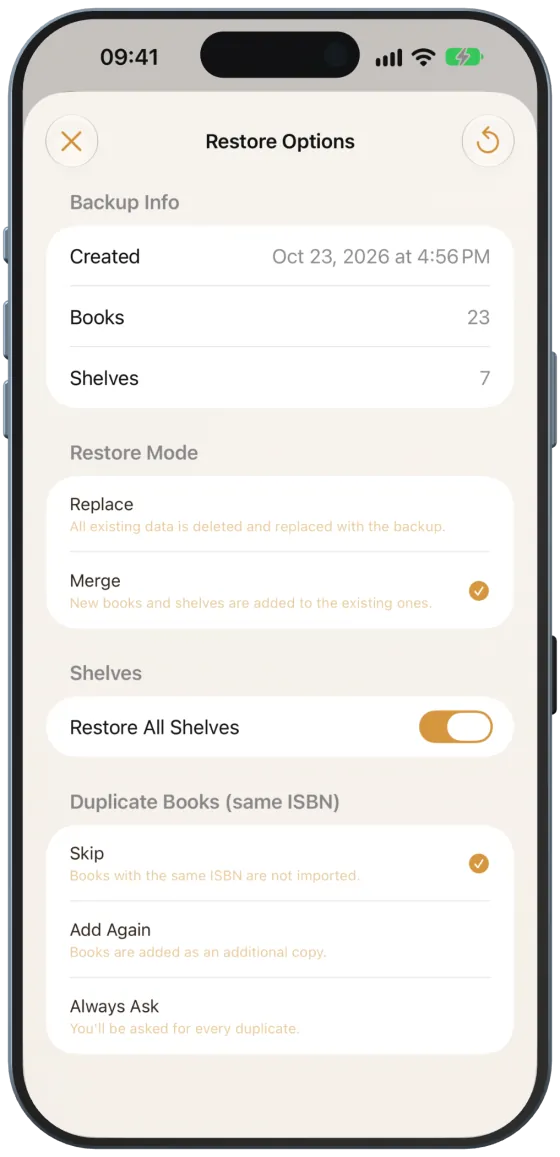
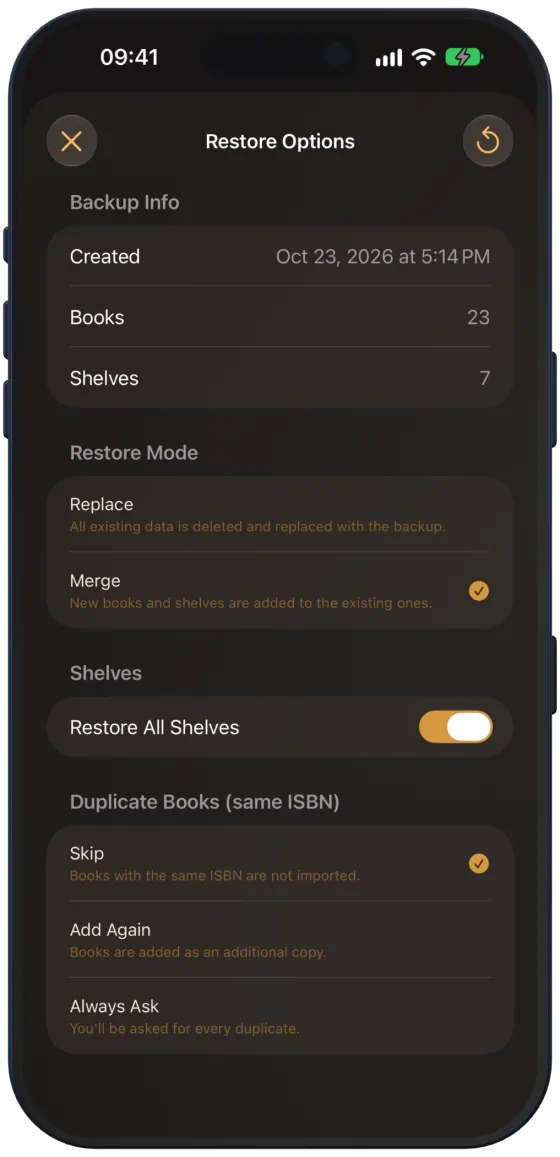
- Tap “Restore from iCloud” or “Restore from File” (.paginor or .json).
- Under “Restore Mode”, choose “Merge” or “Replace”.
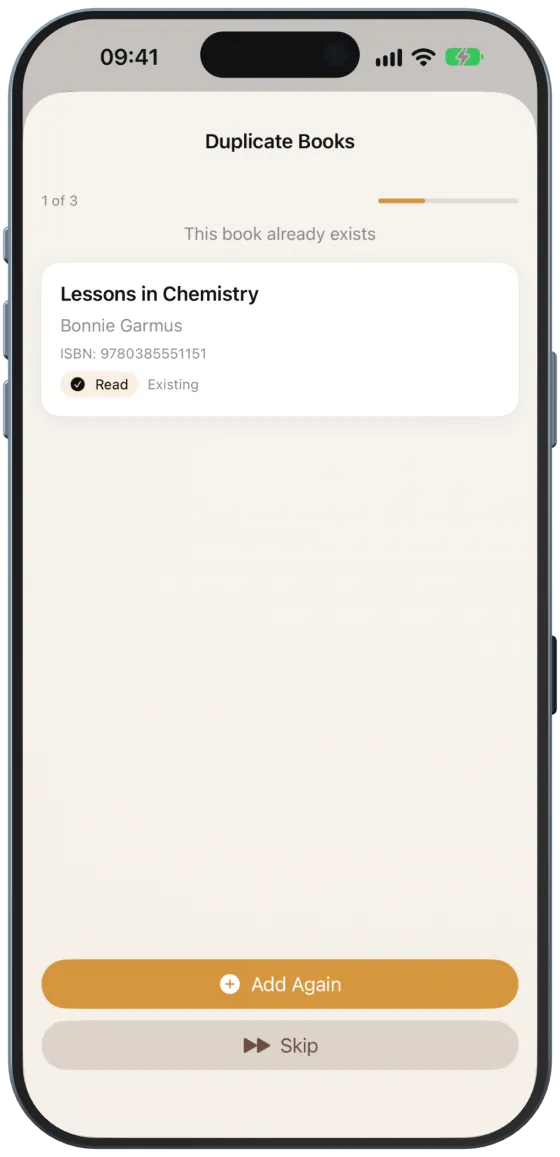
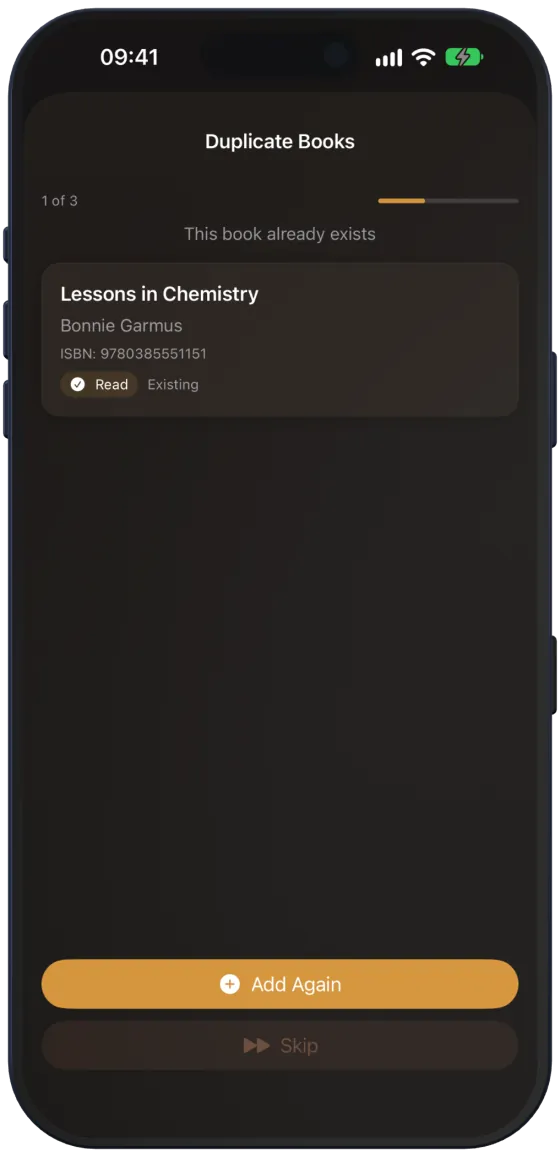
- Choose which shelves to restore and what happens to books with the same ISBN: “Skip”, “Add Again” or “Always Ask”.
- Tap “Restore” at the top right.
With “Always Ask”, you decide for each book individually under “Duplicate Books”.
Caution “Replace” deletes all existing books and shelves before the backup is restored.
Exporting your collection as CSV
“Export Collection” creates a CSV file with the title, author, ISBN, publisher, year, genre, status and rating of all books. “Share” passes it to other apps, for example Numbers or Excel.
Resetting all data
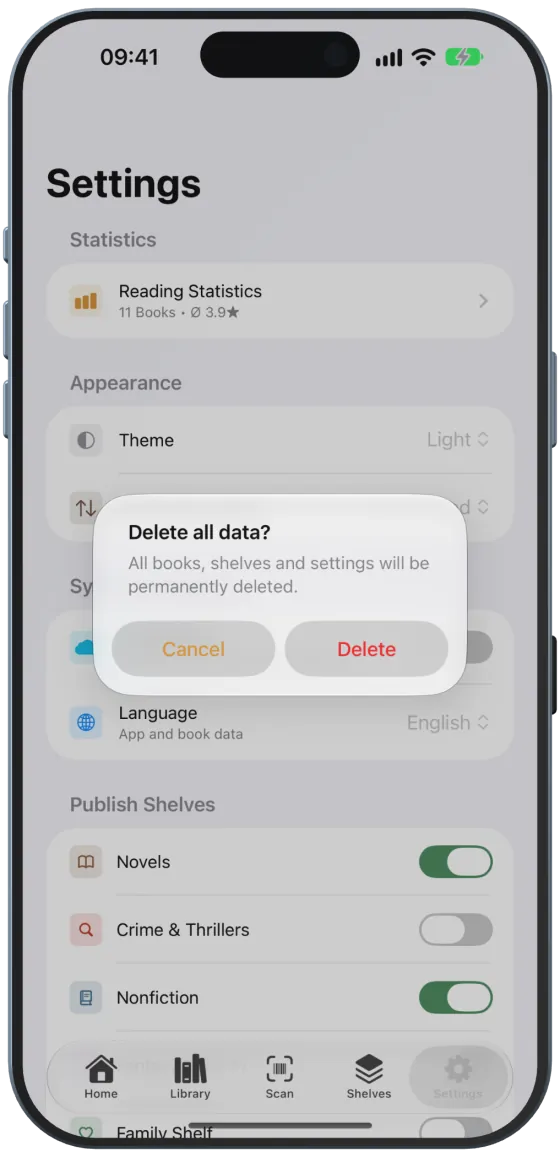
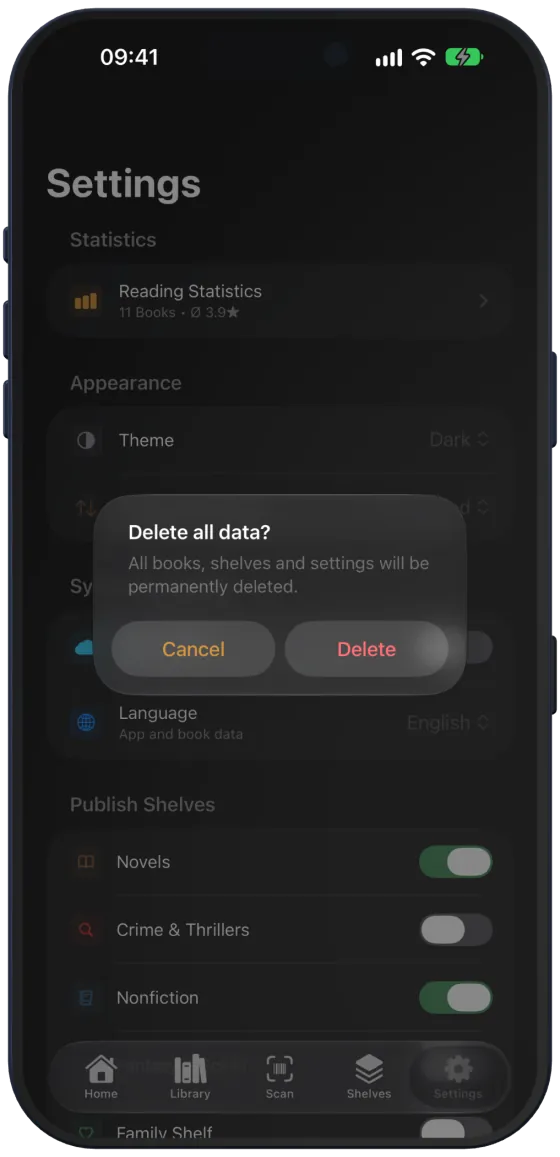
“Reset All Data” deletes all books, shelves and covers on the device and in iCloud.
Caution This cannot be undone. Create a backup first.