
Paginor Help
How can we help?
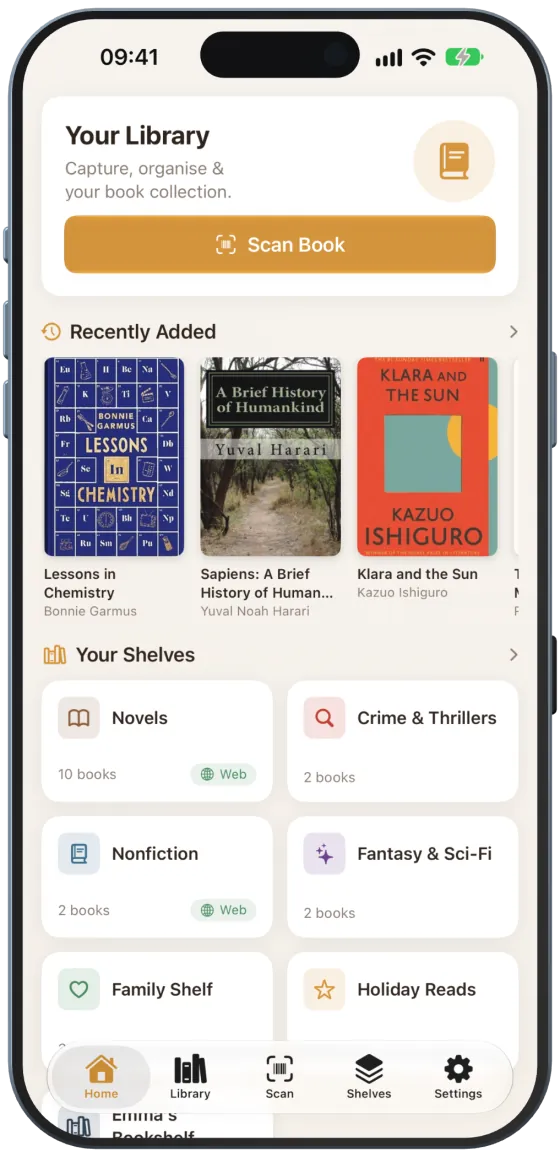
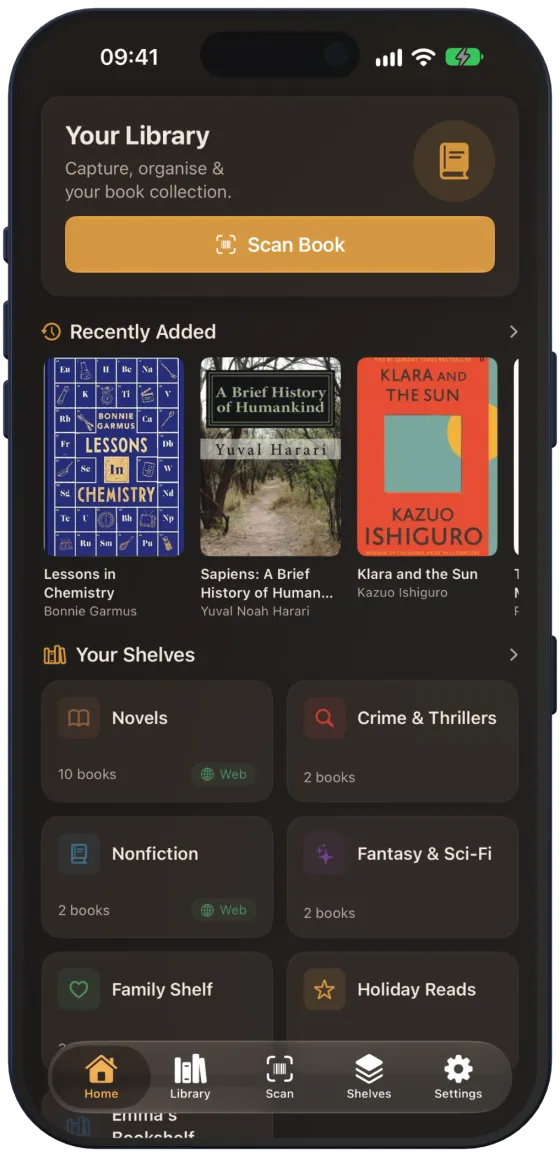
All Paginor features for iPhone, iPad and iPhone Duo, explained with pictures from the app.
Tip: use the search above to find any topic, e.g. “backup” or “gift”.
Getting started
Getting startedPaginor manages your private book collection: add books by barcode, organise them on shelves, share shelves with family and friends and publish selected shelves as a website.iPad and iPhone DuoOn large screens, Paginor makes use of the space: lists and details sit side by side. On the iPhone Duo, the split follows the fold.Paginor PlusPaginor is free to use. Paginor Plus is a one-time purchase that removes the limits on shelves and books and unlocks sharing via iCloud.
Adding books
Scanning booksWith the camera, you add books in seconds: scan the barcode and Paginor loads the book data from the internet. You can scan many books in a row.Entering an ISBNWithout a barcode or a camera, you can look up a book by its ISBN and check the details before saving.DuplicatesPaginor notices when you scan a book that is already in your library and lets you decide whether you want another copy.
Library & shelves
LibraryThe library shows all your books. You find them with the search, narrow them down with filters and choose between grid and list.Book detailsThe detail page shows everything about a book: cover, reading status, rating, description, bibliographic data and shelf.Editing a bookCorrect book details, set your own cover, reload metadata or move a book to a different shelf.ShelvesShelves organise your library, for example by genre, room or person. Each book is on at most one shelf.
Sharing & publishing
Shared shelvesWith Paginor Plus, you share shelves via iCloud with family and friends. All members see the same books; editors can add and change books.Gift CheckIf someone has shared their shelf with you, you can check in the bookshop with a single scan whether they already have a book.Web sharingPaginor turns selected shelves into a website: via SFTP directly to your web server or as a ZIP file to pass on.Upload ConfigurationHere you set how the web pages get to their destination: encrypted via SFTP to your server or as a ZIP file.
Data & settings
BackupPaginor syncs your library via iCloud, backs it up daily and exports it as a file or CSV.SettingsSettings contain statistics, appearance, language, web sharing, backup and Paginor Plus.Where book data comes fromWith every scan, Paginor queries several national libraries and Open Library at the same time and merges the results.Help & supportThis help is also available directly from the app. For support, there are hidden diagnostic tools.