
Adding books
Scanning books
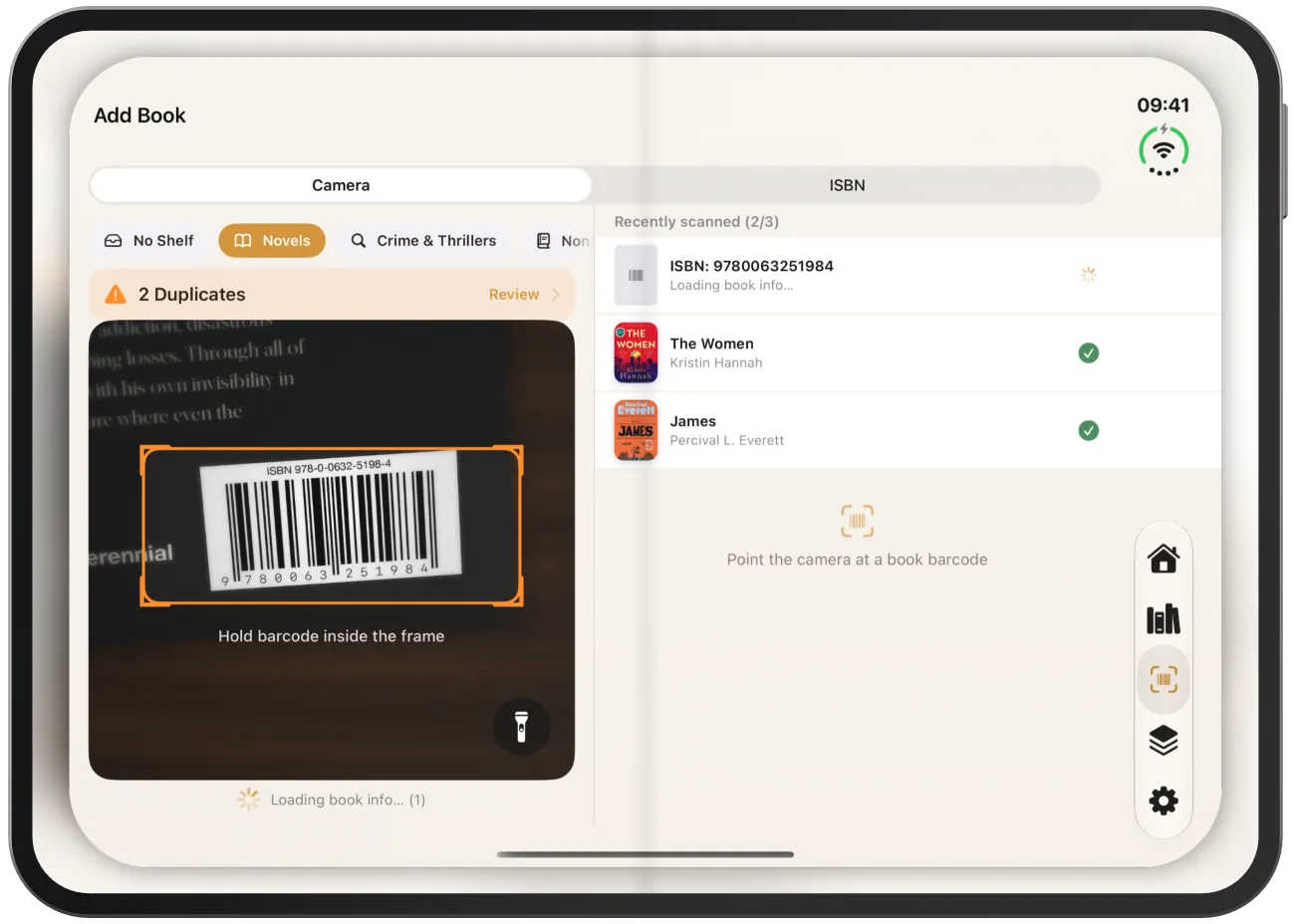
With the camera, you add books in seconds: scan the barcode and Paginor loads the book data from the internet. You can scan many books in a row.
Scanning with the camera
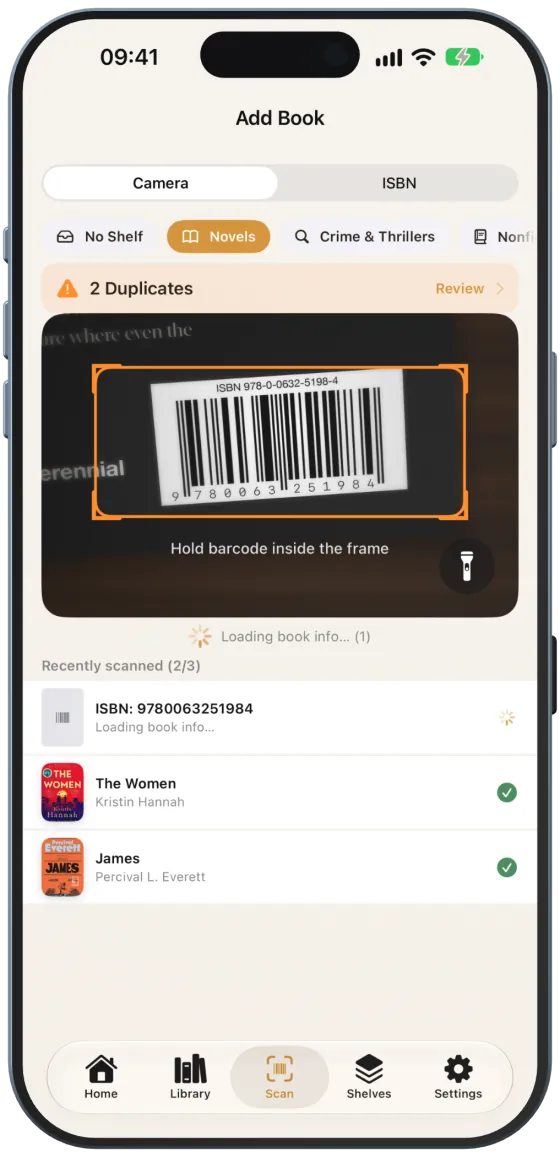
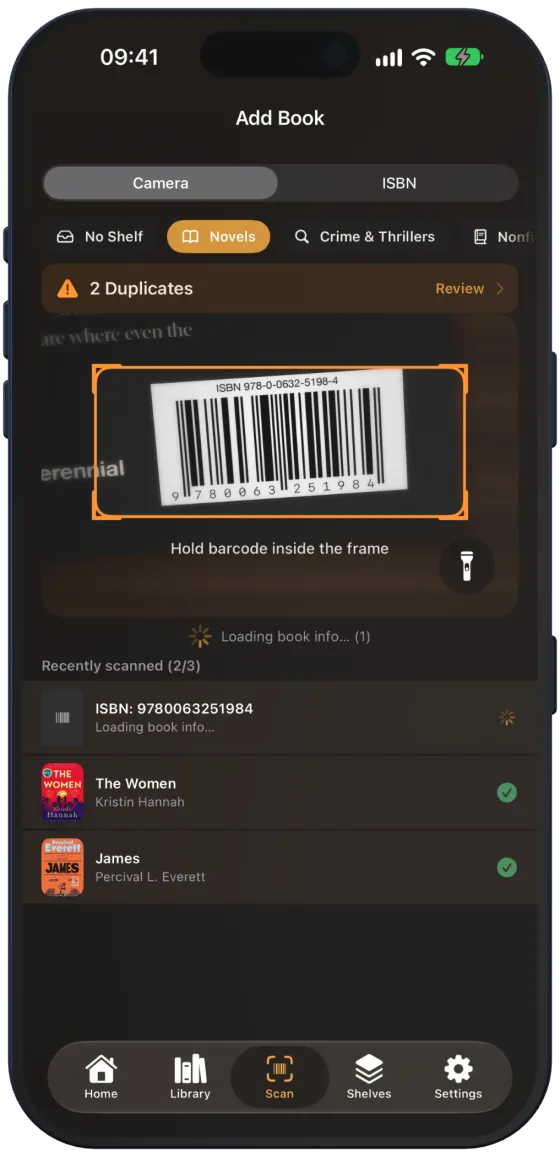
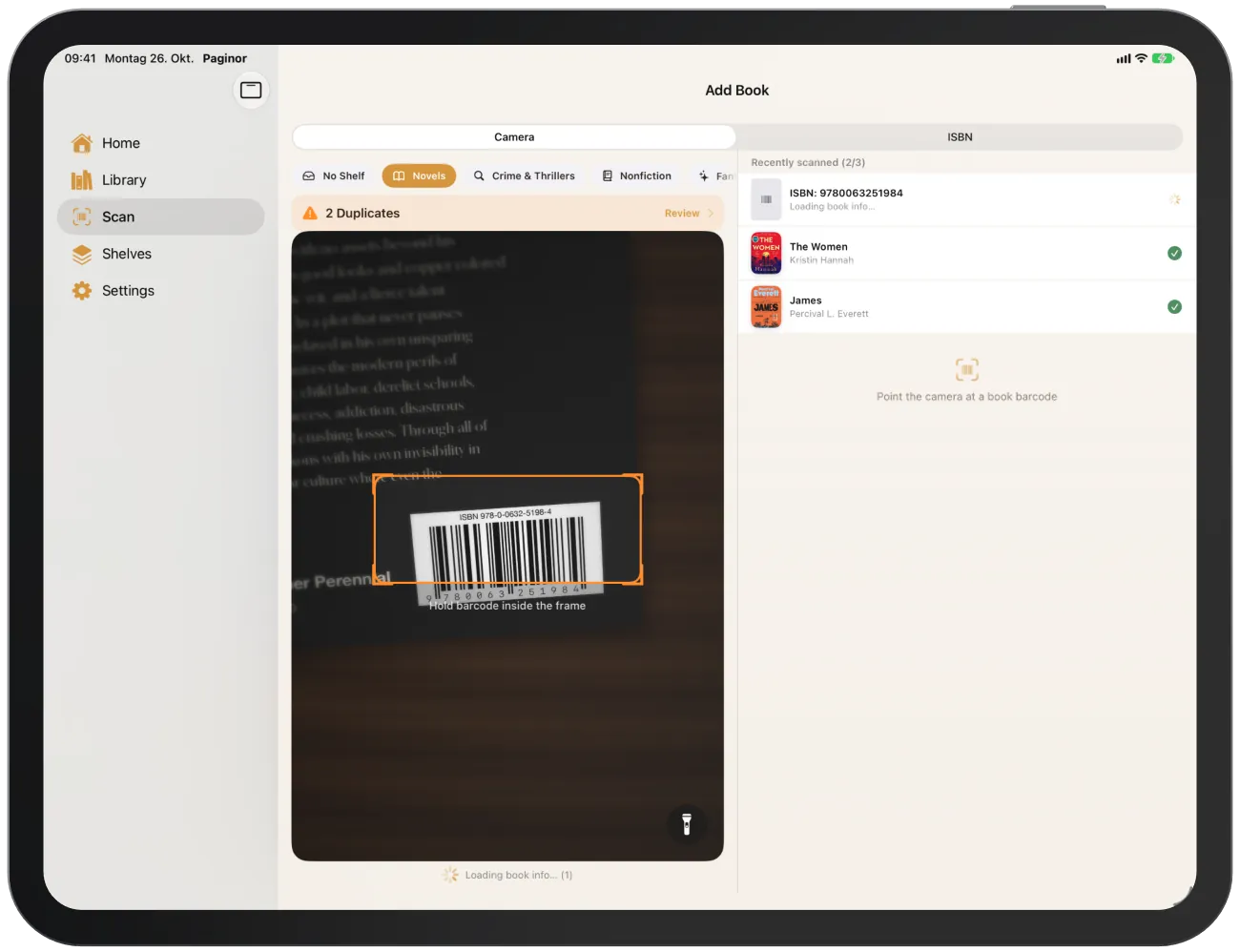
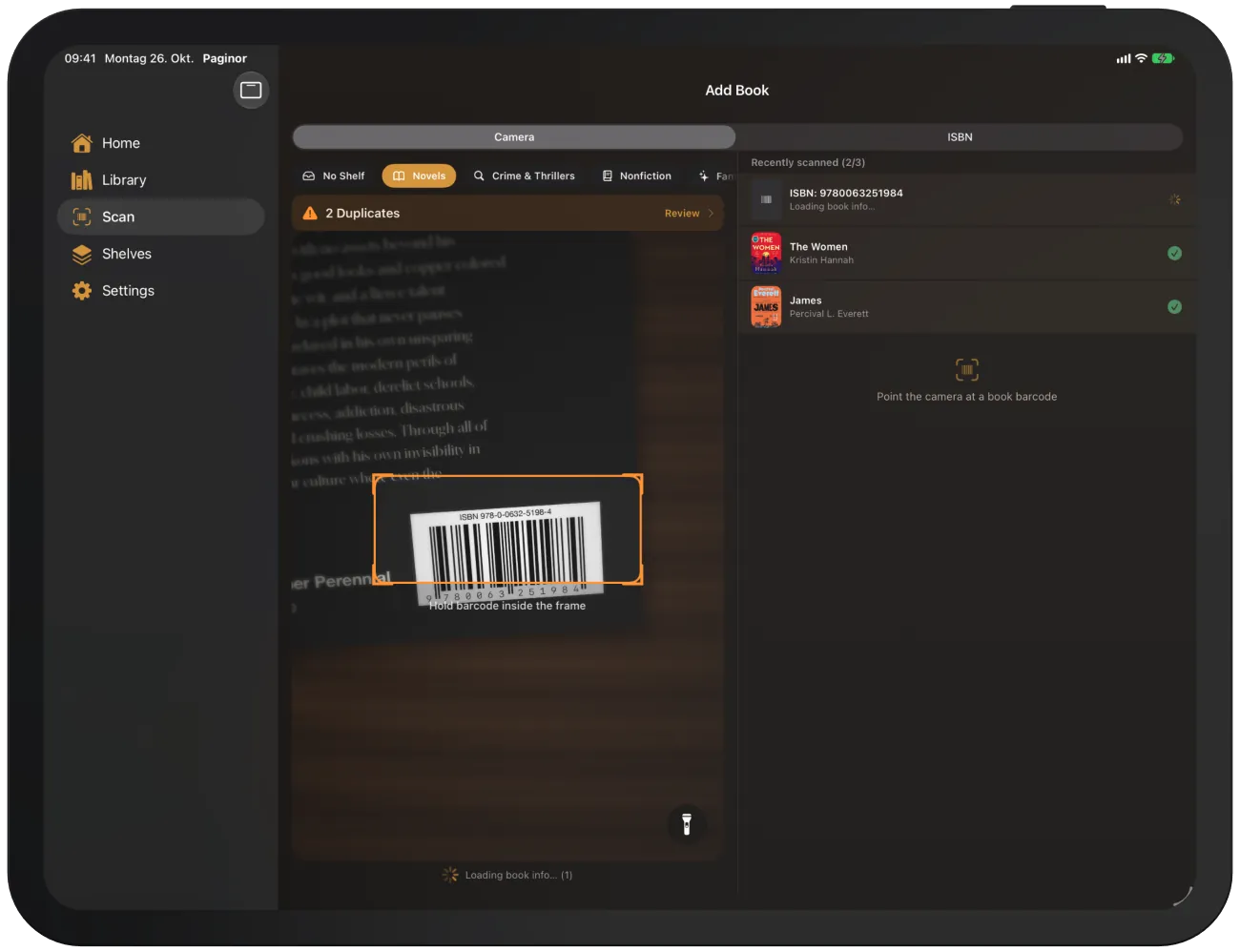
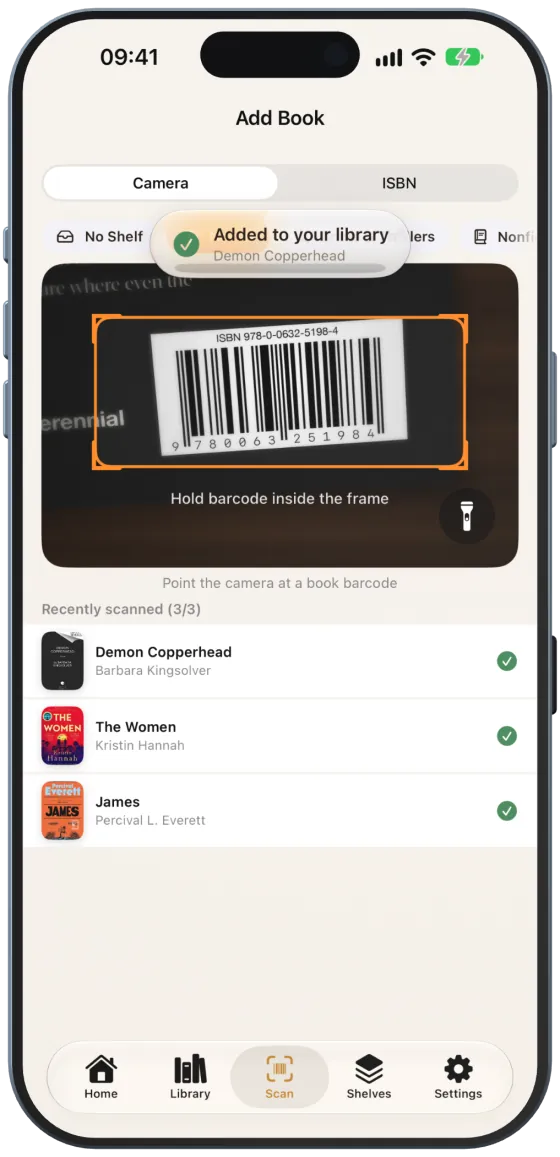
- Open the “Scan” tab and choose “Camera” at the top.
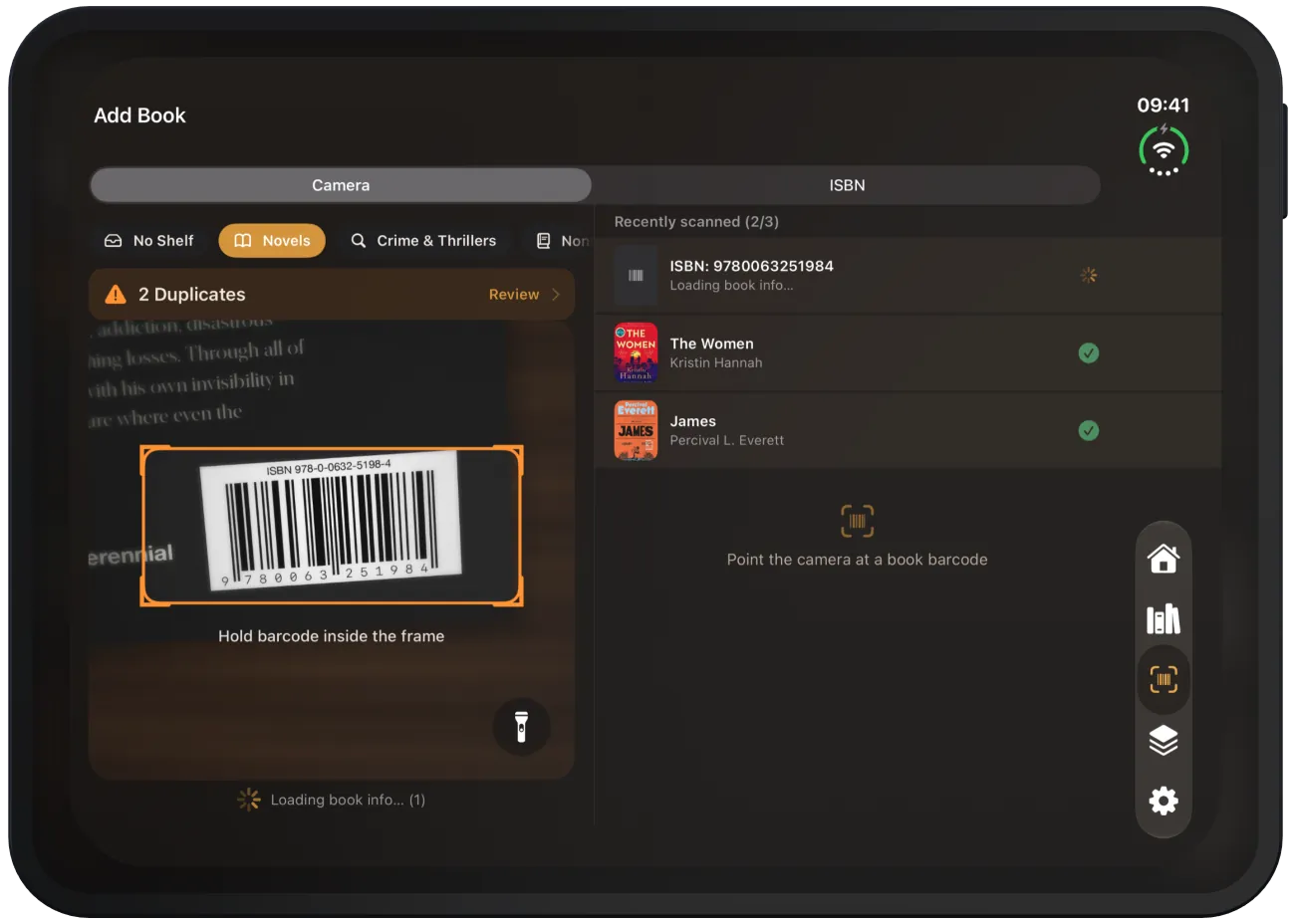
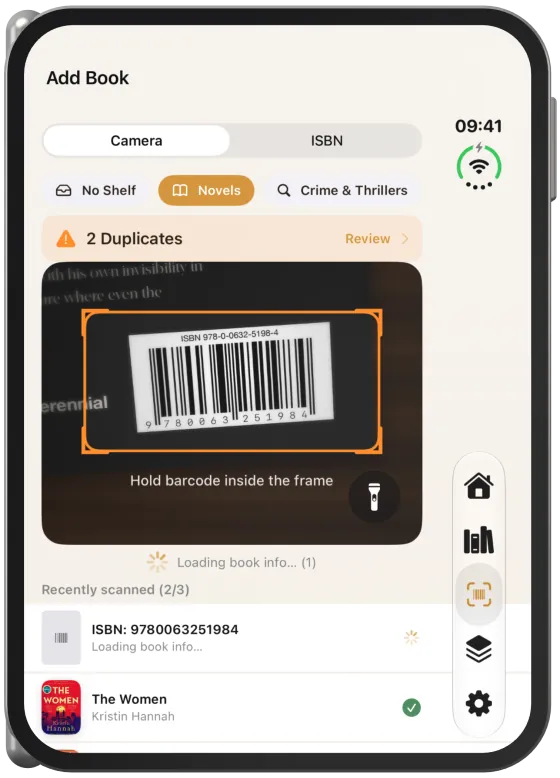
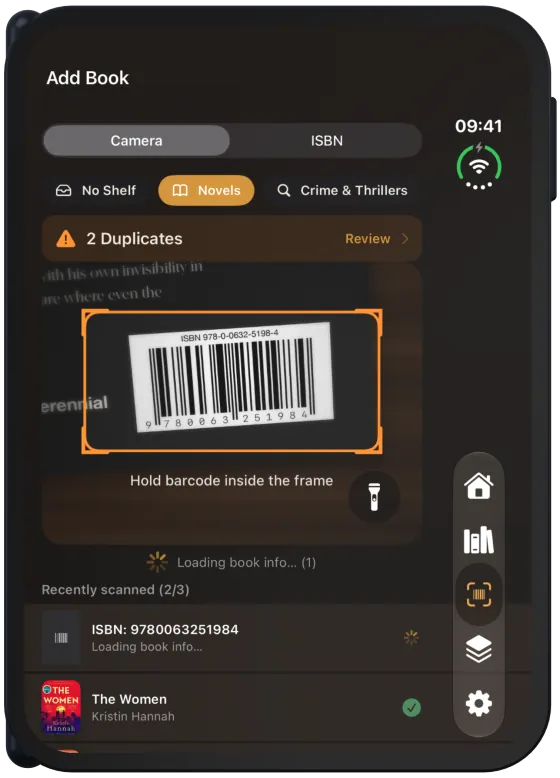
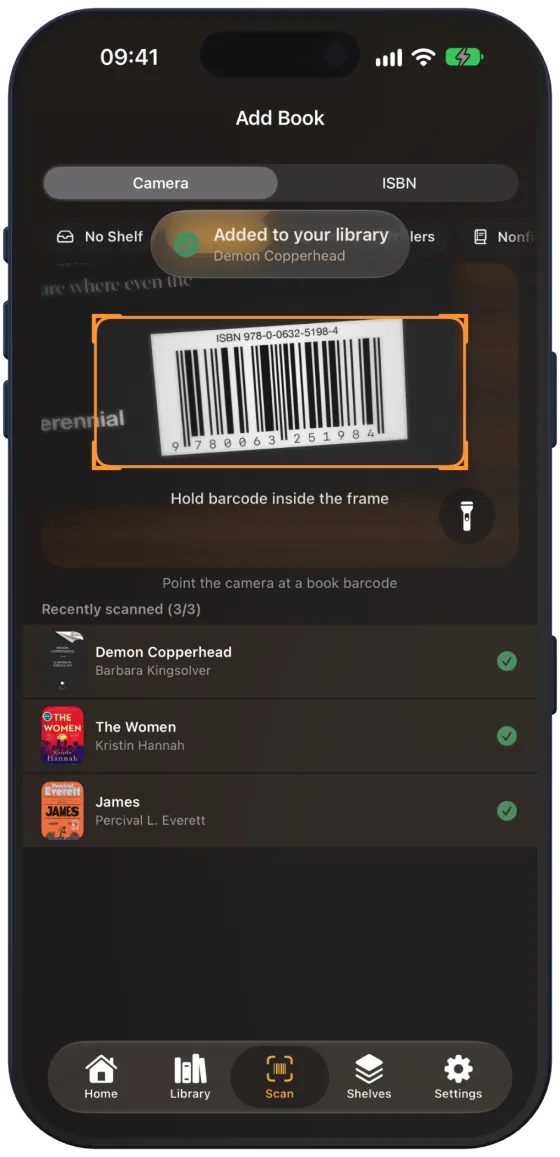
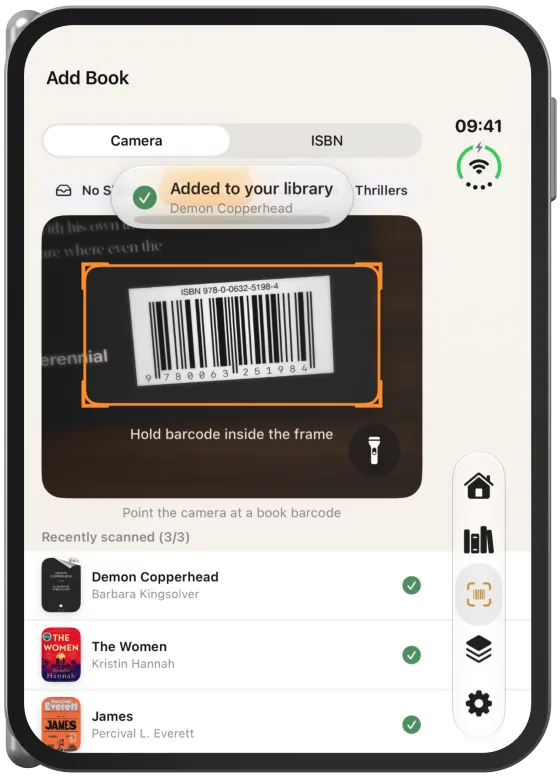
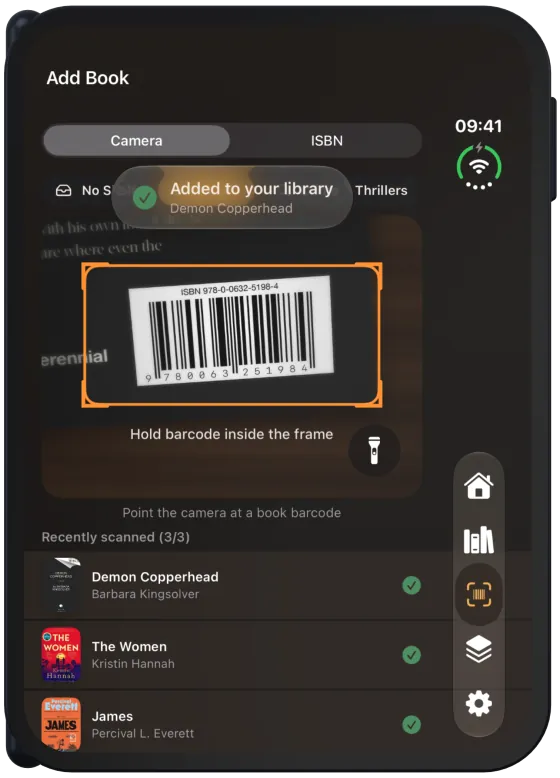
- Hold the book’s barcode inside the orange frame (“Hold barcode inside the frame”).
- As soon as the barcode is recognised, the iPhone vibrates and the book appears under “Recently scanned”.
Paginor creates the book immediately and loads the title, authors, publisher, year, description and cover in the background (“Loading book info…”). You can keep scanning in the meantime.
Choosing a target shelf
Above the camera view is a row of shelves. The selected shelf is orange. All books you scan after that go onto this shelf. With “No Shelf”, they stay unassigned.
Recently scanned and confirmation
“Recently scanned” shows all books from this round with progress, for example “(2/3)”. A clock means waiting, a spinner means loading, a green tick means done.
After each finished book, “Added to your library” briefly appears at the top with the book title.
If you close the app while books are still loading, Paginor continues with the pending books the next time you open the scanner.
When a barcode doesn’t fit
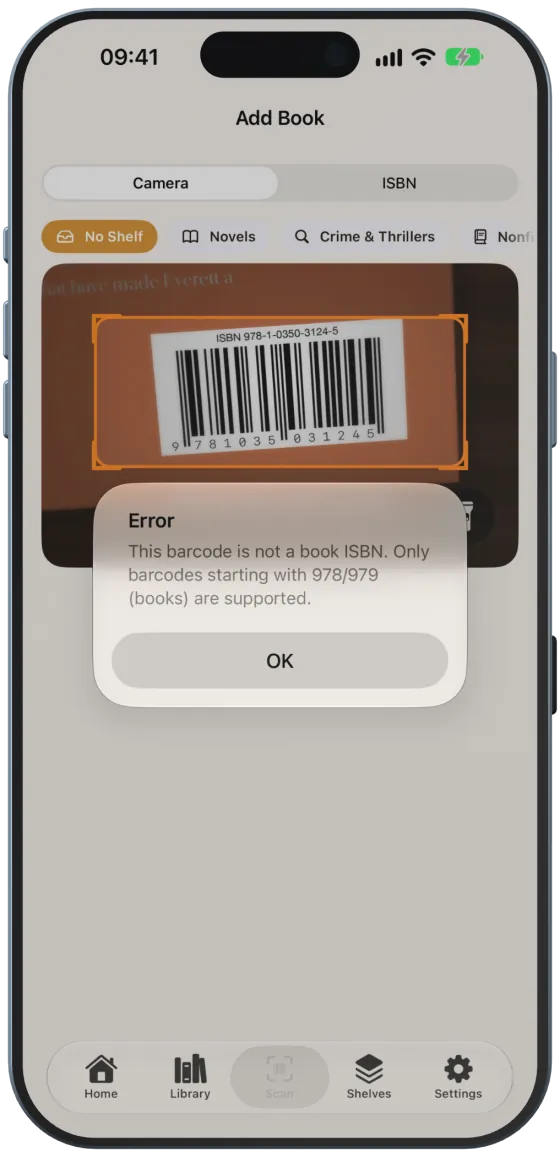
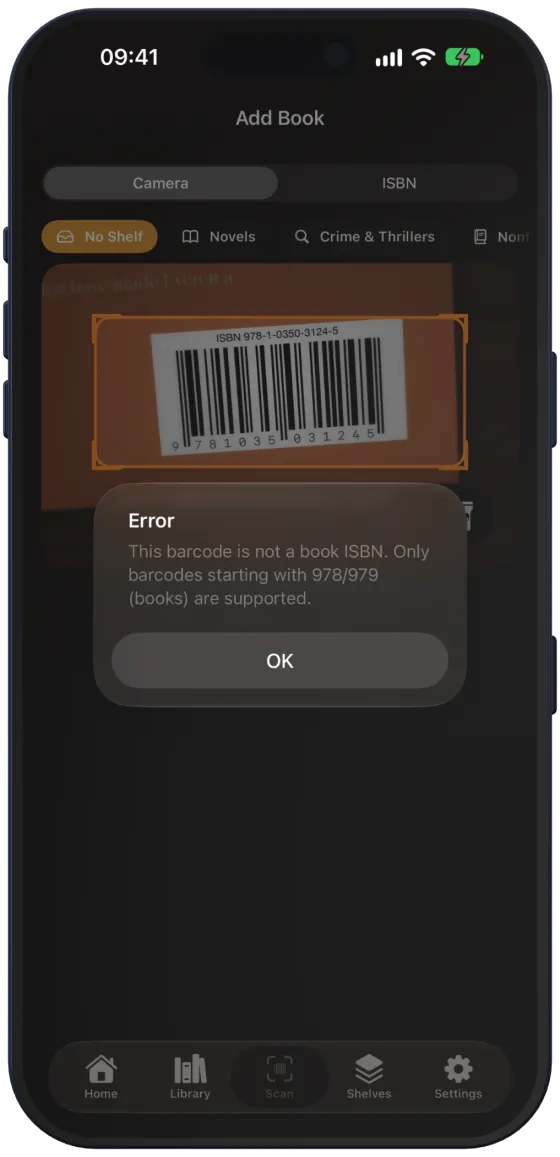
Paginor only accepts book barcodes. Any other barcode, for example from packaging, results in: “This barcode is not a book ISBN. Only barcodes starting with 978/979 (books) are supported.”
An ISBN must have 10 or 13 digits. Otherwise, Paginor tells you how many digits it counted.
Torch and focus
- The torch at the bottom right of the camera view helps in low light. It switches off when you leave the scanner.
- Tap the camera view to focus there.
- Paginor accepts the same ISBN only once per scanning round, so an accidental double scan does not create a second book.