Sharing & publishing
Web sharing
Paginor turns selected shelves into a website: via SFTP directly to your web server or as a ZIP file to pass on.
Device
Choosing shelves for the web
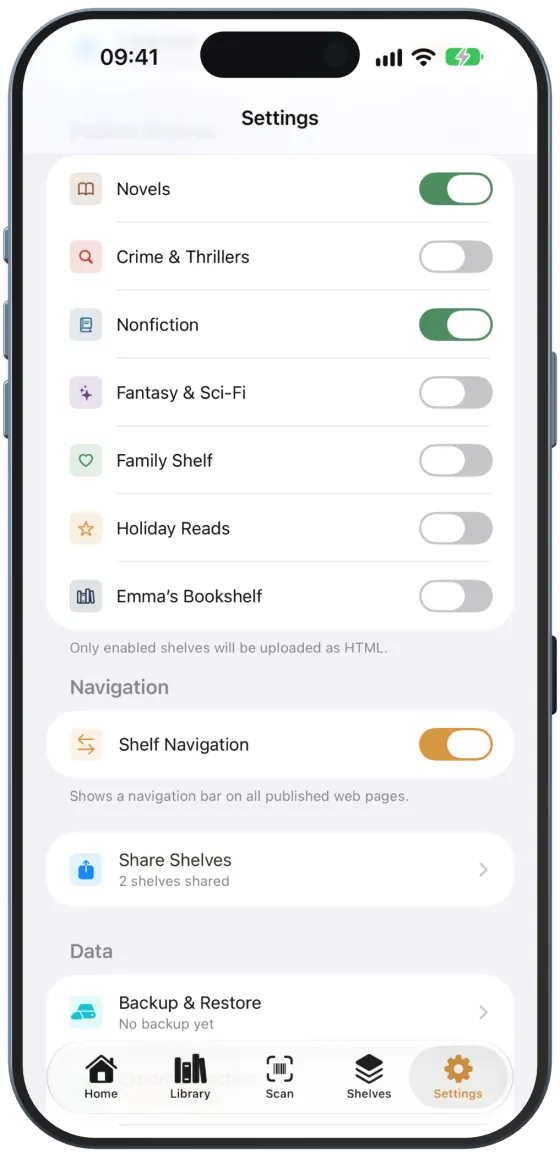
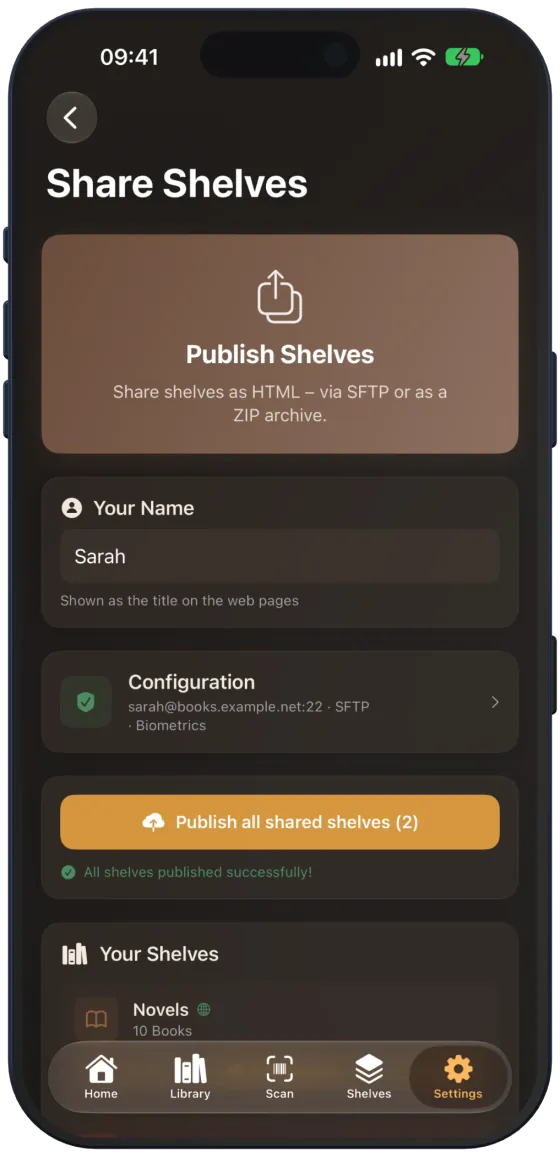
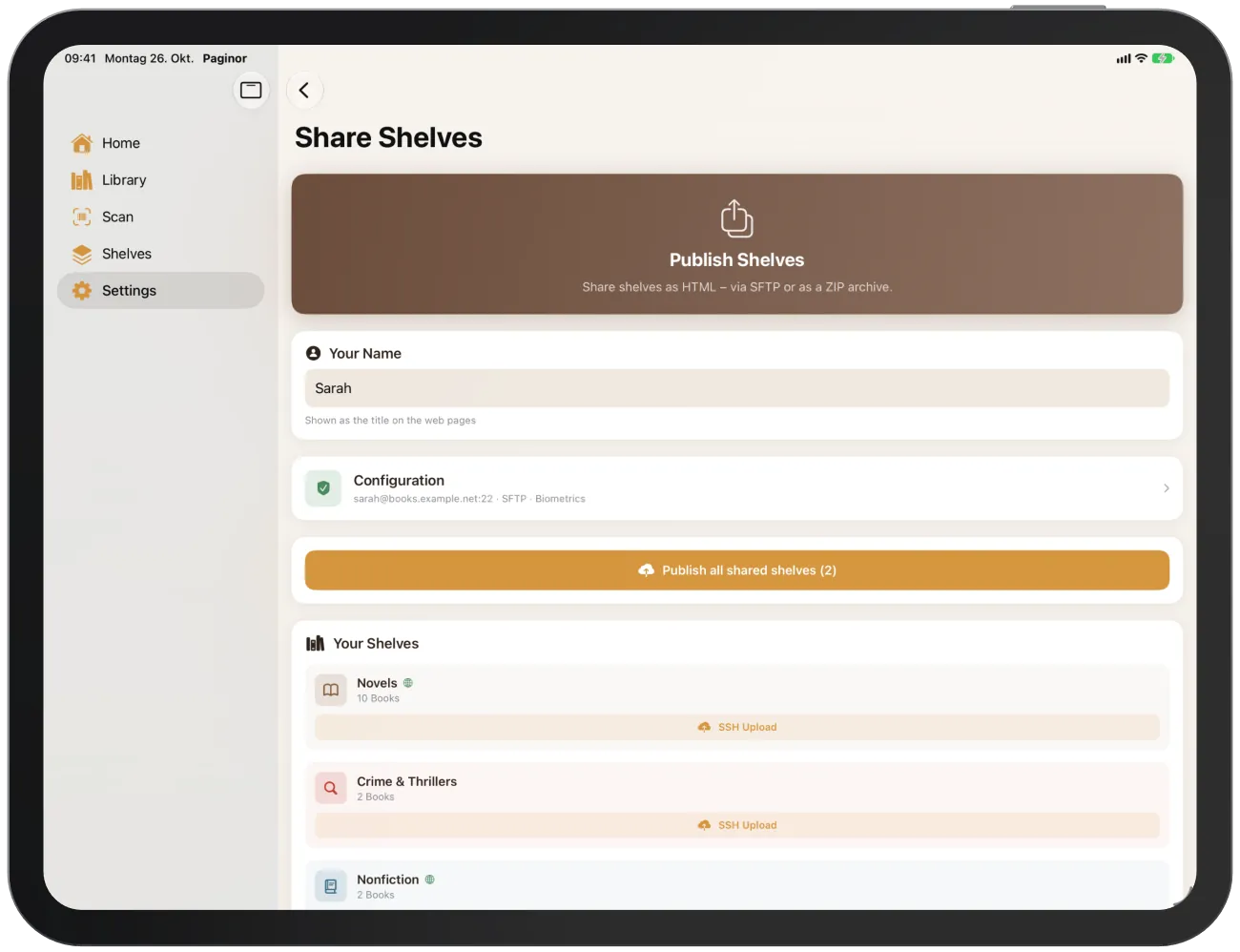
Under Settings › “Publish Shelves”, you enable each shelf individually. Enabled shelves carry the “Web” label.
If several shelves are enabled, “Shelf Navigation” appears. It gives all pages a bar that visitors use to switch between shelves.
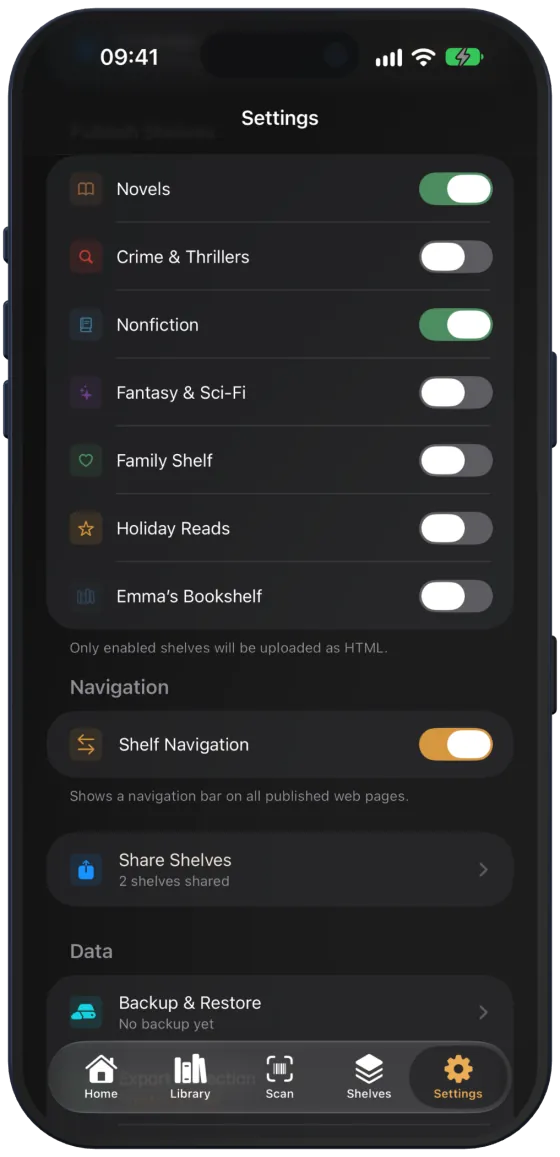
Publishing
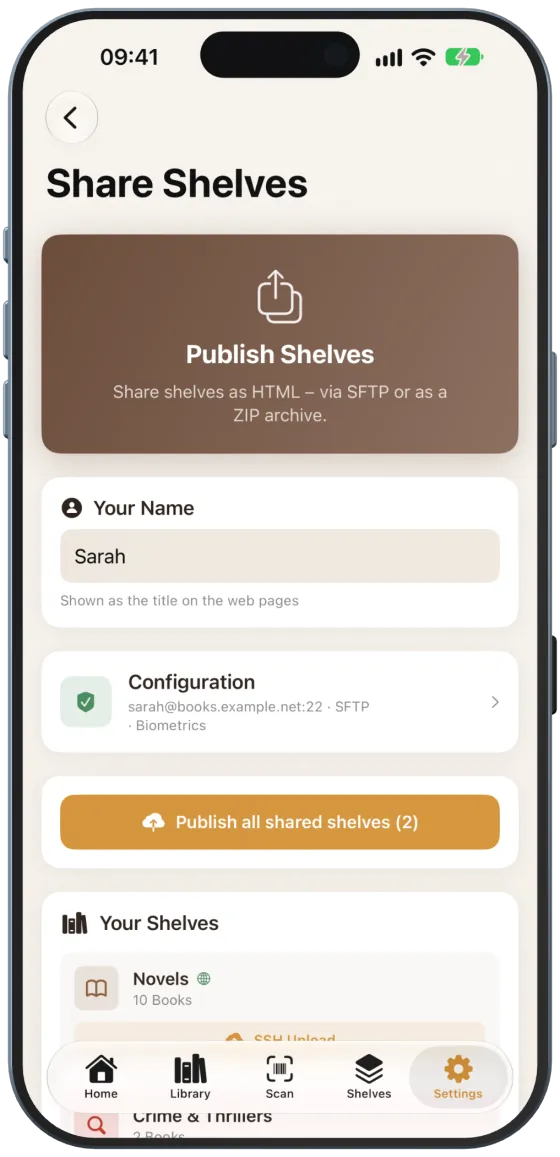
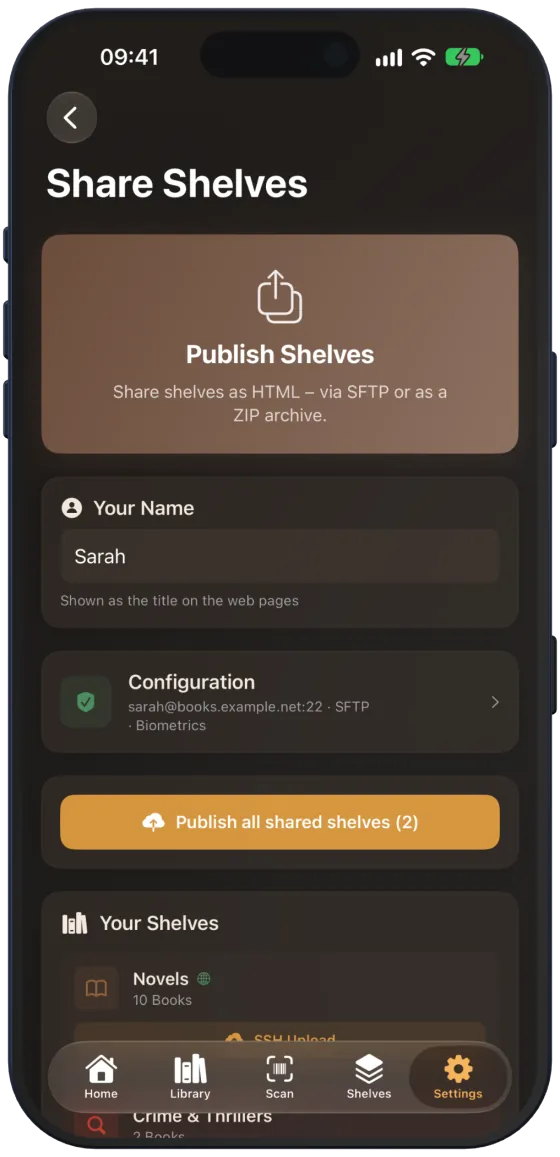
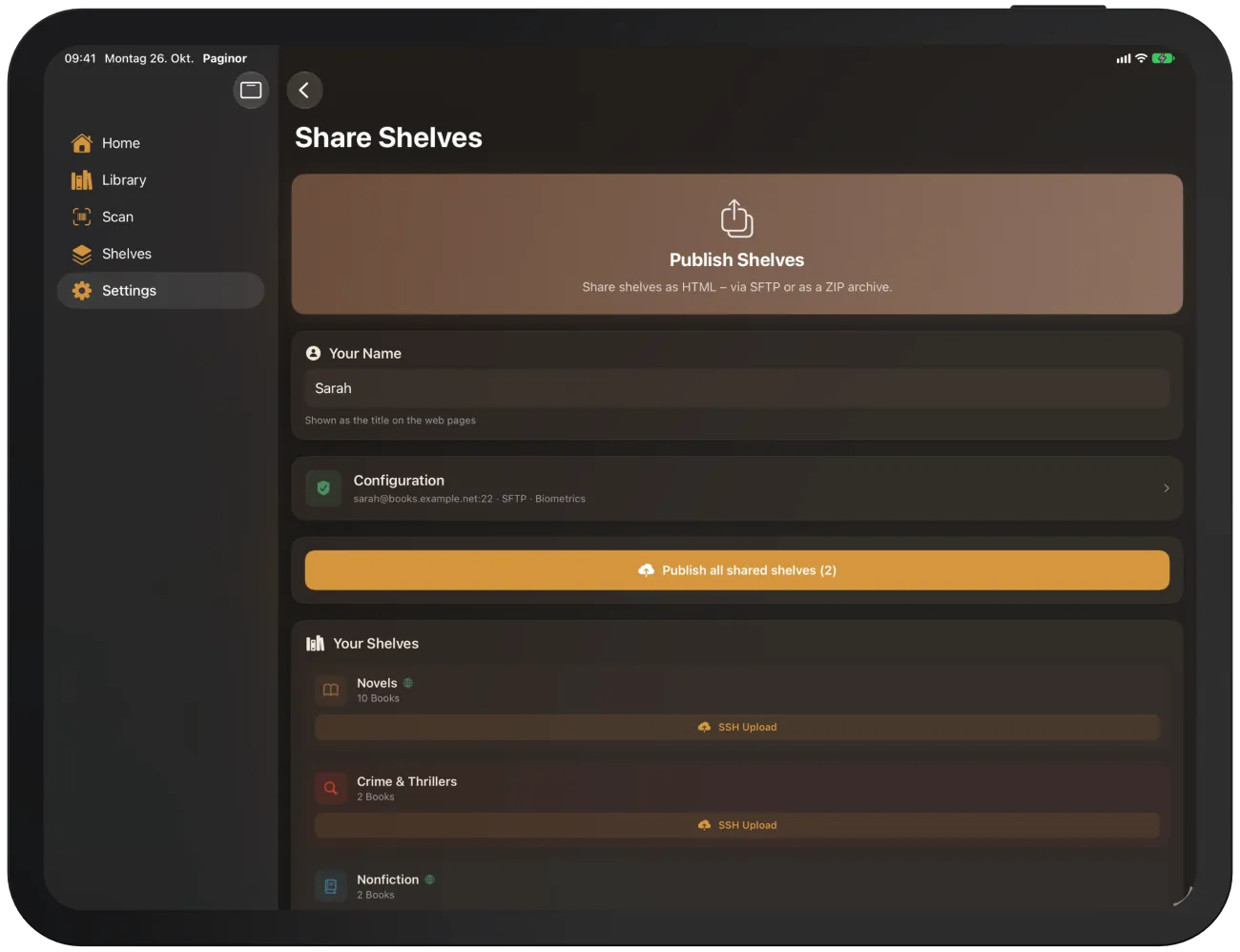
- Open Settings › “Share Shelves”.
- Under “Your Name”, enter what the pages should be called, for example “Sarah's library”.
- Under “Configuration”, set up SFTP or ZIP export (Upload Configuration).
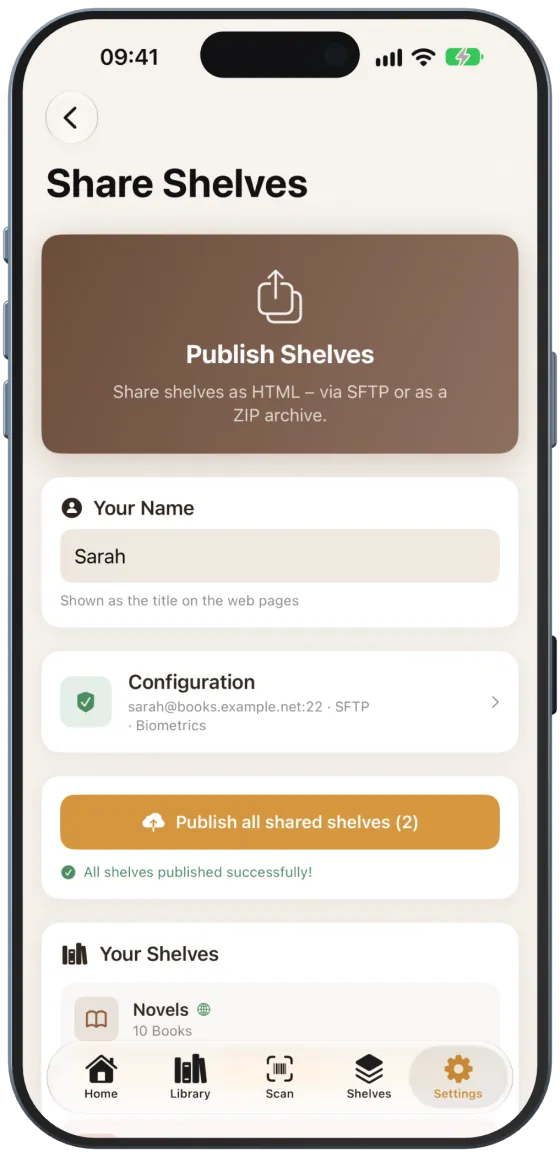
- Tap “Publish all shared shelves”.
Progress is shown below, and at the end “All shelves published successfully!”. Under “Your Shelves”, you upload individual shelves with “SSH Upload” or “Export ZIP”.
Note The library overview page contains all books in your library, including those on shelves that are not enabled.
Passing it on as a ZIP file
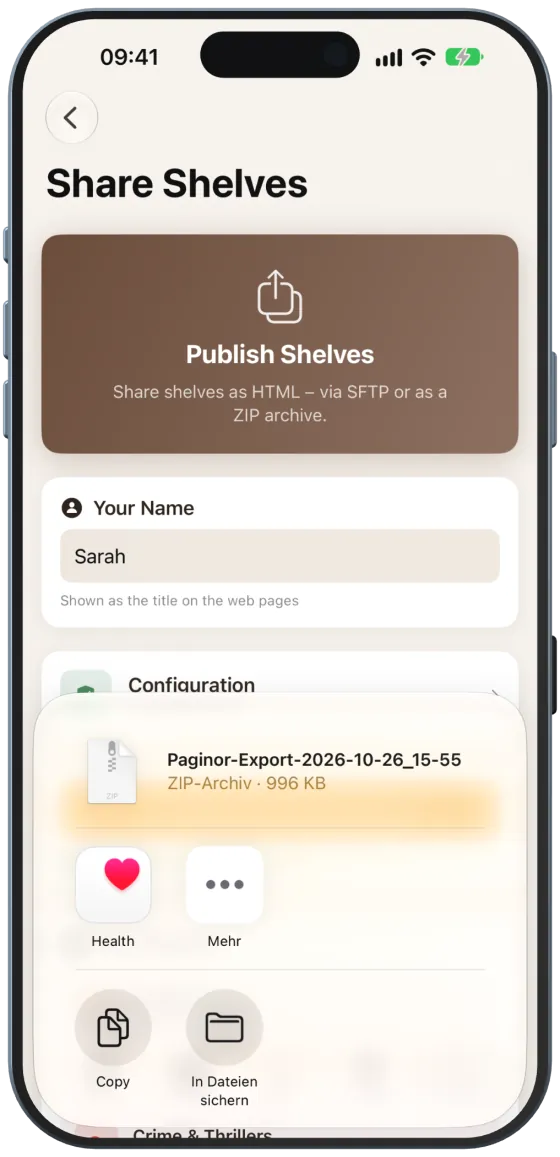
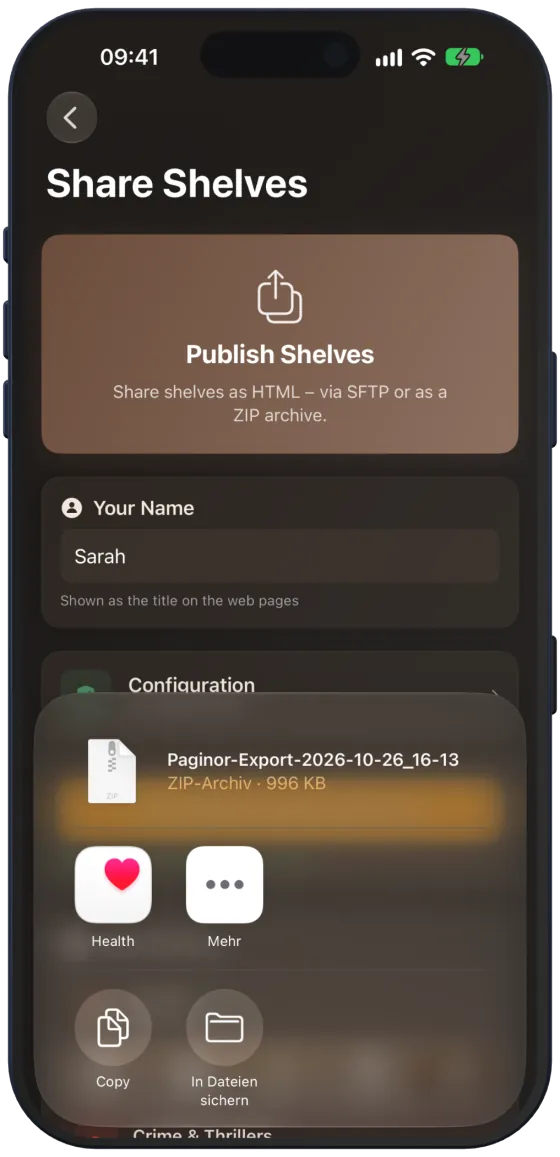
With ZIP export, Paginor creates a ZIP file with all pages and covers and opens the share sheet. Save it in the Files app, send it via AirDrop or upload it to web space yourself.
What the website looks like
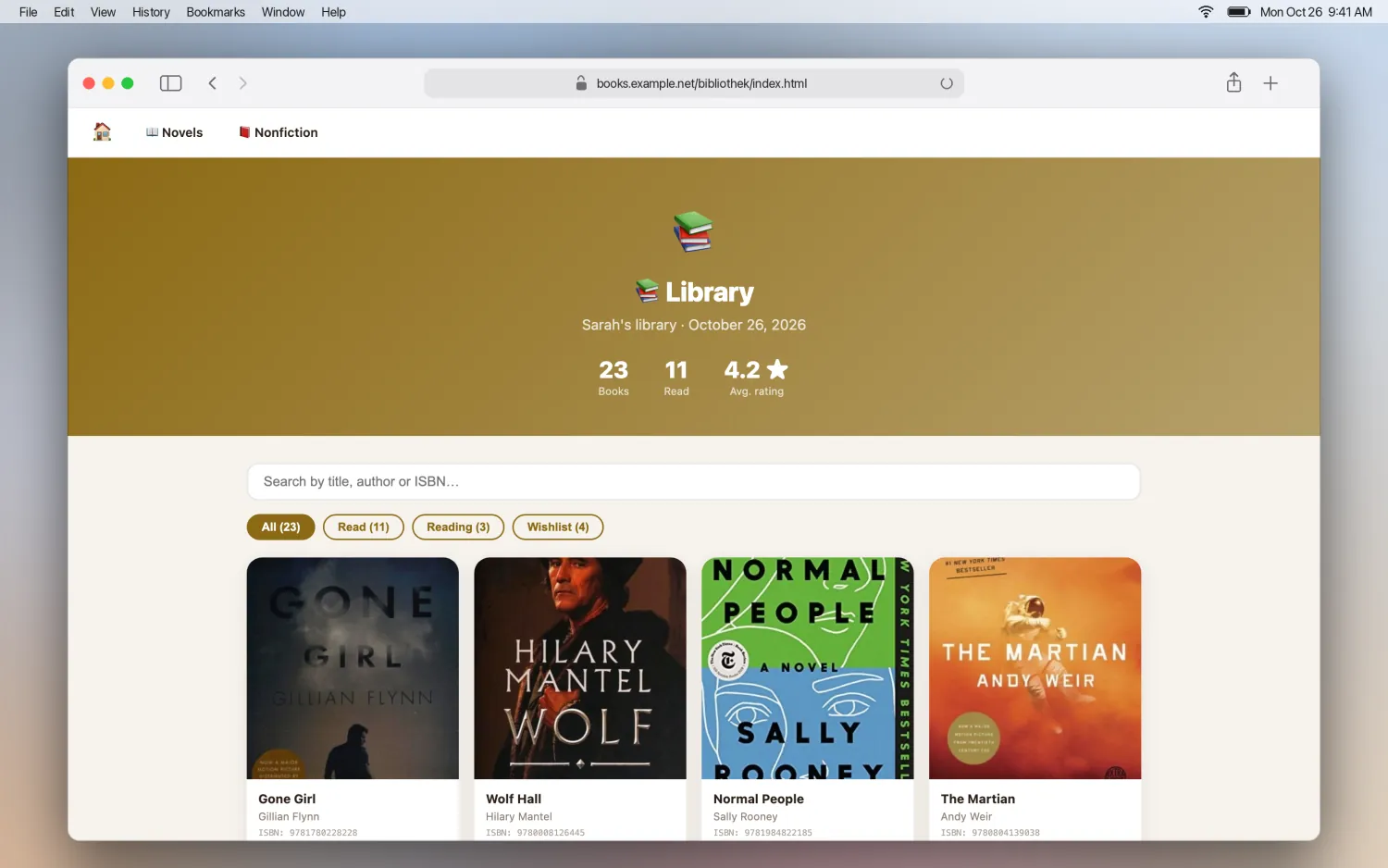
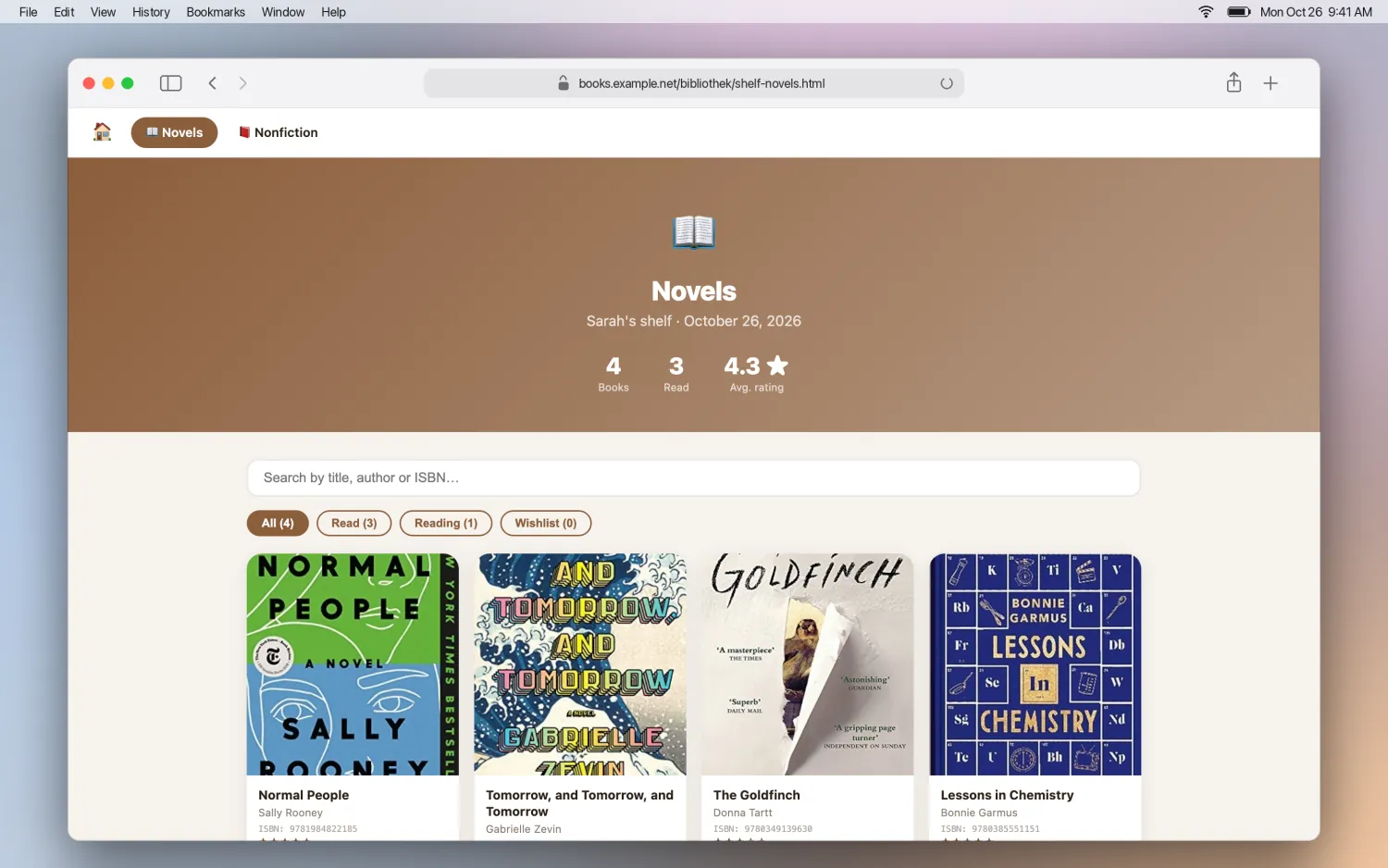
- An overview page “Library” (index.html) and one page per enabled shelf.
- A header with your name, the date and statistics: books, read, average rating.
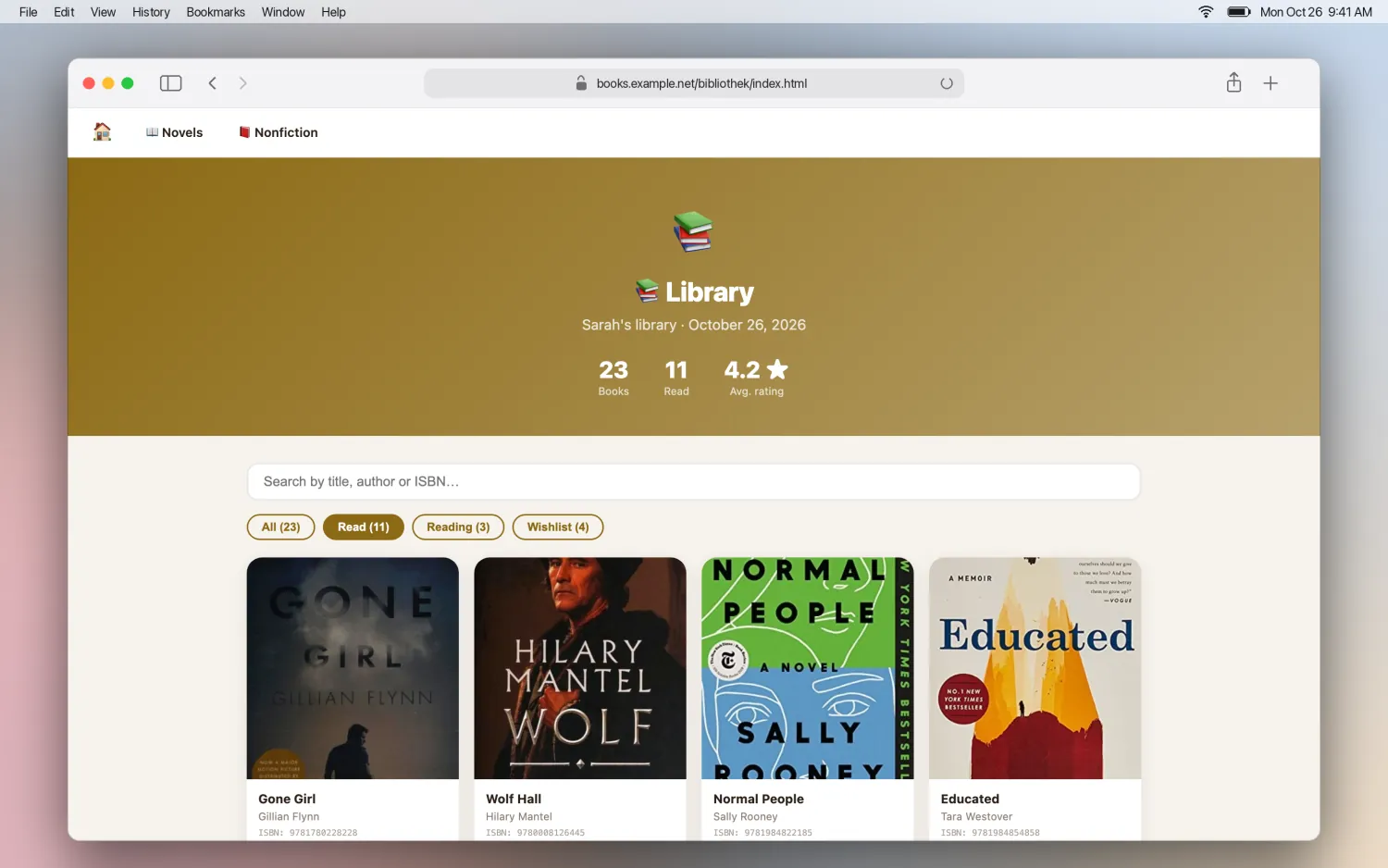
- Search by title, author and ISBN, and filters for “Read”, “Reading” and “Wishlist”.
- Book cards with cover, author, ISBN, stars, status and year; light or dark depending on the visitor’s device.
- The pages use the app language. The covers are included as images in the “covers” folder.
Tip Handy for gifts: send family and friends the link so they can see what you already have.