Getting started
Getting started
Paginor manages your private book collection: add books by barcode, organise them on shelves, share shelves with family and friends and publish selected shelves as a website.
Device
How Paginor is organised
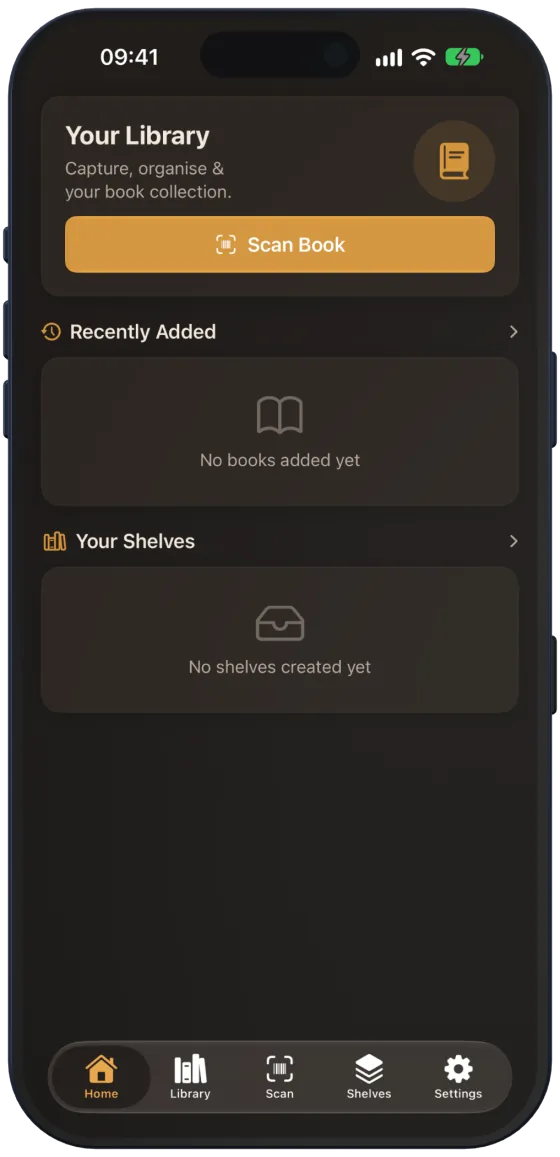
Paginor has five areas, which you switch between using the tab bar:
| Tab | What for |
|---|---|
| “Home” | overview with your most recently added books and your shelves |
| “Library” | all books with search, filters and two views |
| “Scan” | add books by camera or ISBN |
| “Shelves” | create, open and share shelves and use the Gift Check |
| “Settings” | appearance, language, web sharing, backup and Paginor Plus |
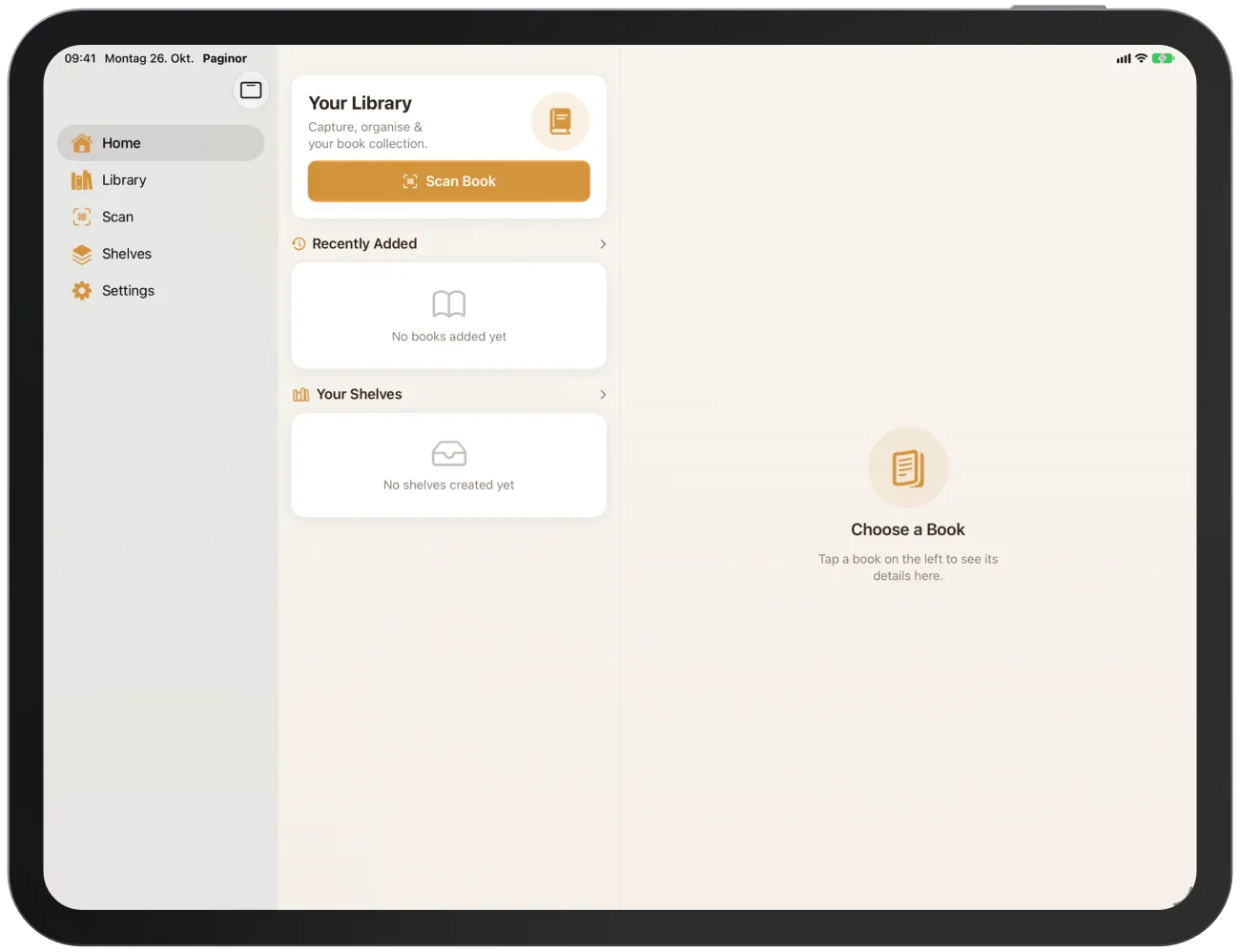
Note On iPad and the unfolded iPhone Duo, the tabs are at the top or on the side, and lists show the details right next to them. More under iPad and iPhone Duo.
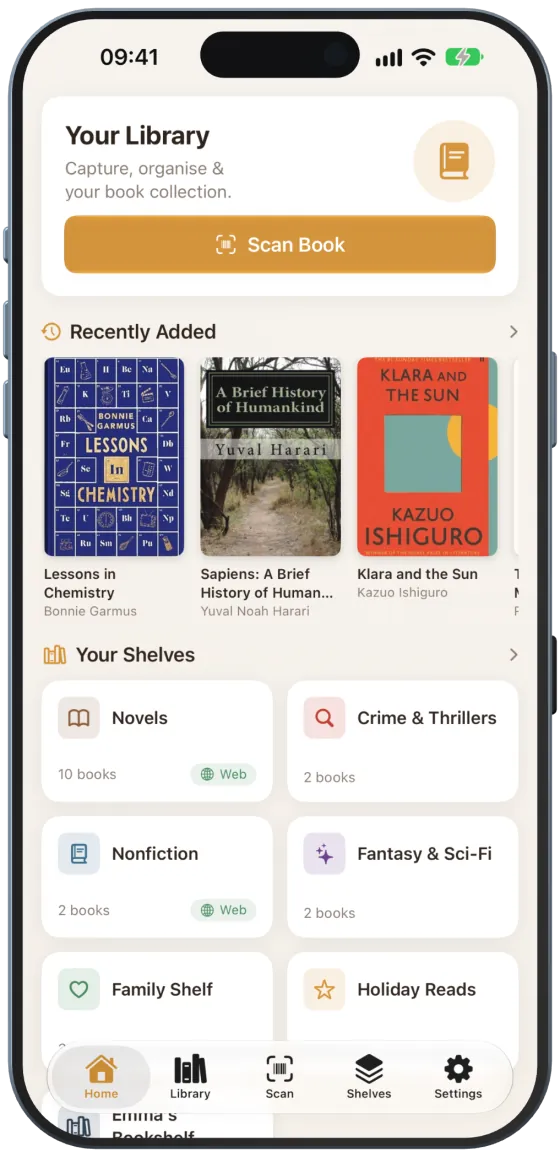
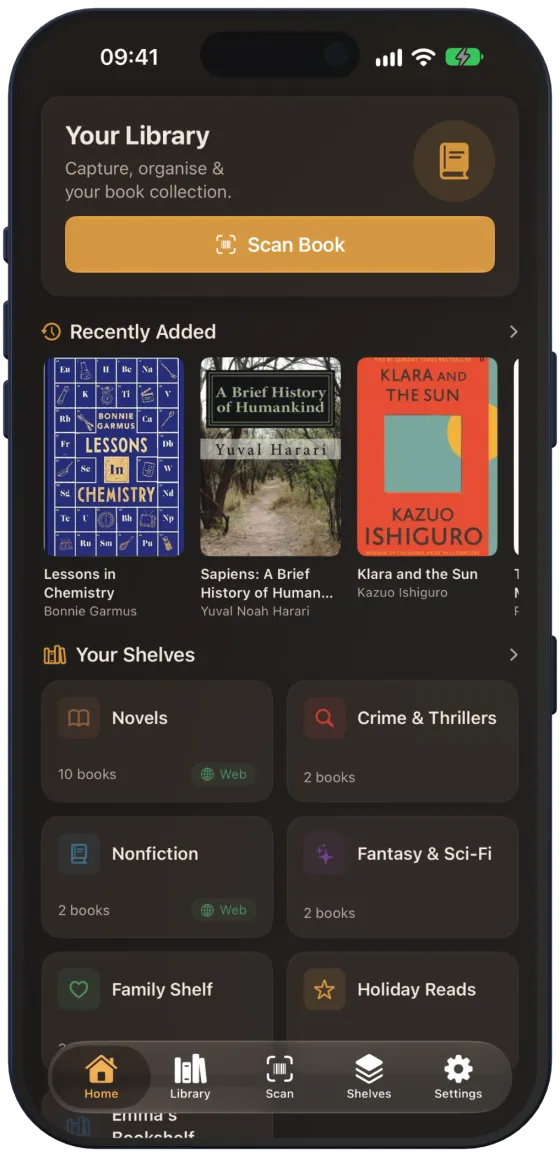
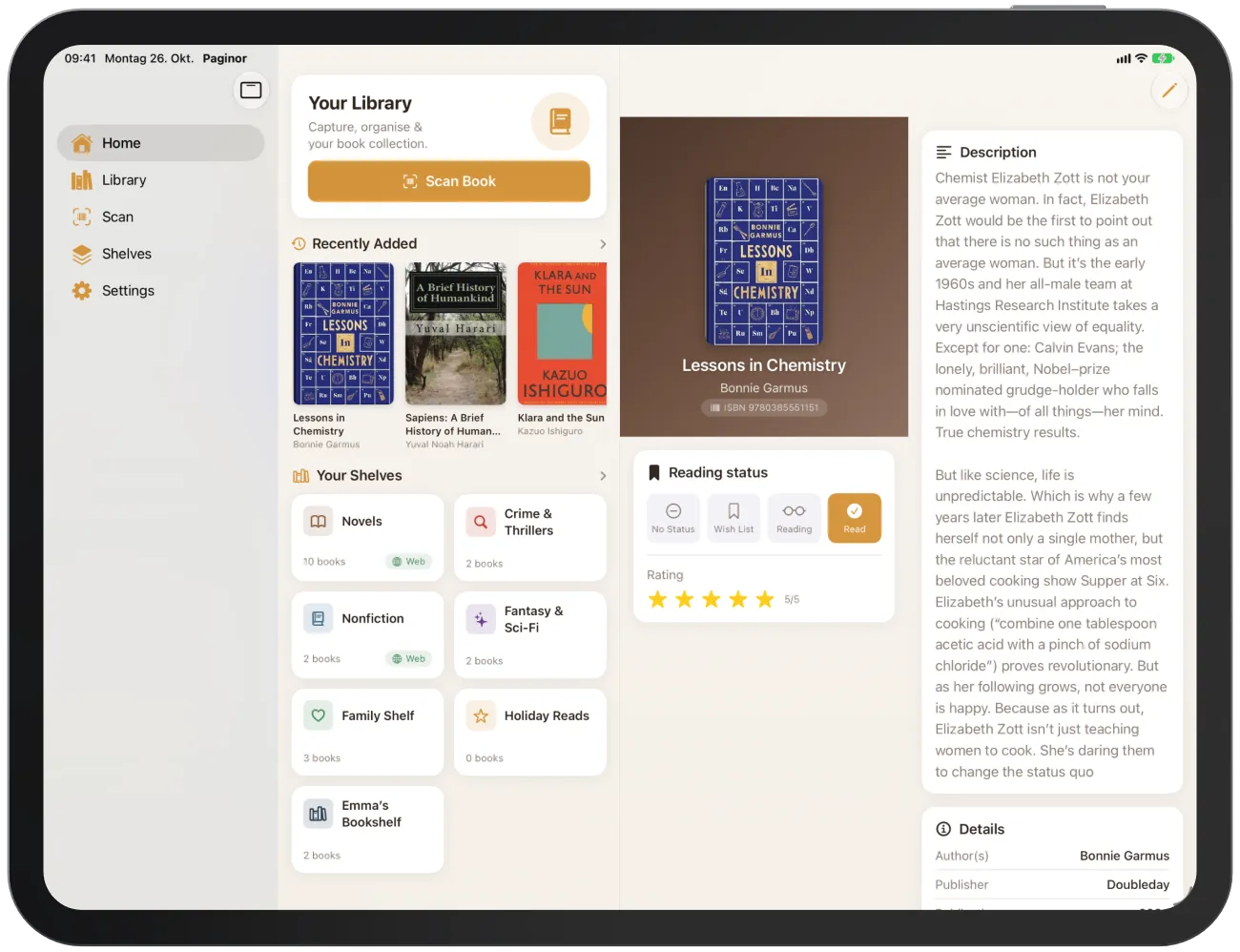
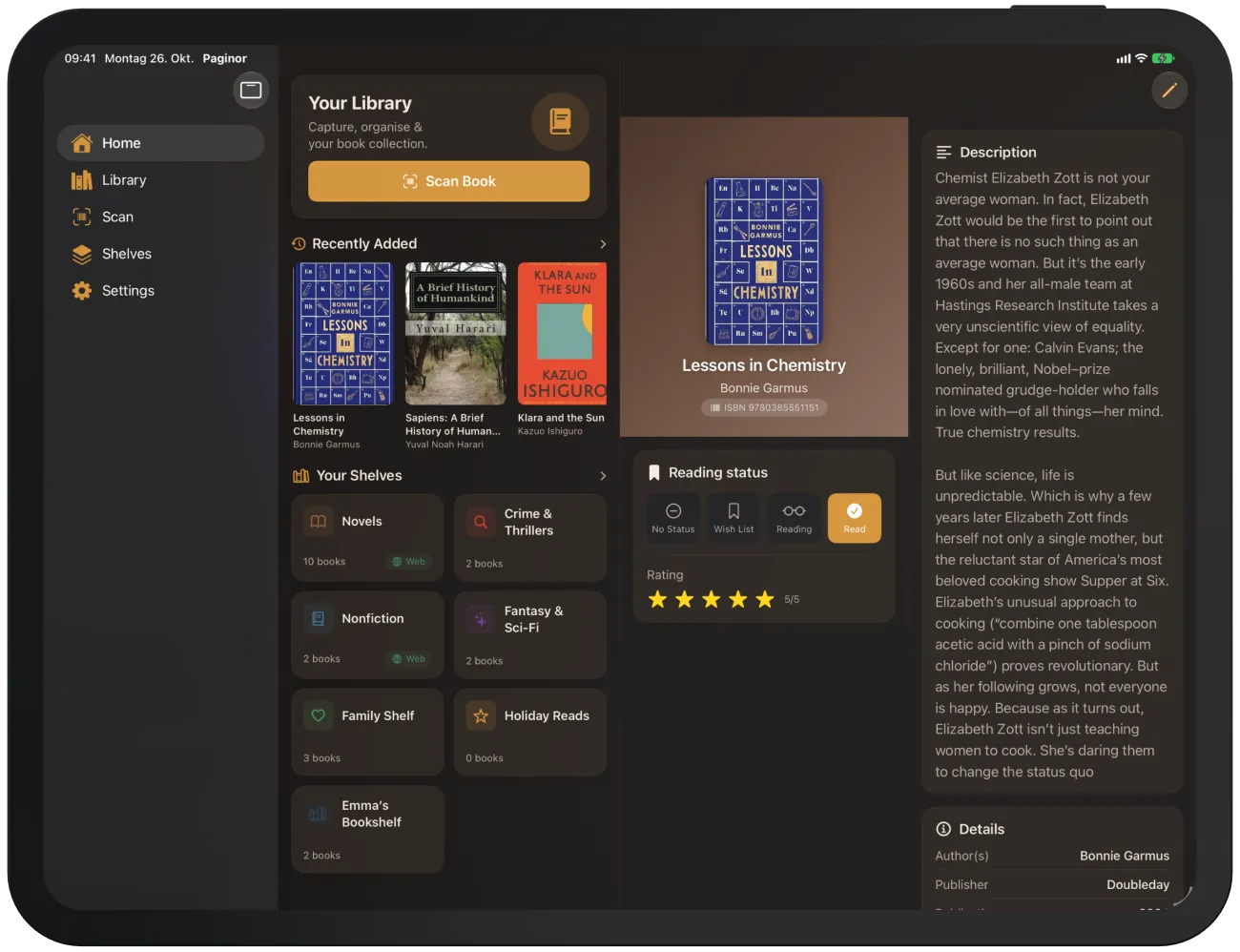
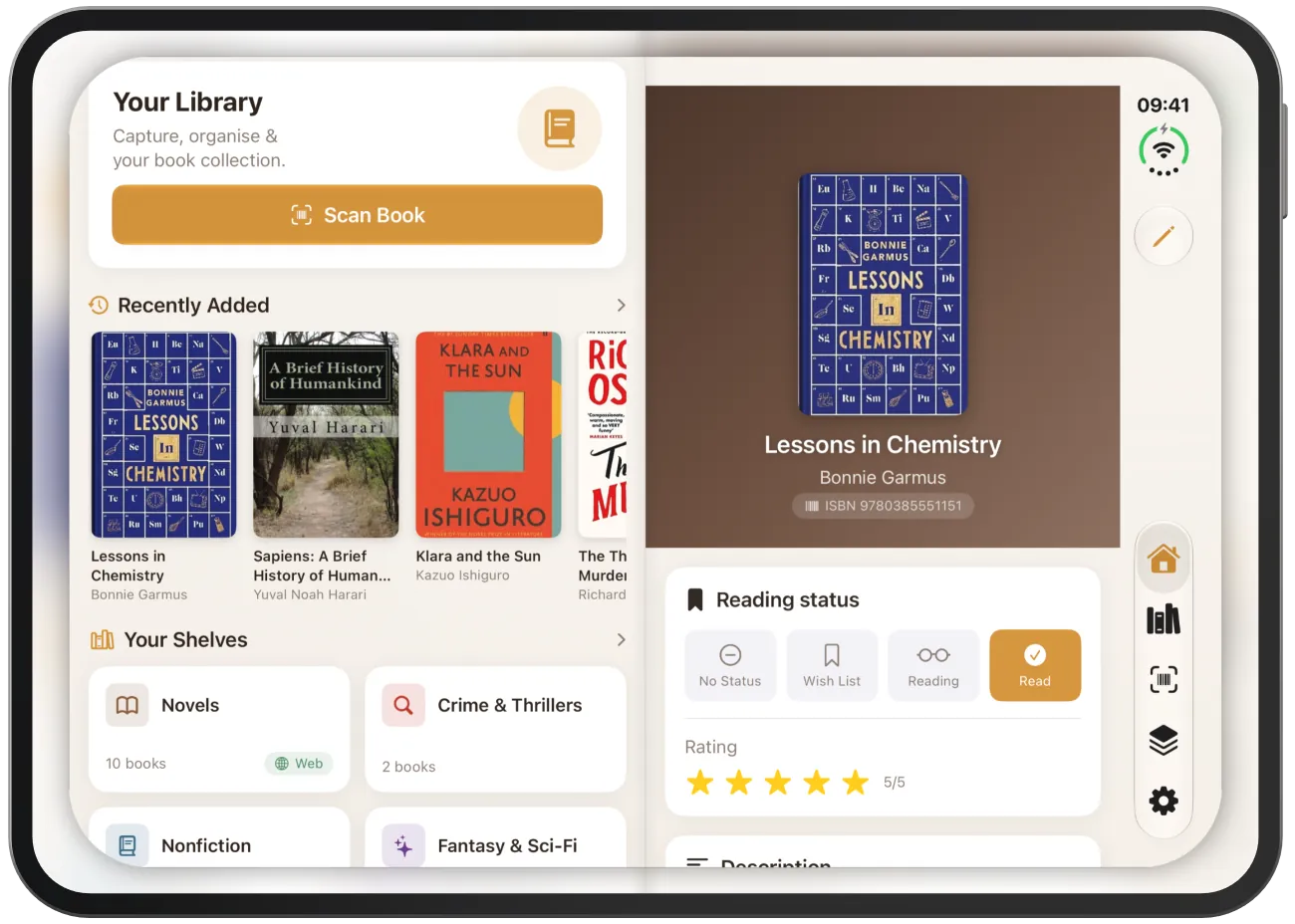
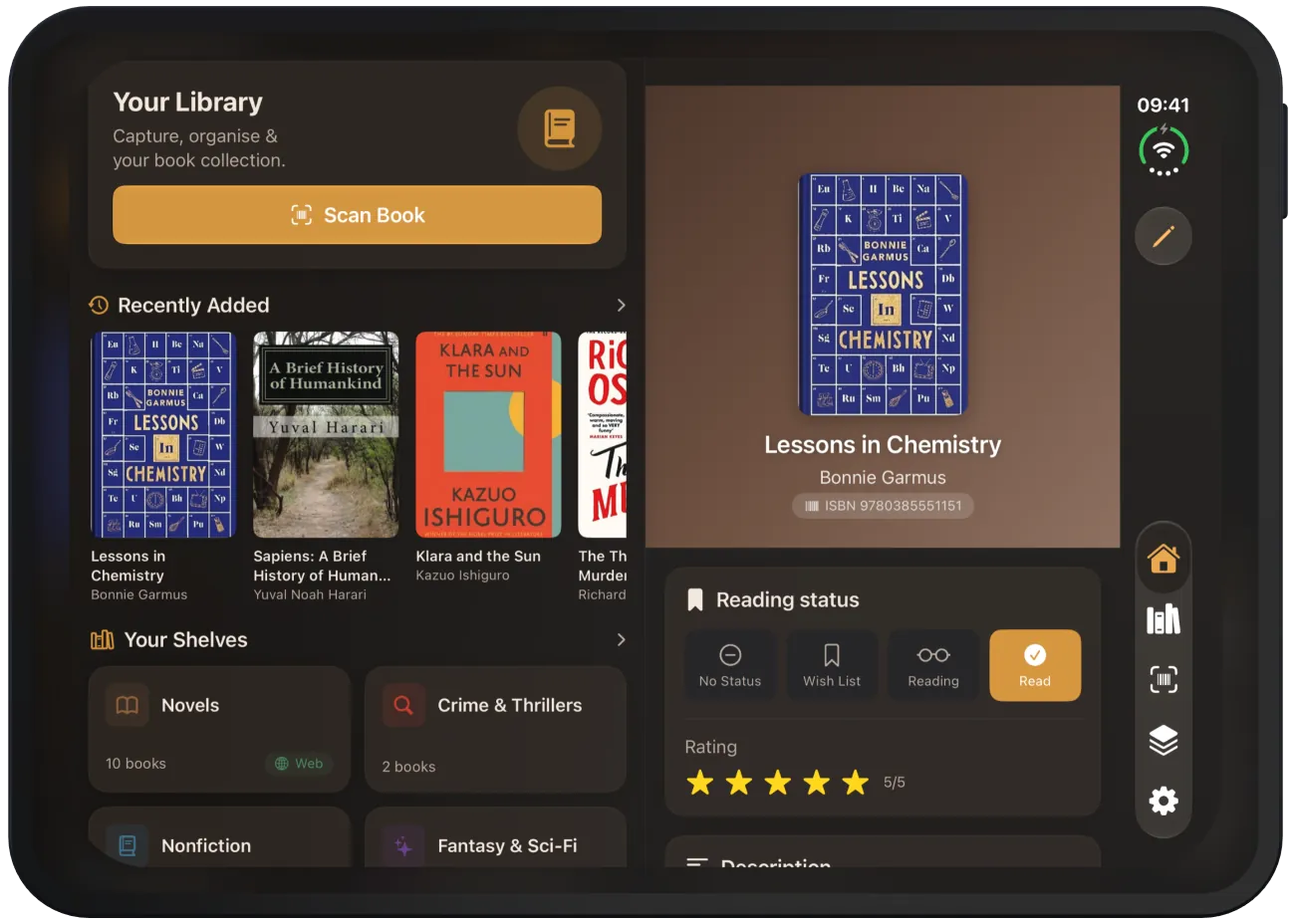
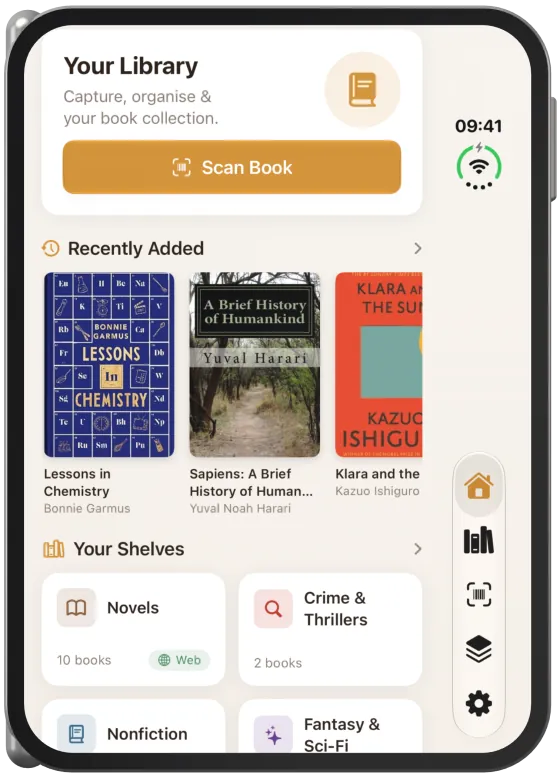
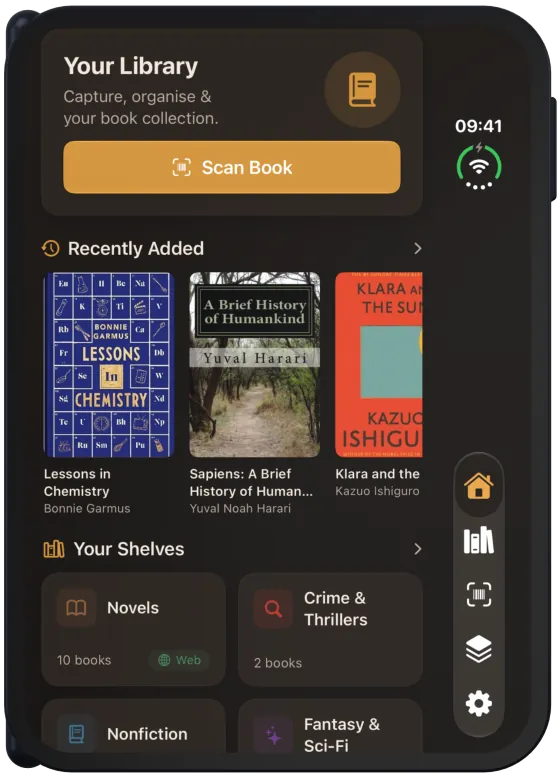
The Home screen
- “Scan Book” opens the “Scan” tab directly.
- “Recently Added” shows the six newest books. Tap a cover to open the book, or tap the heading to go to the library.
- “Your Shelves” shows all shelves with the number of books. The green “Web” label marks shelves that are shared on the website. Tap a shelf to open it; the heading takes you to the “Shelves” tab.
Empty library and sample books
Without books and shelves, the Home screen shows “No books added yet” and “No shelves created yet”.
If Paginor starts with an empty library, the app adds a few sample books and three shelves so that you can try out all the features. You can edit or delete them like your own books.
Note The sample books reappear every time the app starts with an empty library, even after “Reset All Data”. They are in German.
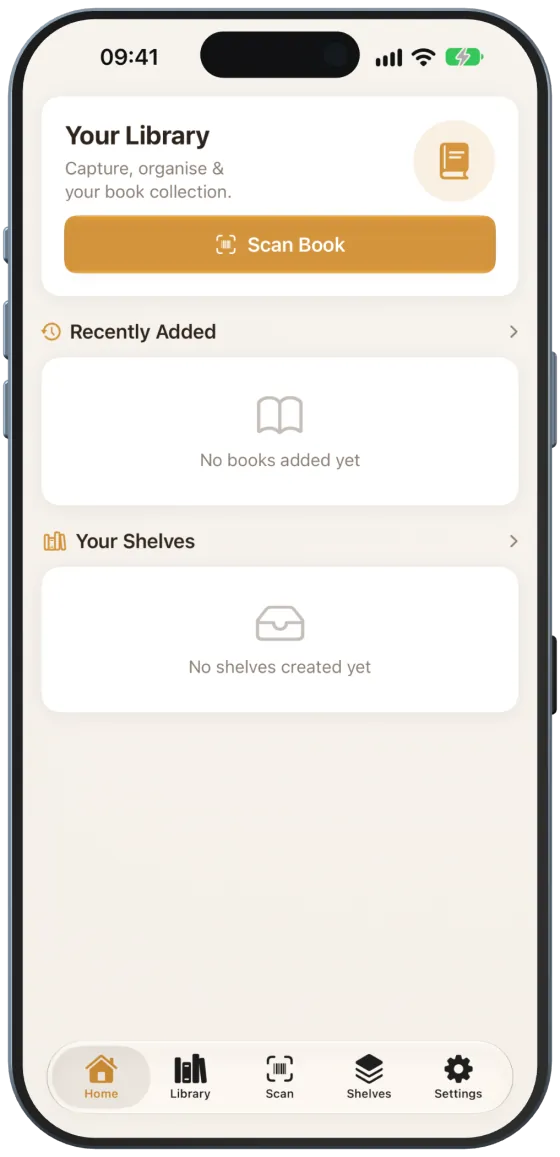
Your first book in three steps
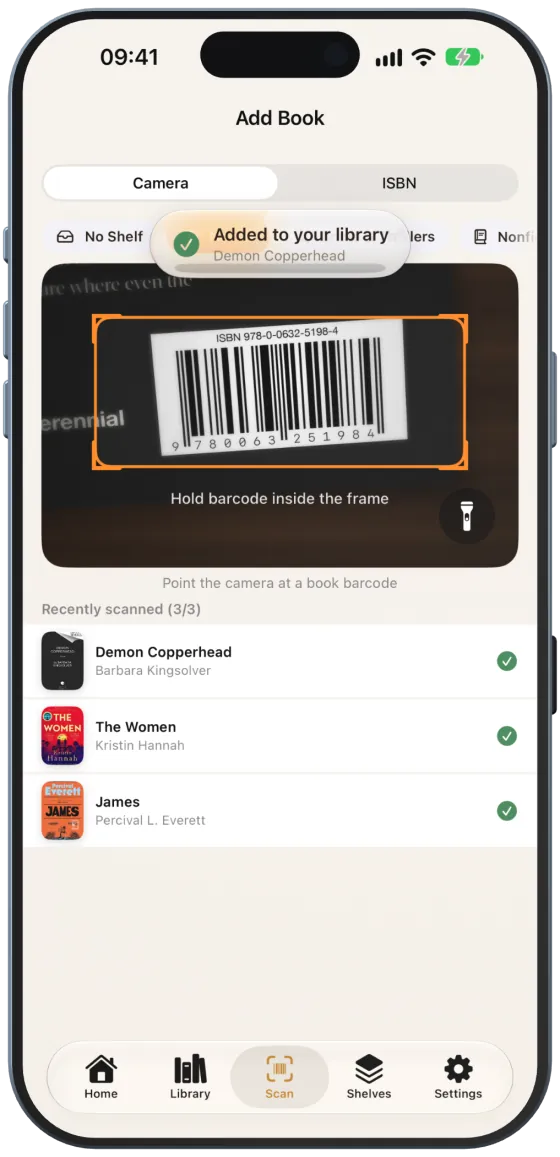
- On the Home screen, tap “Scan Book”.
- Point the camera at the barcode on the back of the book (the ISBN starts with 978 or 979).
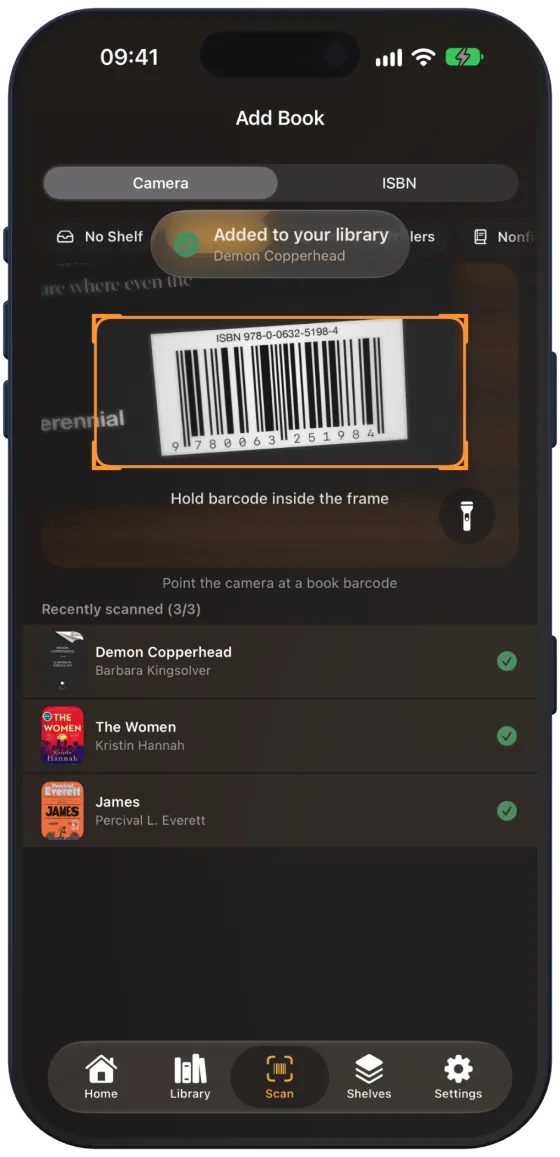
- Paginor confirms with “Added to your library” and loads the title, author, description and cover from the internet.
Tip Select a shelf at the top before scanning. All books from that round then go straight onto it.