Getting started
Paginor Plus
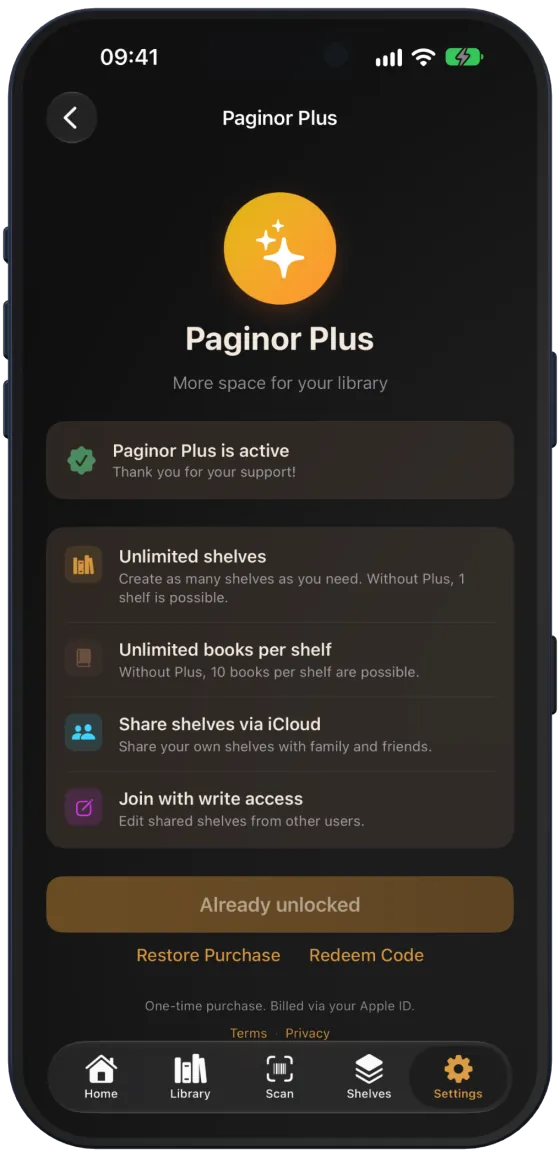
Paginor is free to use. Paginor Plus is a one-time purchase that removes the limits on shelves and books and unlocks sharing via iCloud.
Device
What is free, what is part of Plus?
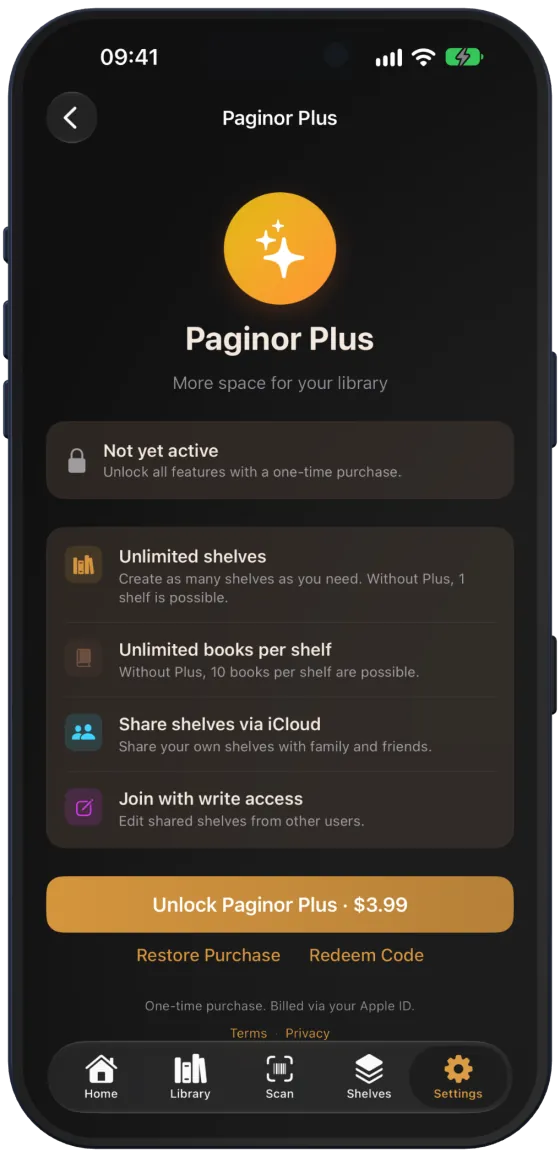
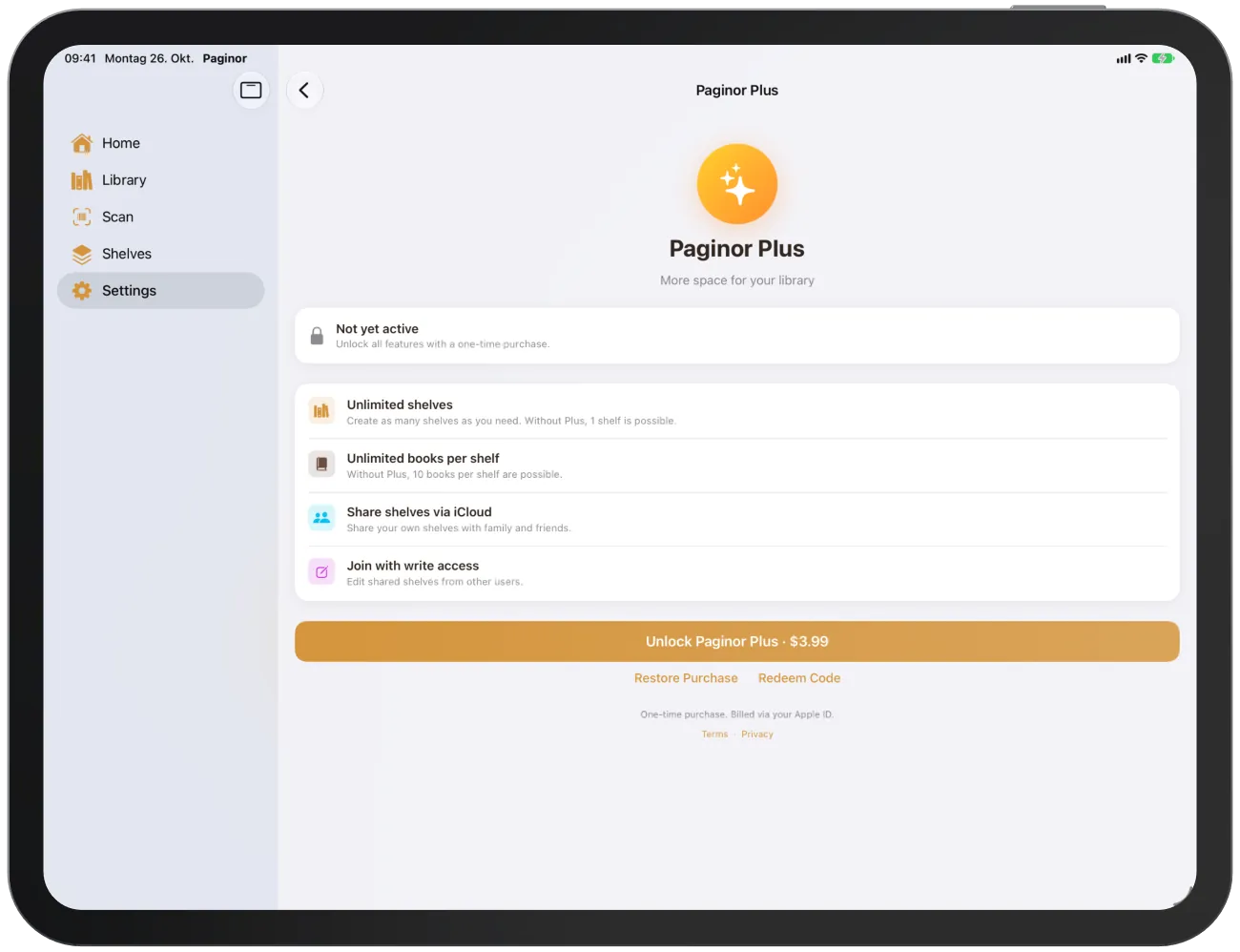
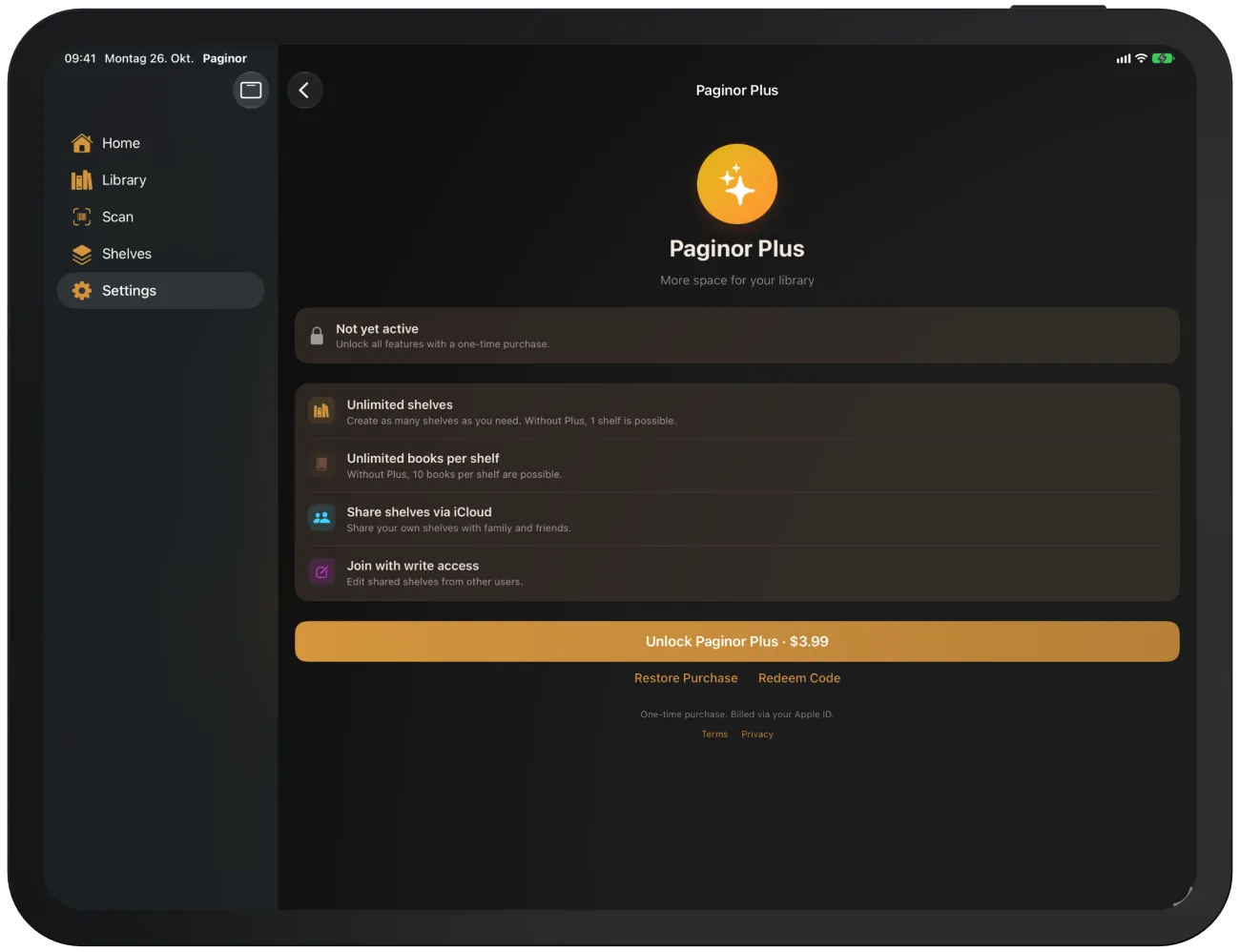
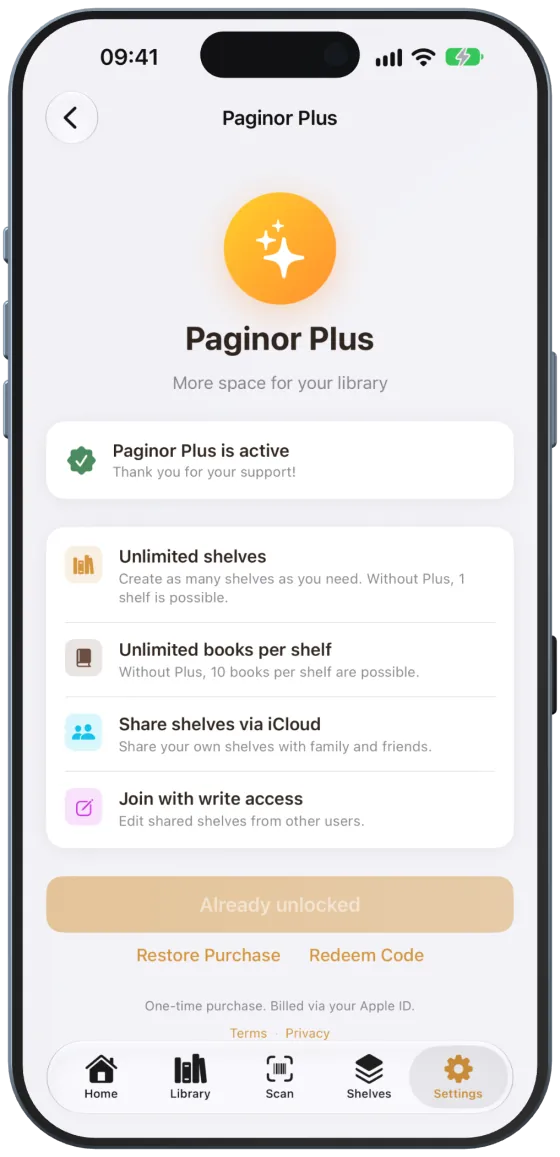
You can see your status under Settings › “Paginor Plus”: “Upgrade” means not purchased, “Active” means unlocked.
| Free | With Paginor Plus | |
|---|---|---|
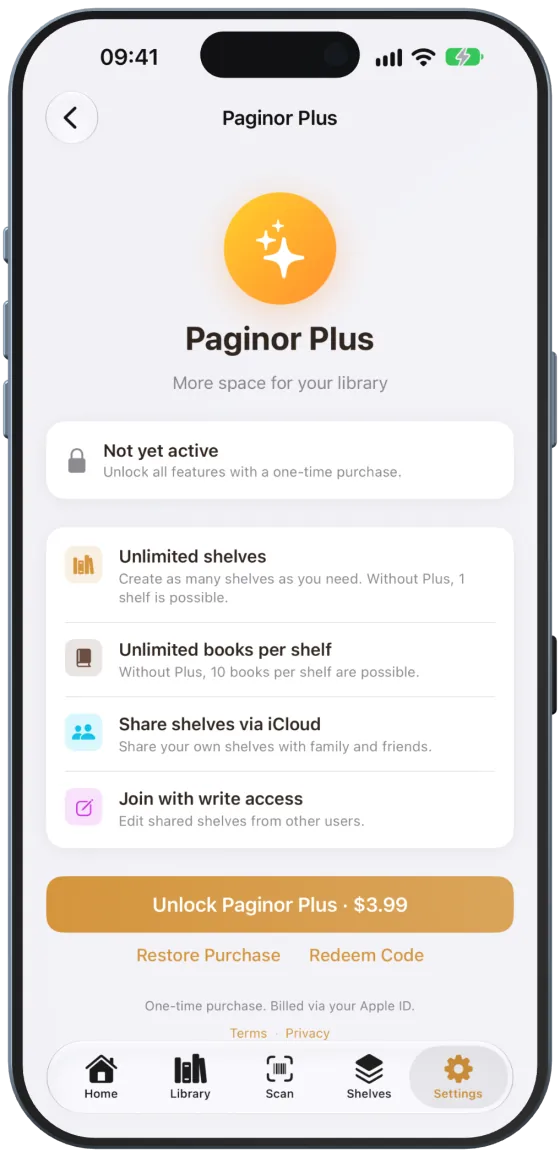
| Create shelves | 1 shelf | unlimited |
| Books per shelf | 10 books | unlimited |
| Share shelves via iCloud | – | ✓ |
| Scanning, library, web sharing, backup | ✓ | ✓ |
Note Books without a shelf don’t count towards the limit. Paginor checks the 10-book limit when you add a book via the “Add Book” form.
Buying Paginor Plus
- Open Settings › “Paginor Plus”, or tap “View Paginor Plus” in a notice.
- Tap “Unlock Paginor Plus”.
- Confirm the purchase in Apple’s dialog.
Plus is active immediately. The purchase is billed via your Apple ID and, thanks to Family Sharing, also applies to your family.
Restoring a purchase or redeeming a code
On a new device or after reinstalling, tap “Restore Purchase” under “Paginor Plus”. If Apple finds no purchase, Paginor reports “No previous purchase found.”
If you have a promo code, tap “Redeem Code”.
When you reach a limit
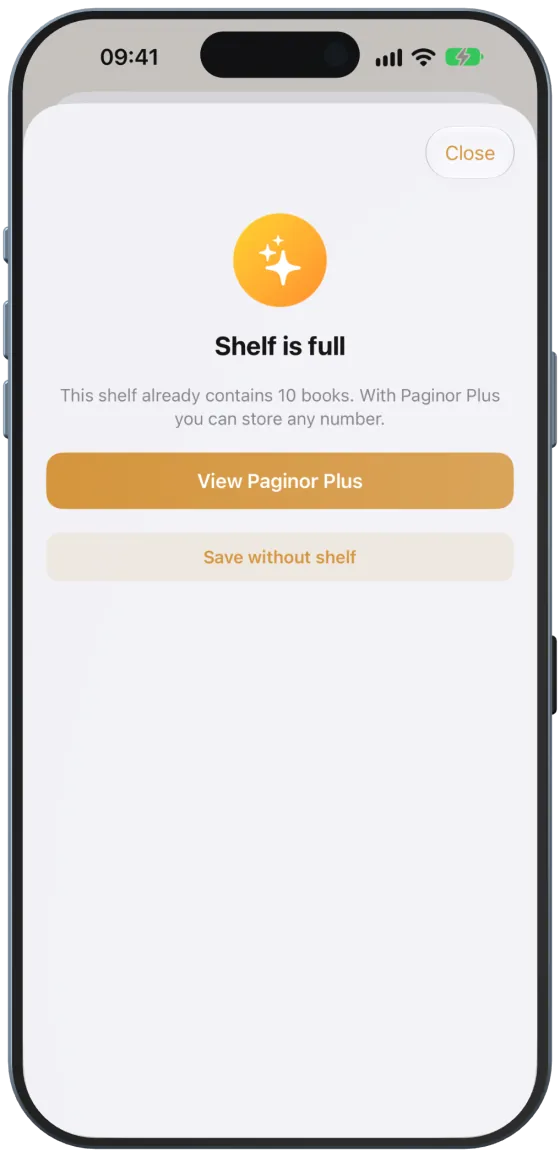
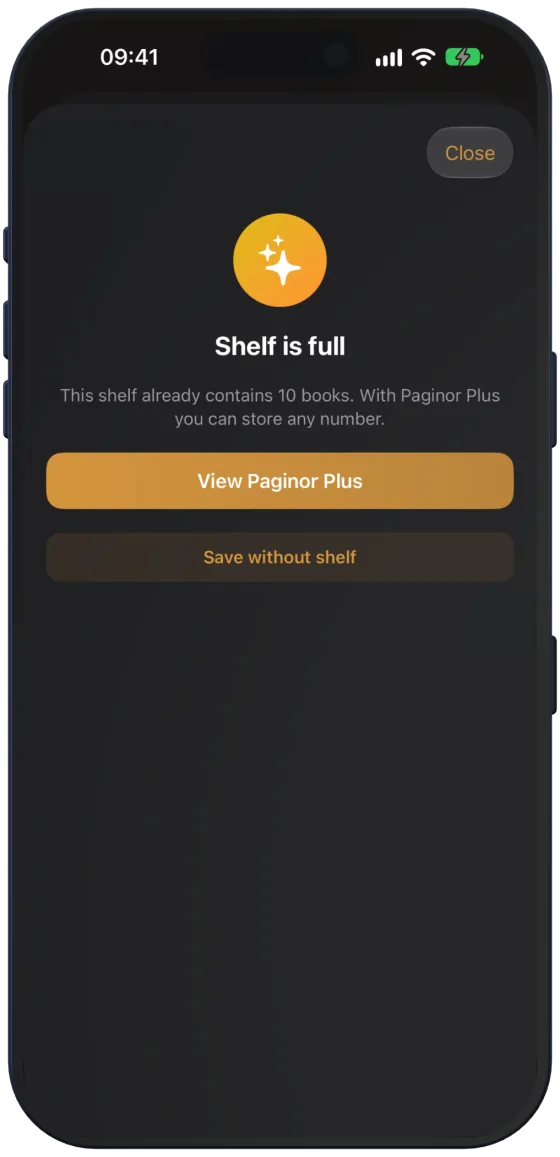
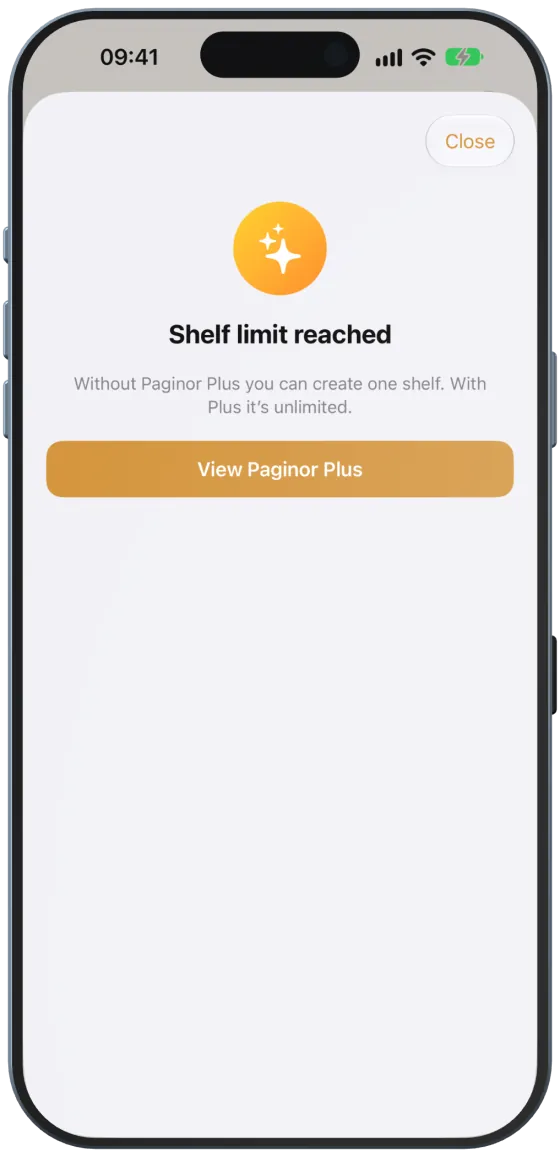
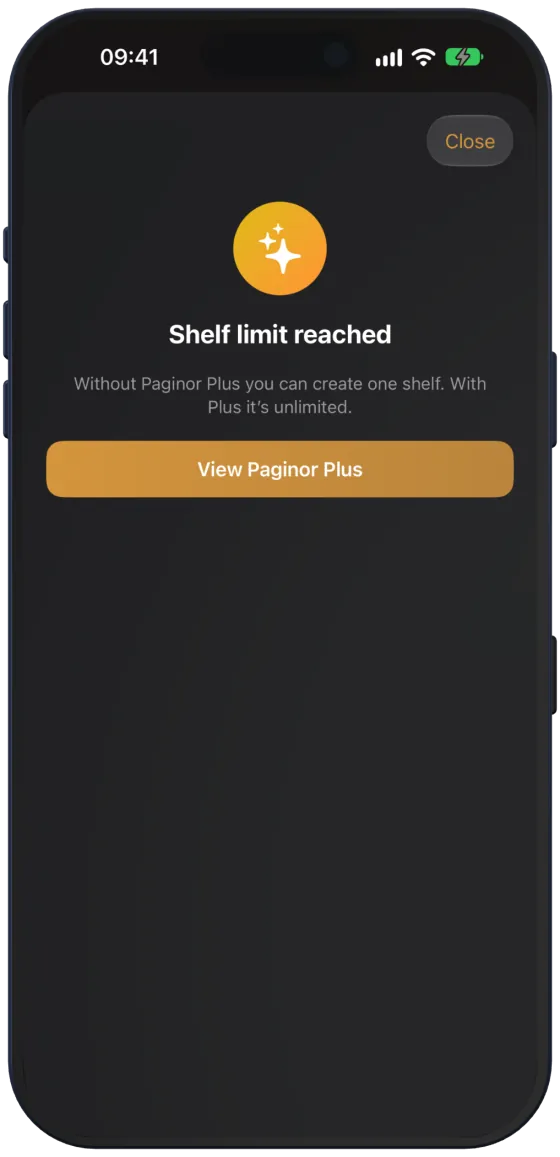
In each of these notices, “View Paginor Plus” takes you straight to the purchase.
- “Shelf is full” appears when you add a book to a shelf that already has 10 books. You can still keep the book with “Save without shelf”.
- “Shelf limit reached” appears when you tap “+” in the “Shelves” tab and a shelf already exists.
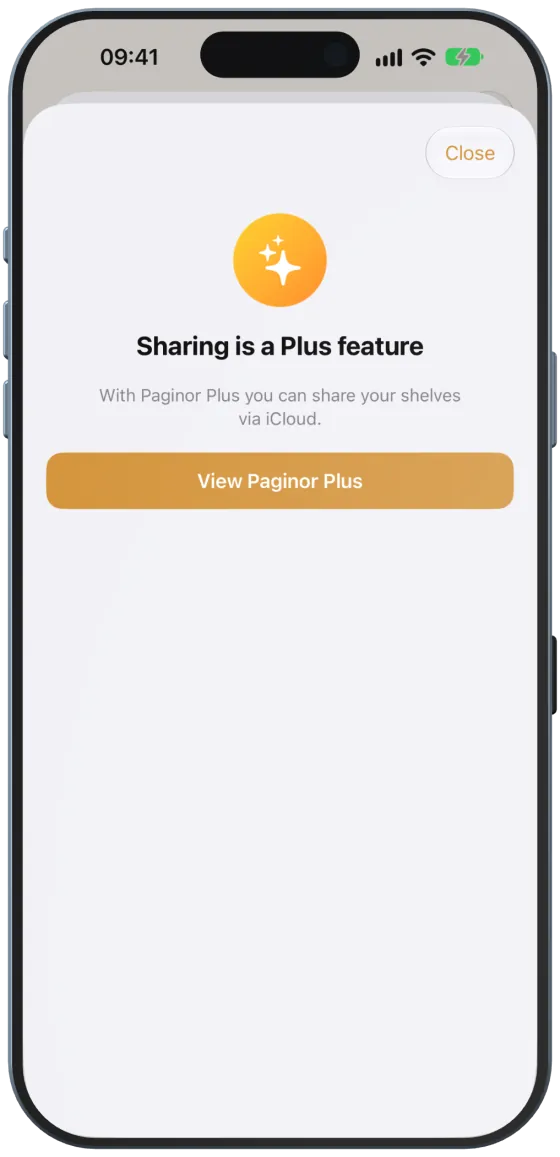
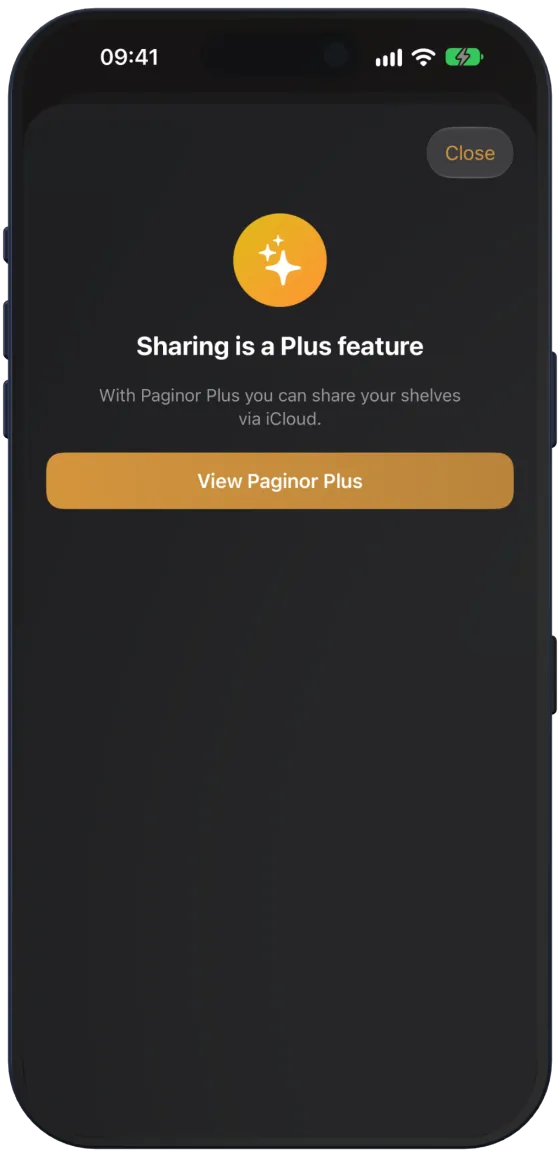
- “Sharing is a Plus feature” appears when you try to share a shelf without Plus.